Turn on suggestions
Auto-suggest helps you quickly narrow down your search results by suggesting possible matches as you type.
- Canon Community
- Discussions & Help
- Printer
- Scanners
- Re: Canoscan 9000F MKII Autoscan button not workin...
Options
- Subscribe to RSS Feed
- Mark Topic as New
- Mark Topic as Read
- Float this Topic for Current User
- Bookmark
- Subscribe
- Mute
- Printer Friendly Page

Options
- Mark as New
- Bookmark
- Subscribe
- Mute
- Subscribe to RSS Feed
- Permalink
- Report Inappropriate Content
05-24-2018 01:38 AM
Hi,
Couple of days ago I bought a new Canoscan 9000F MKII. My OS is Windows 10 Pro. After set up, I started scanning and the auto button scanned the photo, and thereafter the My Image Garden popped up. So far so good. But this morning the auto scan button just didn't do anything.
Why, and how to resolve the problem?
Thanks and regards,
Danker
Solved! Go to Solution.
1 ACCEPTED SOLUTION
Accepted Solutions
Options
- Mark as New
- Bookmark
- Subscribe
- Mute
- Subscribe to RSS Feed
- Permalink
- Report Inappropriate Content
01-22-2025 10:10 PM
MichaelW62 had the solution which worked for me, though I would phrase the directions differently.
- Go to "control panel", then "devices and printers"
- opposite-click on the scanner then select "SCAN PROPERTIES" from the drop-down menu ( vs. general "properties")
- click the "events" tab
- in the "actions" section, select "MP Navigator" from the list of program options
- repeat for each "event"
Cheers.
9 REPLIES 9

Options
- Mark as New
- Bookmark
- Subscribe
- Mute
- Subscribe to RSS Feed
- Permalink
- Report Inappropriate Content
05-25-2018 04:09 PM
Hi Danker,
Let's test the hardware by initiating a scan from the computer.
Press the Windows Search button in the lower left of your screen.
Type "IJ Scan Utility" in the search box.
Open IJ Scan Utility.
Place your original.
Press the "ScanGear" button.
Press "Preview."
If you are happy with the image, press "Scan" to complete the operation.
Are you able to acquire an image?
Options
- Mark as New
- Bookmark
- Subscribe
- Mute
- Subscribe to RSS Feed
- Permalink
- Report Inappropriate Content
05-26-2018 01:09 AM
Hello Bill,
All 7 steps done, and I was able to get an image. Isn't this what in fact thr autoscan button should do (but doesn't)?


Options
- Mark as New
- Bookmark
- Subscribe
- Mute
- Subscribe to RSS Feed
- Permalink
- Report Inappropriate Content
05-29-2018 10:18 AM
Hi Danker,
If you press one of the PDF buttons on your scanner, are you able to scan?
Options
- Mark as New
- Bookmark
- Subscribe
- Mute
- Subscribe to RSS Feed
- Permalink
- Report Inappropriate Content
05-30-2018 12:50 PM
Hi Patrick,
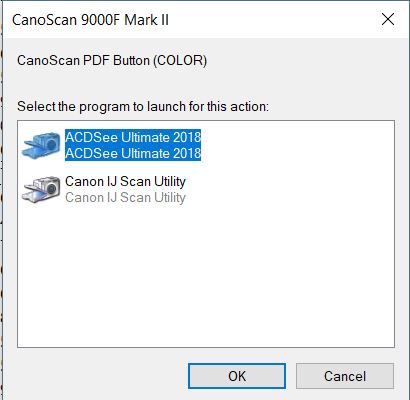
No, none of the buttons work, except that it triggers the foloowing as in screenshot. Pressing OK for any of the options doesn't do a thing
Options
- Mark as New
- Bookmark
- Subscribe
- Mute
- Subscribe to RSS Feed
- Permalink
- Report Inappropriate Content
05-30-2018 06:17 PM
Hi Danker,
From that screenshot, it looks like there are at least two imaging programs installed on the computer. When the Auto button on the scanner is pressed, the computer recognizes that a button has been pressed but needs further direction what to do with it. This doesn't happen when scanning from the computer, because the appropriate program is already open. Re-installing the drivers may associate the button-press with the correct program.
Click HERE.
Scroll down to "Optional Drivers."
Click “Select” next to "9000F Mark II Scanner Driver Ver. 1.01."
Press "Download."
Open and run the file.
Follow the onscreen instructions to complete the installation.
This didn't answer your question or issue? Please call or email us at one of the methods on the Contact Us page for further assistance.
Did this answer your question? Please click the Accept as Solution button so that others may find the answer as well.
Options
- Mark as New
- Bookmark
- Subscribe
- Mute
- Subscribe to RSS Feed
- Permalink
- Report Inappropriate Content
05-30-2018 09:56 PM - edited 05-30-2018 09:56 PM
Hi Bill,
OK. Did what you suggested. Driver installed. Didn't make a difference.
I then uninstalled the program, cleaned up the registry, rebooted and reinstalled it. Now the autobuttons work again, but for how long? After I first purcfhased the scanner and installed the program, the auto buttons worked, then at a sudden not anymore.
This time I didn't install the image garden (I have 2 other Canon printers, Canon MG 4200 as my main printer and Canon 3600 for office use - the MG 3600 also came with image garden, an utility I never use.
The other photo software I have is ACDSEE ultimate 2018 (you see that in the screenshot I attached).
For now, all is fine again. We'll have to see whether or not the autro buttons stop working at some timed in the future.
Best,
Danker

Options
- Mark as New
- Bookmark
- Subscribe
- Mute
- Subscribe to RSS Feed
- Permalink
- Report Inappropriate Content
05-31-2018 10:56 AM
Hello.
If you continue to have difficulties with the buttons, troubleshooting with our support group will be needed to narrow down the cause of your issue. Please contact our support group using the "Contact Us" link below for additional assistance.
This didn't answer your question or issue? Find more help at Contact Us.
Did this answer your question? Please click the Accept as Solution button so that others may find the answer as well.
Options
- Mark as New
- Bookmark
- Subscribe
- Mute
- Subscribe to RSS Feed
- Permalink
- Report Inappropriate Content
12-29-2019 12:58 PM
Hi,
I had the same problem when I had removed the USB cable and (probably) connected it again to a different USB outlet.
I solved the problem by going to the Device Manager (through settings in Win10) -> Properties and then there was a flap called "Events". There I had the option to specify what should happen when I press each button. The setting I had was "Prompt for which program to run" and I changed that to "Start this program:" followed by the scanner application ("MP Navigator" in my case). I had to repeat the process once for each button. After that it worked for me.
Hope that helps
Options
- Mark as New
- Bookmark
- Subscribe
- Mute
- Subscribe to RSS Feed
- Permalink
- Report Inappropriate Content
01-22-2025 10:10 PM
MichaelW62 had the solution which worked for me, though I would phrase the directions differently.
- Go to "control panel", then "devices and printers"
- opposite-click on the scanner then select "SCAN PROPERTIES" from the drop-down menu ( vs. general "properties")
- click the "events" tab
- in the "actions" section, select "MP Navigator" from the list of program options
- repeat for each "event"
Cheers.

Announcements
07/22/2026: New firmware updates are available.
EOS R6 Mark III - Version 1.1.0
05/13/2026: New firmware updates are available.
EOS R5 Mark II - Version 1.3.0
EOS R6 Mark II - Version 1.7.0
04/28/2026: Service Notice: Caution Concerning use of Lithium Batteries
03/17/2026: New firmware updates are available.
SELPHY CP1500 - Version 1.0.7.0
02/23/2026: New firmware update is available for EOS C50- Version 1.0.3.1
01/23/2026: New firmware update is available for RF 24-105mm F4 IS USM- Version 2.0.7
01/20/2026: New firmware updates are available.
10/21/2025: Service Notice: To Users of the Compact Digital Camera PowerShot V1
10/15/2025: New firmware updates are available.
Speedlite EL-5 - Version 1.2.0
Speedlite EL-1 - Version 1.1.0
Speedlite Transmitter ST-E10 - Version 1.2.0
07/28/2025: Notice of Free Repair Service for the Mirrorless Camera EOS R50 (Black)
05/21/2025: New firmware update available for EOS C500 Mark II - Version 1.1.5.1
Related Content
- CanoScan LiDE 400 stuck on "Scanning" (VueScan says Transport Lock is on, but it's not) in Scanners
- CanoScan Lide400 not working with my MacOs Tahoe 26.4 in Scanners
- Canoscan LiDE 400 can't connect to Mac OS 26.2 in Scanners
- How To Install Canon CanoScan 500F on windows 10 and 11. I installed on Windows 11 Here is how in Scanners
- CanoScan LiDE 400 not working, program is not supported by the computer error in Scanners

Ⓒ 2026
Canon U.S.A Inc. All Rights Reserved. Reproduction in whole or part without permission is prohibited.
