Turn on suggestions
Auto-suggest helps you quickly narrow down your search results by suggesting possible matches as you type.
- Canon Community
- Discussions & Help
- Camera
- EOS DSLR & Mirrorless Cameras
- Re: R5 feature request option to disable touch aut...
Options
- Subscribe to RSS Feed
- Mark Topic as New
- Mark Topic as Read
- Float this Topic for Current User
- Bookmark
- Subscribe
- Mute
- Printer Friendly Page
R5 feature request option to disable touch autofocus

Options
- Mark as New
- Bookmark
- Subscribe
- Mute
- Subscribe to RSS Feed
- Permalink
- Report Inappropriate Content
05-04-2022 09:27 AM - edited 05-04-2022 09:28 AM
I understand some people want to have touch autofocus on the LCD screen. However, I am constantly ruining pictures by inadvertently touching the screen before taking a picture and moving the focus location. I would like to see an option to turn this off so the focus location always stays in the center of the screen. If you want to move the focus point there are several ways before taking the shot. Again it would be a setting option so those that want it could keep it.
19 REPLIES 19


Options
- Mark as New
- Bookmark
- Subscribe
- Mute
- Subscribe to RSS Feed
- Permalink
- Report Inappropriate Content
10-26-2022 03:33 PM - edited 10-26-2022 03:34 PM
I posted about this previously. I personally don't use my camera with the LCD exposed (folded in) on the back of the camera, and only ever use it open, so I have never had a problem hitting the screen with a finger, my nose or face, etc. Its always intentional, but I understand why someone would want to see while shooting LCD "tucked in".
~Rick
Bay Area - CA
~R5 C (1.1.3.1), ~RF Trinity, ~RF 100 Macro, ~RF 100~400, ~RF 100~500, ~RF 200-800, ~RF 1.4x TC, BG-R10, 430EX III-RT ~DxO PhotoLab Elite ~DaVinci Resolve Studio ~ImageClass MF644Cdw MF656Cdw ~Pixel 10 ~CarePaks Are Worth It
Options
- Mark as New
- Bookmark
- Subscribe
- Mute
- Subscribe to RSS Feed
- Permalink
- Report Inappropriate Content
10-26-2022 04:28 PM
That is exactly what I do with my flip screen camera bodies, close it up when not in use. It helps to keep the screen clean from face and nose rubs. I also have the [LOCK] option set to disable touch control. Touch control just means more smudges.
BTW, isn’t the rear screen supposed to blank itself when you bring the OVF up to your face?
--------------------------------------------------------
"Enjoying photography since 1972."
"Enjoying photography since 1972."
Options
- Mark as New
- Bookmark
- Subscribe
- Mute
- Subscribe to RSS Feed
- Permalink
- Report Inappropriate Content
10-26-2022 05:06 PM
Waddizzle,
It does, quite accurately I'd add. There is a rather large sensor right below the EVF. Once it senses proximity the LCD gets disabled. For whatever reason I don't have the issue and like you, keep my LCD closed 95% of the time.
~Rick
Bay Area - CA
~R5 C (1.1.3.1), ~RF Trinity, ~RF 100 Macro, ~RF 100~400, ~RF 100~500, ~RF 200-800, ~RF 1.4x TC, BG-R10, 430EX III-RT ~DxO PhotoLab Elite ~DaVinci Resolve Studio ~ImageClass MF644Cdw MF656Cdw ~Pixel 10 ~CarePaks Are Worth It

Options
- Mark as New
- Bookmark
- Subscribe
- Mute
- Subscribe to RSS Feed
- Permalink
- Report Inappropriate Content
10-26-2022 08:15 PM
@Waddizzle wrote:*SNIP*
"BTW, isn’t the rear screen supposed to blank itself when you bring the OVF up to your face?"
As Rick said, it does it quickly and, for me, isn't distracting. But it depends on how you have "Screen/viewfinder display" set up in the wrench 3 menu and where you have the rear LCD view set while toggling the Info button.
I like the rear LCD set to Info, so I toggle to that. My wife, on the other hand, likes it blank and that is where she keeps hers. I keep the panel exposed so I can get a quick glance at what I have set, especially at night since the top LCD needs to have its light turned on and I end up fumbling around in the dark trying to find the light button. I have "Screen/viewfinder display" set to "Auto 2 (auto switching)" and it seems to work well for me, but you can set that up to your liking. I'm pretty confident in my settings, so I rarely use the rear LCD for previews, but I do from time to time have to "Chimp", LOL!
Newton
Options
- Mark as New
- Bookmark
- Subscribe
- Mute
- Subscribe to RSS Feed
- Permalink
- Report Inappropriate Content
10-27-2022 09:53 AM
If you have it set to display the [INFO] screen of your choosing, then folding it closed will turn it off. But, opening it back up will display your [INFO] screen.
--------------------------------------------------------
"Enjoying photography since 1972."
"Enjoying photography since 1972."

Options
- Mark as New
- Bookmark
- Subscribe
- Mute
- Subscribe to RSS Feed
- Permalink
- Report Inappropriate Content
05-16-2024 10:31 AM
I 100% agree. I find that if my eye is not completely aganst the eyepiece, like if I have glasses or shift my body slightly, the LCD turns on and my noc moves the focus point to the corner. If I don't notice right away, I'll blow through pictures of of focus.
I understand there are "Workarounds", each with it's own side effects, but it seems a simple firmware update to disable only moving the focus point with the screen would be a perfect, simple fix.
I'd also like to adjust the sensitivity for the EVF/LCD flip point. Just cause I lean forward doesn't mean I want the LCD activated.
My 2 cents

Options
- Mark as New
- Bookmark
- Subscribe
- Mute
- Subscribe to RSS Feed
- Permalink
- Report Inappropriate Content
05-16-2024 01:13 PM - edited 05-16-2024 01:15 PM
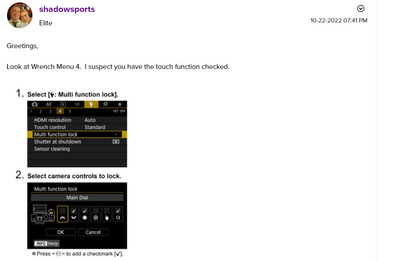
One option is to use the multi-function lock, this can lock the touchscreen - effectively disabling it - but you can reactivate it by releasing the lock.
Navigate to the Multi function lock setting in the SET UP menus. Each control that has a check mark next to it will be locked when the lock is active. If there is a check mark for the touch control it will be locked. The LOCK button is on the top of the camera next to the top LCD panel.
Even if you have the lock enabled, pressing the menu button is enough to tell the camera you want to use the menus and the lock will be disabled so you can navigate the menus using touch.
Brian
EOS specialist trainer, photographer and author
-- Note: my spell checker is set for EN-GB, not EN-US --
Options
- Mark as New
- Bookmark
- Subscribe
- Mute
- Subscribe to RSS Feed
- Permalink
- Report Inappropriate Content
01-08-2026 08:52 AM
Thanks! This is very usable work-around. A dedicated setting would still be best, but this solves the immediate problem, and is easy to turn on and off.

Options
- Mark as New
- Bookmark
- Subscribe
- Mute
- Subscribe to RSS Feed
- Permalink
- Report Inappropriate Content
01-08-2026 10:51 AM
“ I understand there are "Workarounds", each with it's own side effects, but it seems a simple firmware update to disable only moving the focus point with the screen would be a perfect, simple fix. “
This post is few years old. There a handful of settings that disable screen in certain operating modes, including autofocus. But it seems to differentiate between shooting with the EVF and LCD.
There.is a “global” setting that disables the touch behavior completely. It’s in the Orange menus. Screen 3?
--------------------------------------------------------
"Enjoying photography since 1972."
"Enjoying photography since 1972."
Options
- Mark as New
- Bookmark
- Subscribe
- Mute
- Subscribe to RSS Feed
- Permalink
- Report Inappropriate Content
01-08-2026 06:02 PM
Screen 4

--------------------------------------------------------
"Enjoying photography since 1972."
"Enjoying photography since 1972."

- « Previous
-
- 1
- 2
- Next »
- « Previous
-
- 1
- 2
- Next »
Announcements
07/22/2026: New firmware updates are available.
EOS R6 Mark III - Version 1.1.0
05/13/2026: New firmware updates are available.
EOS R5 Mark II - Version 1.3.0
EOS R6 Mark II - Version 1.7.0
04/28/2026: Service Notice: Caution Concerning use of Lithium Batteries
03/17/2026: New firmware updates are available.
SELPHY CP1500 - Version 1.0.7.0
02/23/2026: New firmware update is available for EOS C50- Version 1.0.3.1
01/23/2026: New firmware update is available for RF 24-105mm F4 IS USM- Version 2.0.7
01/20/2026: New firmware updates are available.
10/21/2025: Service Notice: To Users of the Compact Digital Camera PowerShot V1
10/15/2025: New firmware updates are available.
Speedlite EL-5 - Version 1.2.0
Speedlite EL-1 - Version 1.1.0
Speedlite Transmitter ST-E10 - Version 1.2.0
07/28/2025: Notice of Free Repair Service for the Mirrorless Camera EOS R50 (Black)
05/21/2025: New firmware update available for EOS C500 Mark II - Version 1.1.5.1
Related Content
- EOS R5 Mark II firmware 1.30 notes in Camera Software
- New RF70-200 2.8 Making Continuous “Water Running” Noise When Camera Is On in EF & RF Lenses
- Just uploaded the new eosr-62v1.6.0 firmware on my R6 MRK II.. in EOS DSLR & Mirrorless Cameras
- Infrared light leak via internal LED with RF lenses in EF & RF Lenses
- Am I looking for the impossible Canon EF lens? in EF & RF Lenses

Ⓒ 2026
Canon U.S.A Inc. All Rights Reserved. Reproduction in whole or part without permission is prohibited.
