Turn on suggestions
Auto-suggest helps you quickly narrow down your search results by suggesting possible matches as you type.
- Canon Community
- Discussions & Help
- Printer
- Desktop Inkjet Printers
- How to set scan output on G7020?
Options
- Subscribe to RSS Feed
- Mark Topic as New
- Mark Topic as Read
- Float this Topic for Current User
- Bookmark
- Subscribe
- Mute
- Printer Friendly Page

Options
- Mark as New
- Bookmark
- Subscribe
- Mute
- Subscribe to RSS Feed
- Permalink
- Report Inappropriate Content
04-19-2022 02:32 PM
I have a new G7020. Scan output defaults to ../Documents folder (Windows 10) but I'd like it to go elsewhere. I cannot figure out if the output location can be changed. I've checked the manual but maybe I missed it. Does anyone know?
Solved! Go to Solution.
1 ACCEPTED SOLUTION
Accepted Solutions


Options
- Mark as New
- Bookmark
- Subscribe
- Mute
- Subscribe to RSS Feed
- Permalink
- Report Inappropriate Content
04-19-2022 04:22 PM
Hi david07666,
When scanning with the IJ Scan Utility, you are correct, the default folder is Documents.
Please open the IJ Scan Utility. Once open, click the Settings button in the lower right corner.
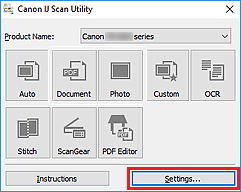
Click on the item on the left side that you wish to change. For example, if you have been using the "Document" button on the IJ Scan Utility, click Document Scan on the left side. If you have been choosing "Auto", click on Auto Scan.
On the right side, you will see "Save In". Click the drop down box and select the folder that you wish have you scans saved in and then click OK.
https://ij.manual.canon/ij/webmanual/ScanUtility/W/G7000%20series/1.1/EN/SU/Su-PAGE3.html
2 REPLIES 2
Options
- Mark as New
- Bookmark
- Subscribe
- Mute
- Subscribe to RSS Feed
- Permalink
- Report Inappropriate Content
04-19-2022 04:22 PM
Hi david07666,
When scanning with the IJ Scan Utility, you are correct, the default folder is Documents.
Please open the IJ Scan Utility. Once open, click the Settings button in the lower right corner.
Click on the item on the left side that you wish to change. For example, if you have been using the "Document" button on the IJ Scan Utility, click Document Scan on the left side. If you have been choosing "Auto", click on Auto Scan.
On the right side, you will see "Save In". Click the drop down box and select the folder that you wish have you scans saved in and then click OK.
https://ij.manual.canon/ij/webmanual/ScanUtility/W/G7000%20series/1.1/EN/SU/Su-PAGE3.html
Options
- Mark as New
- Bookmark
- Subscribe
- Mute
- Subscribe to RSS Feed
- Permalink
- Report Inappropriate Content
04-19-2022 07:18 PM
Thanks, Patrick. Don't know how I missed it.

Announcements
07/22/2026: New firmware updates are available.
EOS R6 Mark III - Version 1.1.0
05/13/2026: New firmware updates are available.
EOS R5 Mark II - Version 1.3.0
EOS R6 Mark II - Version 1.7.0
04/28/2026: Service Notice: Caution Concerning use of Lithium Batteries
03/17/2026: New firmware updates are available.
SELPHY CP1500 - Version 1.0.7.0
02/23/2026: New firmware update is available for EOS C50- Version 1.0.3.1
01/23/2026: New firmware update is available for RF 24-105mm F4 IS USM- Version 2.0.7
01/20/2026: New firmware updates are available.
10/21/2025: Service Notice: To Users of the Compact Digital Camera PowerShot V1
10/15/2025: New firmware updates are available.
Speedlite EL-5 - Version 1.2.0
Speedlite EL-1 - Version 1.1.0
Speedlite Transmitter ST-E10 - Version 1.2.0
07/28/2025: Notice of Free Repair Service for the Mirrorless Camera EOS R50 (Black)
05/21/2025: New firmware update available for EOS C500 Mark II - Version 1.1.5.1
Related Content
- imageCLASS MF665Cdw driver won't install, Winzip can't create output file in Printer Software & Networking
- GX2020 Maxify Scan quality and color output terrible in Office Printers
- Pixma G7020 not recognized after firmware update in Desktop Inkjet Printers
- No color output at all from PIXMA G7020 - SOLVED in Desktop Inkjet Printers
- PIXMA G7020 - Slow Printing and Paper Jam Errors When Scanning in Desktop Inkjet Printers

Ⓒ 2026
Canon U.S.A Inc. All Rights Reserved. Reproduction in whole or part without permission is prohibited.
