Turn on suggestions
Auto-suggest helps you quickly narrow down your search results by suggesting possible matches as you type.
- Canon Community
- Discussions & Help
- Camera
- Camera Software
- Re: EOS Utility for Rebel T7
Options
- Subscribe to RSS Feed
- Mark Topic as New
- Mark Topic as Read
- Float this Topic for Current User
- Bookmark
- Subscribe
- Mute
- Printer Friendly Page

Options
- Mark as New
- Bookmark
- Subscribe
- Mute
- Subscribe to RSS Feed
- Permalink
- Report Inappropriate Content
06-06-2023 10:22 AM
On the EOS utility page to download the appropriate software for my camera, the Rebel T7 isn't listed as an option. Do I need to use a version for a different camera?
Solved! Go to Solution.
1 ACCEPTED SOLUTION
Accepted Solutions

Options
- Mark as New
- Bookmark
- Subscribe
- Mute
- Subscribe to RSS Feed
- Permalink
- Report Inappropriate Content
06-07-2023 08:25 AM
@Anonymous wrote:Try connecting the camera to the computer, either by a cable or Wi-Fi. Then open the EOS Utility. If the software doesn't see the camera, it won't do anything.
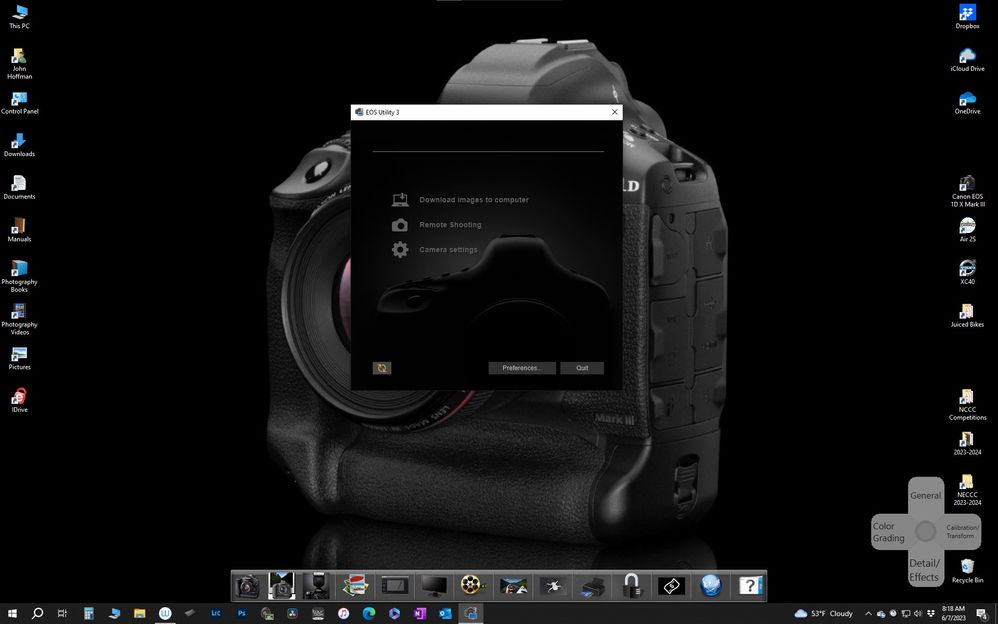
If it is installed correctly and functioning this splash screen should appear when EOSU3 is started up. Camera doesn't need to be connected for this.
Do you see this splash screen?
John Hoffman
Conway, NH
R6 Mark III, M200 (converted to infrared), RF lenses, Pixma PRO-100, Pixma TR8620a, Lr Classic
Conway, NH
R6 Mark III, M200 (converted to infrared), RF lenses, Pixma PRO-100, Pixma TR8620a, Lr Classic
15 REPLIES 15

Options
- Mark as New
- Bookmark
- Subscribe
- Mute
- Subscribe to RSS Feed
- Permalink
- Report Inappropriate Content
06-06-2023 12:17 PM
What operating system?
https://www.usa.canon.com/support/p/eos-rebel-t7
John Hoffman
Conway, NH
R6 Mark III, M200 (converted to infrared), RF lenses, Pixma PRO-100, Pixma TR8620a, Lr Classic
Conway, NH
R6 Mark III, M200 (converted to infrared), RF lenses, Pixma PRO-100, Pixma TR8620a, Lr Classic
Options
- Mark as New
- Bookmark
- Subscribe
- Mute
- Subscribe to RSS Feed
- Permalink
- Report Inappropriate Content
06-06-2023 02:59 PM
Thank you! That link took me to the appropriate software but unfortunately the app doesn't actually work after downloaded. I'll keep troubleshooting.
Options
- Mark as New
- Bookmark
- Subscribe
- Mute
- Subscribe to RSS Feed
- Permalink
- Report Inappropriate Content
06-06-2023 03:04 PM
What operating system?
What is actually happening when you say it doesn’t work. Doesn't install, doesn’t open, doesn’t find camera etc.
John Hoffman
Conway, NH
R6 Mark III, M200 (converted to infrared), RF lenses, Pixma PRO-100, Pixma TR8620a, Lr Classic
Conway, NH
R6 Mark III, M200 (converted to infrared), RF lenses, Pixma PRO-100, Pixma TR8620a, Lr Classic
Options
- Mark as New
- Bookmark
- Subscribe
- Mute
- Subscribe to RSS Feed
- Permalink
- Report Inappropriate Content
06-06-2023 03:12 PM
I'm using windows 11. Most of the time the app doesn't even open, when it does open it doesn't do anything. I just tried uninstalling and reinstalling but that didn't help.
Options
- Mark as New
- Bookmark
- Subscribe
- Mute
- Subscribe to RSS Feed
- Permalink
- Report Inappropriate Content
06-06-2023 03:20 PM
I am on W10, so I can't help with a W11 problem. One thing to try is to open EOSU3 directly in the Canon Utilities folder rather than the utility launcher.
John Hoffman
Conway, NH
R6 Mark III, M200 (converted to infrared), RF lenses, Pixma PRO-100, Pixma TR8620a, Lr Classic
Conway, NH
R6 Mark III, M200 (converted to infrared), RF lenses, Pixma PRO-100, Pixma TR8620a, Lr Classic

Options
- Mark as New
- Bookmark
- Subscribe
- Mute
- Subscribe to RSS Feed
- Permalink
- Report Inappropriate Content
06-06-2023 05:02 PM
Try connecting the camera to the computer, either by a cable or Wi-Fi. Then open the EOS Utility. If the software doesn't see the camera, it won't do anything.
Options
- Mark as New
- Bookmark
- Subscribe
- Mute
- Subscribe to RSS Feed
- Permalink
- Report Inappropriate Content
06-07-2023 08:25 AM
@Anonymous wrote:Try connecting the camera to the computer, either by a cable or Wi-Fi. Then open the EOS Utility. If the software doesn't see the camera, it won't do anything.
If it is installed correctly and functioning this splash screen should appear when EOSU3 is started up. Camera doesn't need to be connected for this.
Do you see this splash screen?
John Hoffman
Conway, NH
R6 Mark III, M200 (converted to infrared), RF lenses, Pixma PRO-100, Pixma TR8620a, Lr Classic
Conway, NH
R6 Mark III, M200 (converted to infrared), RF lenses, Pixma PRO-100, Pixma TR8620a, Lr Classic
Options
- Mark as New
- Bookmark
- Subscribe
- Mute
- Subscribe to RSS Feed
- Permalink
- Report Inappropriate Content
06-07-2023 08:32 AM
Thanks for your help! After a lot of troubleshooting I finally got it to work.
Options
- Mark as New
- Bookmark
- Subscribe
- Mute
- Subscribe to RSS Feed
- Permalink
- Report Inappropriate Content
06-07-2023 08:33 AM
Thats great.
John Hoffman
Conway, NH
R6 Mark III, M200 (converted to infrared), RF lenses, Pixma PRO-100, Pixma TR8620a, Lr Classic
Conway, NH
R6 Mark III, M200 (converted to infrared), RF lenses, Pixma PRO-100, Pixma TR8620a, Lr Classic

Announcements
07/22/2026: New firmware updates are available.
EOS R6 Mark III - Version 1.1.0
05/13/2026: New firmware updates are available.
EOS R5 Mark II - Version 1.3.0
EOS R6 Mark II - Version 1.7.0
04/28/2026: Service Notice: Caution Concerning use of Lithium Batteries
03/17/2026: New firmware updates are available.
SELPHY CP1500 - Version 1.0.7.0
02/23/2026: New firmware update is available for EOS C50- Version 1.0.3.1
01/23/2026: New firmware update is available for RF 24-105mm F4 IS USM- Version 2.0.7
01/20/2026: New firmware updates are available.
10/21/2025: Service Notice: To Users of the Compact Digital Camera PowerShot V1
10/15/2025: New firmware updates are available.
Speedlite EL-5 - Version 1.2.0
Speedlite EL-1 - Version 1.1.0
Speedlite Transmitter ST-E10 - Version 1.2.0
07/28/2025: Notice of Free Repair Service for the Mirrorless Camera EOS R50 (Black)
05/21/2025: New firmware update available for EOS C500 Mark II - Version 1.1.5.1
Related Content
- EOS Rebel T7 shows "Busy" icon and runs slow, especially with flash in EOS DSLR & Mirrorless Cameras
- Best way to transfer/back up photo and video files to external SSD in EOS DSLR & Mirrorless Cameras
- Rebel SL3 - Screen is dark (can't see subject matter) when I choose "on" setting in EOS DSLR & Mirrorless Cameras
- EOS Rebel T5 software update needed in Camera Software
- EOS Rebel T7 continuously opening and closing shutter on its own in EOS DSLR & Mirrorless Cameras

Ⓒ 2026
Canon U.S.A Inc. All Rights Reserved. Reproduction in whole or part without permission is prohibited.
