Turn on suggestions
Auto-suggest helps you quickly narrow down your search results by suggesting possible matches as you type.
- Canon Community
- Discussions & Help
- Camera
- Camera Software
- DPP4 Compare view with edits on RAW file
Options
- Subscribe to RSS Feed
- Mark Topic as New
- Mark Topic as Read
- Float this Topic for Current User
- Bookmark
- Subscribe
- Mute
- Printer Friendly Page

Options
- Mark as New
- Bookmark
- Subscribe
- Mute
- Subscribe to RSS Feed
- Permalink
- Report Inappropriate Content
12-07-2023 07:28 PM
I use the split view a lot to compare my original image to my edits. DPP4 saves edits directly on the RAW file. This causes a problem for me.
If i save these edits on the RAW file and come back later to make adjustments, the "Original Image" is showing the image with the saved edits and not the original "Shot Settings".
I think there should be an option for the "Before/After" mode to be either "Last saved" or "Original Shot".
Here is an example, this is my split view before saving my edits into the RAW file:
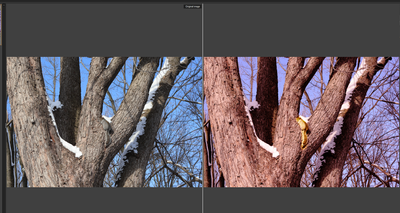
And here is my split view after i saved my edits and reopen to continue my editing:

I can not continue my edit while comparing to the original shot.
A solution would be appreciated.
Solved! Go to Solution.
1 ACCEPTED SOLUTION
Accepted Solutions


Options
- Mark as New
- Bookmark
- Subscribe
- Mute
- Subscribe to RSS Feed
- Permalink
- Report Inappropriate Content
12-07-2023 11:34 PM - edited 12-07-2023 11:45 PM
Hello, Aliamba!
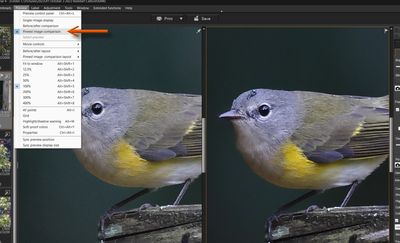
The only way I can see to do what you want is to change the name of the unedited Raw file using the "Save as" command on the unedited Raw file, select that new image, then use the "Pinned image comparison" selection to open the two panels for side by side comparison. It will initially open the "Saved as" image in both panels, however you can then open the original (not the "Save as") in the right panel by selecting it from your roll or thumbnails. You will then have the Pinned renamed image on the left and the original on the right for editing. The renamed pinned file will remain unedited for future reference.
Of course, you can do it the other way around and edit the Renamed file. Personally, I just edit the Raw and if I ever want it back I can just "Revert to shot settings" from the menu. Typically, I don't care to compare my edits to the original Raw 🙂
Newton
1 REPLY 1
Options
- Mark as New
- Bookmark
- Subscribe
- Mute
- Subscribe to RSS Feed
- Permalink
- Report Inappropriate Content
12-07-2023 11:34 PM - edited 12-07-2023 11:45 PM
Hello, Aliamba!
The only way I can see to do what you want is to change the name of the unedited Raw file using the "Save as" command on the unedited Raw file, select that new image, then use the "Pinned image comparison" selection to open the two panels for side by side comparison. It will initially open the "Saved as" image in both panels, however you can then open the original (not the "Save as") in the right panel by selecting it from your roll or thumbnails. You will then have the Pinned renamed image on the left and the original on the right for editing. The renamed pinned file will remain unedited for future reference.
Of course, you can do it the other way around and edit the Renamed file. Personally, I just edit the Raw and if I ever want it back I can just "Revert to shot settings" from the menu. Typically, I don't care to compare my edits to the original Raw 🙂
Newton

Announcements
07/22/2026: New firmware updates are available.
EOS R6 Mark III - Version 1.1.0
05/13/2026: New firmware updates are available.
EOS R5 Mark II - Version 1.3.0
EOS R6 Mark II - Version 1.7.0
04/28/2026: Service Notice: Caution Concerning use of Lithium Batteries
03/17/2026: New firmware updates are available.
SELPHY CP1500 - Version 1.0.7.0
02/23/2026: New firmware update is available for EOS C50- Version 1.0.3.1
01/23/2026: New firmware update is available for RF 24-105mm F4 IS USM- Version 2.0.7
01/20/2026: New firmware updates are available.
10/21/2025: Service Notice: To Users of the Compact Digital Camera PowerShot V1
10/15/2025: New firmware updates are available.
Speedlite EL-5 - Version 1.2.0
Speedlite EL-1 - Version 1.1.0
Speedlite Transmitter ST-E10 - Version 1.2.0
07/28/2025: Notice of Free Repair Service for the Mirrorless Camera EOS R50 (Black)
05/21/2025: New firmware update available for EOS C500 Mark II - Version 1.1.5.1
Related Content
- experimenting with jpegli in Camera Software
- Canon EOS R5 (first edition) file name change in EOS DSLR & Mirrorless Cameras
- Using DPP and stacked telephoto extenders in Camera Software
- A story about making a photo: Editing tips in Camera Software
- Using 24fps, R6 mkII or R5 in 4k? in EOS DSLR & Mirrorless Cameras

Ⓒ 2026
Canon U.S.A Inc. All Rights Reserved. Reproduction in whole or part without permission is prohibited.
