Turn on suggestions
Auto-suggest helps you quickly narrow down your search results by suggesting possible matches as you type.
- Canon Community
- Discussions & Help
- Printer
- Professional Photo Printers
- How to set Avoid Paper Abrasion when using Profess...
Options
- Subscribe to RSS Feed
- Mark Topic as New
- Mark Topic as Read
- Float this Topic for Current User
- Bookmark
- Subscribe
- Mute
- Printer Friendly Page

Options
- Mark as New
- Bookmark
- Subscribe
- Mute
- Subscribe to RSS Feed
- Permalink
- Report Inappropriate Content
08-29-2021 06:47 PM
Hello:
I'm using the Pro-1000 printer and usually print through the Professional Print and Layout (PP&L) software on MacOS either as a plug-in to PS or as a standalone application. There are a number of printer settings that can't be controlled through Professional Print and Layout, but can from the standard print driver, for example, "Avoid Paper Abrasion." How can I set Avoid Paper Abrasion when using the PP&L application? Can I set it using the menu on the printer and the printer will just retain it unless it is changed again on the printer or changed via the print driver?
Solved! Go to Solution.
1 ACCEPTED SOLUTION
Accepted Solutions
Options
- Mark as New
- Bookmark
- Subscribe
- Mute
- Subscribe to RSS Feed
- Permalink
- Report Inappropriate Content
09-02-2021 05:56 PM
I called Canon Support. They said that my initial hunch was correct. If you set Avoid Paper Abrasion on the printer's operational panel, that setting will be retained and used by Professional Print & Layout. Of course, you need to remember to turn the setting off on the panel when you don't want to be using it.
Since I had the gentleman on the phone, I also confirmed that there is no way to delete a stored setting with Professional Print & Layout. You would have to reinstall the application. I would consider that a bug.
10 REPLIES 10


Options
- Mark as New
- Bookmark
- Subscribe
- Mute
- Subscribe to RSS Feed
- Permalink
- Report Inappropriate Content
08-30-2021 10:25 AM
Greetings,
I suggest you enable it in the print drover and test.
~Rick
Bay Area - CA
~R5 C (1.1.3.1), ~RF Trinity, ~RF 100 Macro, ~RF 100~400, ~RF 100~500, ~RF 200-800, ~RF 1.4x TC, BG-R10, 430EX III-RT ~DxO PhotoLab Elite ~DaVinci Resolve Studio ~ImageClass MF644Cdw MF656Cdw ~Pixel 10 ~CarePaks Are Worth It
Options
- Mark as New
- Bookmark
- Subscribe
- Mute
- Subscribe to RSS Feed
- Permalink
- Report Inappropriate Content
08-31-2021 07:52 PM
Thanks, but how do you set it in the print driver when the Professional Print & Layout app doesn't use the standard print driver user interface?

Options
- Mark as New
- Bookmark
- Subscribe
- Mute
- Subscribe to RSS Feed
- Permalink
- Report Inappropriate Content
09-01-2021 07:53 AM
In System Preferences->Printers & Scanners select the printer utility. That is how it works with PSP and the Pro-100

John Hoffman
Conway, NH
R6 Mark III, M200 (converted to infrared), RF lenses, Pixma PRO-100, Pixma TR8620a, Lr Classic
Conway, NH
R6 Mark III, M200 (converted to infrared), RF lenses, Pixma PRO-100, Pixma TR8620a, Lr Classic
Options
- Mark as New
- Bookmark
- Subscribe
- Mute
- Subscribe to RSS Feed
- Permalink
- Report Inappropriate Content
09-01-2021 12:02 PM
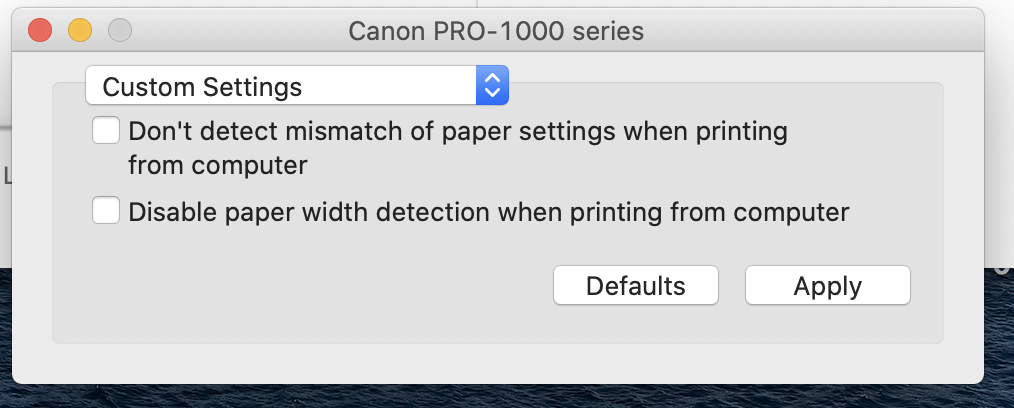
Hi John, well that was a good idea. Unfortunately, it looks like for Pro-1000 printer, that option isn't available through the Utility. Any other ideas?
Options
- Mark as New
- Bookmark
- Subscribe
- Mute
- Subscribe to RSS Feed
- Permalink
- Report Inappropriate Content
09-01-2021 12:34 PM
I don't know if this will help:
Canon : imagePROGRAF Manuals : PRO-1000 series : Changing Settings from Operation Panel
John Hoffman
Conway, NH
R6 Mark III, M200 (converted to infrared), RF lenses, Pixma PRO-100, Pixma TR8620a, Lr Classic
Conway, NH
R6 Mark III, M200 (converted to infrared), RF lenses, Pixma PRO-100, Pixma TR8620a, Lr Classic
Options
- Mark as New
- Bookmark
- Subscribe
- Mute
- Subscribe to RSS Feed
- Permalink
- Report Inappropriate Content
09-01-2021 12:42 PM
Hi John, per my original post I was wondering if that would work. That is, set it on the printer operation panel and hope that the PP&L app would not override the setting back to the default. I'll experiment a bit. On some papers, I get intermittent head strikes with larger sheets so it might be a bit difficult to ascertain whether setting Avoid Paper Abrasion on the operation panel is working with using PP&L. Thanks for the suggestions, much appreciated!
Options
- Mark as New
- Bookmark
- Subscribe
- Mute
- Subscribe to RSS Feed
- Permalink
- Report Inappropriate Content
09-01-2021 12:52 PM
Perhaps give canon a call at 1-800-OK-CANON.
John Hoffman
Conway, NH
R6 Mark III, M200 (converted to infrared), RF lenses, Pixma PRO-100, Pixma TR8620a, Lr Classic
Conway, NH
R6 Mark III, M200 (converted to infrared), RF lenses, Pixma PRO-100, Pixma TR8620a, Lr Classic
Options
- Mark as New
- Bookmark
- Subscribe
- Mute
- Subscribe to RSS Feed
- Permalink
- Report Inappropriate Content
09-02-2021 05:56 PM
I called Canon Support. They said that my initial hunch was correct. If you set Avoid Paper Abrasion on the printer's operational panel, that setting will be retained and used by Professional Print & Layout. Of course, you need to remember to turn the setting off on the panel when you don't want to be using it.
Since I had the gentleman on the phone, I also confirmed that there is no way to delete a stored setting with Professional Print & Layout. You would have to reinstall the application. I would consider that a bug.
Options
- Mark as New
- Bookmark
- Subscribe
- Mute
- Subscribe to RSS Feed
- Permalink
- Report Inappropriate Content
09-02-2021 07:45 PM
That is strange for PP&L, since it is possible in PSP. But it is a convoluted process.

First, even though the custom settings are showing you need to select "Add from Print History"
When that window opens you can select and delete the settings.
Then select "OK"
Takes a few seconds but the item is deleted.

John Hoffman
Conway, NH
R6 Mark III, M200 (converted to infrared), RF lenses, Pixma PRO-100, Pixma TR8620a, Lr Classic
Conway, NH
R6 Mark III, M200 (converted to infrared), RF lenses, Pixma PRO-100, Pixma TR8620a, Lr Classic

Announcements
07/22/2026: New firmware updates are available.
EOS R6 Mark III - Version 1.1.0
05/13/2026: New firmware updates are available.
EOS R5 Mark II - Version 1.3.0
EOS R6 Mark II - Version 1.7.0
04/28/2026: Service Notice: Caution Concerning use of Lithium Batteries
03/17/2026: New firmware updates are available.
SELPHY CP1500 - Version 1.0.7.0
02/23/2026: New firmware update is available for EOS C50- Version 1.0.3.1
01/23/2026: New firmware update is available for RF 24-105mm F4 IS USM- Version 2.0.7
01/20/2026: New firmware updates are available.
10/21/2025: Service Notice: To Users of the Compact Digital Camera PowerShot V1
10/15/2025: New firmware updates are available.
Speedlite EL-5 - Version 1.2.0
Speedlite EL-1 - Version 1.1.0
Speedlite Transmitter ST-E10 - Version 1.2.0
07/28/2025: Notice of Free Repair Service for the Mirrorless Camera EOS R50 (Black)
05/21/2025: New firmware update available for EOS C500 Mark II - Version 1.1.5.1
Related Content
- PIXMA PRO-200S How to use ICC profiles in PP&L in Professional Photo Printers
- Professional Print and Layout won't print in Printer Software & Networking
- PRO-300 IP address hardcoded into various files for drivers/apps in Printer Software & Networking
- Canon PRO-100S unusable on Windows 11 — no drivers, no suppor in Professional Photo Printers
- Professional Print and Layout, Canon imagePROGRAF PRO-310, Windows 11 not launching anymore? in Printer Software & Networking

Ⓒ 2026
Canon U.S.A Inc. All Rights Reserved. Reproduction in whole or part without permission is prohibited.
