Turn on suggestions
Auto-suggest helps you quickly narrow down your search results by suggesting possible matches as you type.
- Canon Community
- Discussions & Help
- Printer
- Printer Software & Networking
- Wireless connection fail - PIXMA G3270
Options
- Subscribe to RSS Feed
- Mark Topic as New
- Mark Topic as Read
- Float this Topic for Current User
- Bookmark
- Subscribe
- Mute
- Printer Friendly Page

Options
- Mark as New
- Bookmark
- Subscribe
- Mute
- Subscribe to RSS Feed
- Permalink
- Report Inappropriate Content
03-06-2025
03:40 PM
- last edited on
03-13-2025
08:10 AM
by
 James_C
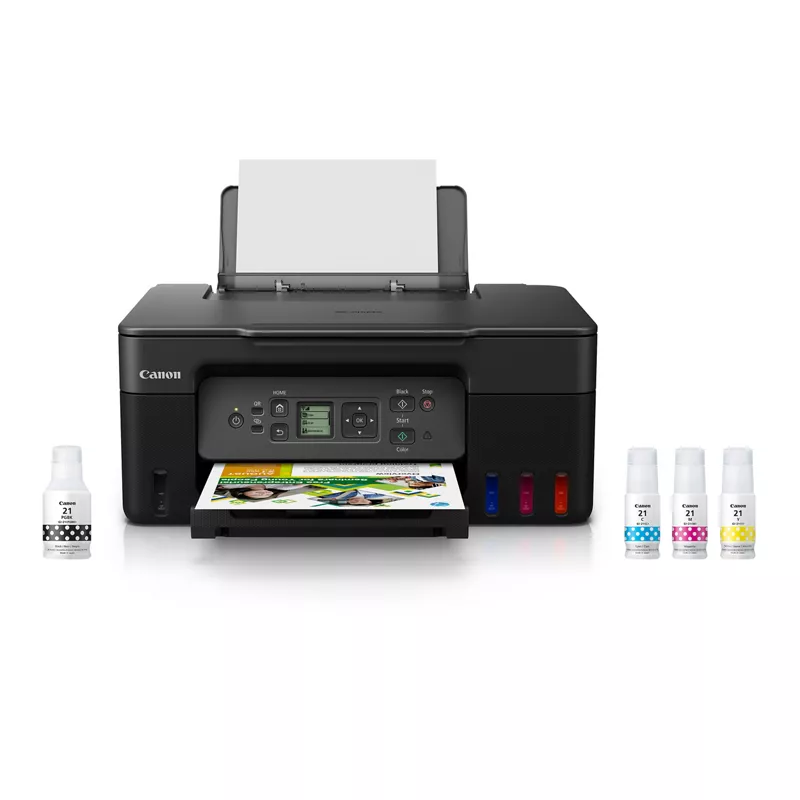
Last night, my G3270 Pixma wireless connection failed. It's worked flawlessly for a year and a half.
I went through all of the troubleshooting steps, but nothing works. ( I also chatted with tech support today.)
The G3270 connects by WiFi to a personally owned Belkin ShareMax N300 router. The router then connects to my ISP's box. So I rule out the ISP box as part of the problem.
I tested the Belkin WiFi, that's not the problem. I connected another wireless device to it and that worked. Tech support also does not think the network card on the printer has gone bad.
The chat support today suggested that I set up a static IP for the printer.
From what I have found so far, it is my desktop computer that is controlling DHCP. It would also seem that if I turn off DHCP on my computer and set a static IP for my printer, I would also have to do the same for my computer.
Or, the brute force option is to connect by the USB port.
Thoughts and suggestions appreciated. Thank you!
Solved! Go to Solution.
1 ACCEPTED SOLUTION
Accepted Solutions

Options
- Mark as New
- Bookmark
- Subscribe
- Mute
- Subscribe to RSS Feed
- Permalink
- Report Inappropriate Content
03-11-2025 05:13 PM
Hi gab1138,
Please follow these steps to print the network pages from your G3270:
1. Press the Home button on your printer once.
2. Press the down arrow 3 times to select Settings and press OK.
3. On LAN settings, press OK.
4. Press the down arrow 2 times to select Print details and press OK.
5. Yes is selected. Press OK.
6. Please load letter sized (8.5" x 11") paper in your G3270 and press OK.
7. Choose Yes or No to the question asked and press OK.
3 pages will print.
What is listed to the right of 3-2-12 IP Address? There are 4 sets of numbers.
Are the first two sets of numbers 169.254?
If so, that is an APIPA address. Please view the information provided on the page linked below:
Canon Knowledgebase - What is an APIPA?
Did this answer your question? If so, please click the Accept as Solution button below so that others may find the answer as well.
6 REPLIES 6
Options
- Mark as New
- Bookmark
- Subscribe
- Mute
- Subscribe to RSS Feed
- Permalink
- Report Inappropriate Content
03-11-2025 05:13 PM
Hi gab1138,
Please follow these steps to print the network pages from your G3270:
1. Press the Home button on your printer once.
2. Press the down arrow 3 times to select Settings and press OK.
3. On LAN settings, press OK.
4. Press the down arrow 2 times to select Print details and press OK.
5. Yes is selected. Press OK.
6. Please load letter sized (8.5" x 11") paper in your G3270 and press OK.
7. Choose Yes or No to the question asked and press OK.
3 pages will print.
What is listed to the right of 3-2-12 IP Address? There are 4 sets of numbers.
Are the first two sets of numbers 169.254?
If so, that is an APIPA address. Please view the information provided on the page linked below:
Canon Knowledgebase - What is an APIPA?
Did this answer your question? If so, please click the Accept as Solution button below so that others may find the answer as well.
Options
- Mark as New
- Bookmark
- Subscribe
- Mute
- Subscribe to RSS Feed
- Permalink
- Report Inappropriate Content
03-11-2025 09:19 PM
Patrick,
THAT DID IT!
Restarting the router was the only thing they didn't suggest, nor did I think of it either.
Thanks for your help! 😀
Options
- Mark as New
- Bookmark
- Subscribe
- Mute
- Subscribe to RSS Feed
- Permalink
- Report Inappropriate Content
03-12-2025 02:31 PM
Hi gab1138,
You're welcome!
Did this answer your question? If so, please click the Accept as Solution button below so that others may find the answer as well.
Options
- Mark as New
- Bookmark
- Subscribe
- Mute
- Subscribe to RSS Feed
- Permalink
- Report Inappropriate Content
03-28-2025 11:28 AM
I am having the same issue. I followed your tips but my IP address does not start with 169-254. My printer keeps disconnecting.
Options
- Mark as New
- Bookmark
- Subscribe
- Mute
- Subscribe to RSS Feed
- Permalink
- Report Inappropriate Content
06-25-2025 10:59 PM
I have the same printer with the same issue. The numbers listed to the right of 3-2-12 IP Address aren’t as listed above but are 192.168. Was able to use this printer for maybe a couple days then not. ANY help to resolve this would be VERY appreciated.
Options
- Mark as New
- Bookmark
- Subscribe
- Mute
- Subscribe to RSS Feed
- Permalink
- Report Inappropriate Content
03-28-2026 09:23 PM
I printed the Network Configuration Page and there are NO numbers next to 3-2-12 IP Address. What do I do now?


Announcements
07/22/2026: New firmware updates are available.
EOS R6 Mark III - Version 1.1.0
05/13/2026: New firmware updates are available.
EOS R5 Mark II - Version 1.3.0
EOS R6 Mark II - Version 1.7.0
04/28/2026: Service Notice: Caution Concerning use of Lithium Batteries
03/17/2026: New firmware updates are available.
SELPHY CP1500 - Version 1.0.7.0
02/23/2026: New firmware update is available for EOS C50- Version 1.0.3.1
01/23/2026: New firmware update is available for RF 24-105mm F4 IS USM- Version 2.0.7
01/20/2026: New firmware updates are available.
10/21/2025: Service Notice: To Users of the Compact Digital Camera PowerShot V1
10/15/2025: New firmware updates are available.
Speedlite EL-5 - Version 1.2.0
Speedlite EL-1 - Version 1.1.0
Speedlite Transmitter ST-E10 - Version 1.2.0
07/28/2025: Notice of Free Repair Service for the Mirrorless Camera EOS R50 (Black)
05/21/2025: New firmware update available for EOS C500 Mark II - Version 1.1.5.1
Related Content
- imageCLASS MFC743Cdw - No scan, no print, not working and can't reach Canon support after months. in Office Printers
- SELPHY CP1500 won't connect to phone or computer in Printer Software & Networking
- Laptop not connecting with PIXMA G3202 in Printer Software & Networking
- MF656Cdw Wireless Connection Suddenly Stopped Working in Printer Software & Networking
- HELP! My PIXMA G6020 won't scan in Desktop Inkjet Printers

Ⓒ 2026
Canon U.S.A Inc. All Rights Reserved. Reproduction in whole or part without permission is prohibited.
