Turn on suggestions
Auto-suggest helps you quickly narrow down your search results by suggesting possible matches as you type.
- Canon Community
- Discussions & Help
- Printer
- Printer Software & Networking
- Re: Network Configuration Page on a Canon iP7220
Options
- Subscribe to RSS Feed
- Mark Topic as New
- Mark Topic as Read
- Float this Topic for Current User
- Bookmark
- Subscribe
- Mute
- Printer Friendly Page

Options
- Mark as New
- Bookmark
- Subscribe
- Mute
- Subscribe to RSS Feed
- Permalink
- Report Inappropriate Content
02-16-2021 03:43 PM
I recently changed my Wireless Router and now my printer won't connect to it.
I believe the problem is in the Network Configuration of the printer. The defaut gateway of the new router is 192.168.50.1 and the IP Address on the Canon iP7220 printer Network Configuration Page is 192.168.0.185.
Since I have many other devices connected to the router I can't change the IP Address of the default gateway. What I need to do is either change the IP Address of the printer in the printer Network Configuration or do a Factory Reset of the printer
Does anyone know how I can either clear the Network Configuration Page in the printer or do a factory reset of a Canon iP7200 printer?
Solved! Go to Solution.
1 ACCEPTED SOLUTION
Accepted Solutions


Options
- Mark as New
- Bookmark
- Subscribe
- Mute
- Subscribe to RSS Feed
- Permalink
- Report Inappropriate Content
02-16-2021 04:02 PM
Hi The_Hat,
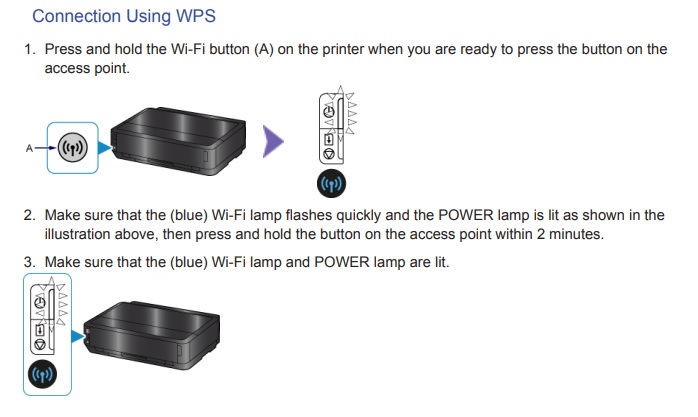
The iP7220 should not have to be reset in order to connect it to your new router. Please try using the WPS method to connect your iP7220 to your wireless network.
3 REPLIES 3
Options
- Mark as New
- Bookmark
- Subscribe
- Mute
- Subscribe to RSS Feed
- Permalink
- Report Inappropriate Content
02-16-2021 04:02 PM
Hi The_Hat,
The iP7220 should not have to be reset in order to connect it to your new router. Please try using the WPS method to connect your iP7220 to your wireless network.
Options
- Mark as New
- Bookmark
- Subscribe
- Mute
- Subscribe to RSS Feed
- Permalink
- Report Inappropriate Content
02-16-2021 04:09 PM
Hi Patrick,
That is one of the things I tried before I submitted a New Topic.
Previously I tried installing a new driver but that didn't work. I was going to try connecting the printer using a USB connection however I no longer can find the USB cord designed to be used with the printer. I bought this printer over 10 years ago andI can no longer find the cord.
Options
- Mark as New
- Bookmark
- Subscribe
- Mute
- Subscribe to RSS Feed
- Permalink
- Report Inappropriate Content
02-17-2021 04:02 PM
Hi Patrick,
As usual things happen with Windows 10 that I find hard to explain. After replying to you yesterday, today I had the occasion to uninstall another totally unrelated application.
After completing the uninstall it was necessary for me to "Restart" my computer and when I did my Canon started printing all of the documents that were in queue.
With that I'm happy to say your directions were in fact the "Best Answer" and I thank you for responding to my request.

Announcements
07/22/2026: New firmware updates are available.
EOS R6 Mark III - Version 1.1.0
05/13/2026: New firmware updates are available.
EOS R5 Mark II - Version 1.3.0
EOS R6 Mark II - Version 1.7.0
04/28/2026: Service Notice: Caution Concerning use of Lithium Batteries
03/17/2026: New firmware updates are available.
SELPHY CP1500 - Version 1.0.7.0
02/23/2026: New firmware update is available for EOS C50- Version 1.0.3.1
01/23/2026: New firmware update is available for RF 24-105mm F4 IS USM- Version 2.0.7
01/20/2026: New firmware updates are available.
10/21/2025: Service Notice: To Users of the Compact Digital Camera PowerShot V1
10/15/2025: New firmware updates are available.
Speedlite EL-5 - Version 1.2.0
Speedlite EL-1 - Version 1.1.0
Speedlite Transmitter ST-E10 - Version 1.2.0
07/28/2025: Notice of Free Repair Service for the Mirrorless Camera EOS R50 (Black)
05/21/2025: New firmware update available for EOS C500 Mark II - Version 1.1.5.1
Related Content
- PIXMA MG3620 Connection issues after getting new router in Printer Software & Networking
- PIXMA TS3722 Thoughts as to what the password may be for firmware update? in Desktop Inkjet Printers
- Failing to Print Message when trying to print, Canon MG3600 in Desktop Inkjet Printers
- PIXMA iX6820 will not reconnect to home network in Printer Software & Networking
- New PIXMA TS3722 getting "canceled the process because an error has occurred" in Desktop Inkjet Printers

Ⓒ 2026
Canon U.S.A Inc. All Rights Reserved. Reproduction in whole or part without permission is prohibited.
