Turn on suggestions
Auto-suggest helps you quickly narrow down your search results by suggesting possible matches as you type.
- Canon Community
- Discussions & Help
- Printer
- Desktop Inkjet Printers
- Re: Turn Enable bi-directional support on in the p...
Options
- Subscribe to RSS Feed
- Mark Topic as New
- Mark Topic as Read
- Float this Topic for Current User
- Bookmark
- Subscribe
- Mute
- Printer Friendly Page
Turn Enable bi-directional support on in the printer's Properties dialog box.

Options
- Mark as New
- Bookmark
- Subscribe
- Mute
- Subscribe to RSS Feed
- Permalink
- Report Inappropriate Content
12-26-2013 06:13 PM
I recently installed Windows 8.1. ever since, I get the following error message
Cannot communicate with the printer.
Turn Enable bi-directional support on in the printer's Properties dialog box.
I've looked for the bi--directional support on the printer's dialog box, but to no avail. Can someone help me?
21 REPLIES 21
Options
- Mark as New
- Bookmark
- Subscribe
- Mute
- Subscribe to RSS Feed
- Permalink
- Report Inappropriate Content
02-06-2018 12:30 PM - edited 02-06-2018 12:32 PM
Hello,
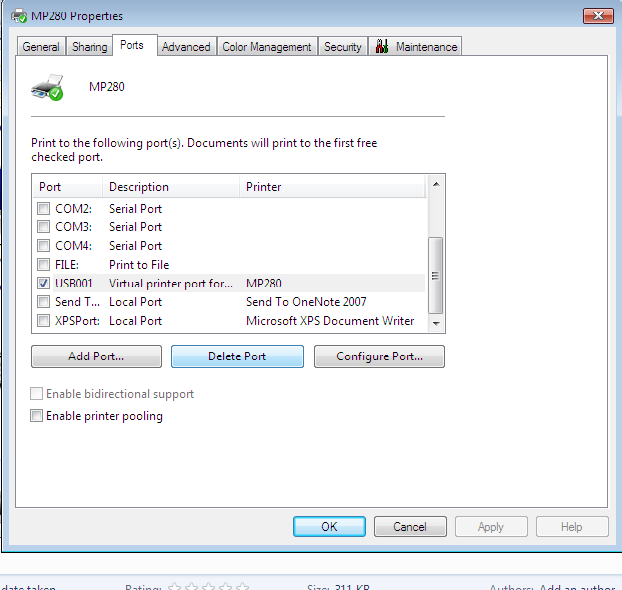
I am having the issue as 'Turn Enable bi-directional support on in the printer's Properties dialog box.' .I am using Canon mp287 printer in Windows 7. I tried to enable Bi-directional support but it is in disable mode.May I know the solution plz.

Options
- Mark as New
- Bookmark
- Subscribe
- Mute
- Subscribe to RSS Feed
- Permalink
- Report Inappropriate Content
03-17-2018 04:17 PM
to Mr. Neuter. It worked perfectly. I was starting to despair ever seeing my ink display and it is essential in order to order cartridges on time, so thank you very much--glad they keep the posts for 2 years. The only thing I did not have to do was to click "Change properties" for my Pixma 560. Instead, I just clicked on the "Ports" tab and right at the bottom checked the box
Turn Enable bi-directional support. Neat and clear and much easier than other suggestions too intricate for me and that didn't seem to work that well. So thanks!
@MrNeuterwrote:To everyone else who, like me, was unable to enable bidirectional support, two things.
1. Make sure that when you right click, you're then clicking PRINTER properties, not just PROPERTIES. If you click the right one, you WILL see a PORTS tab.
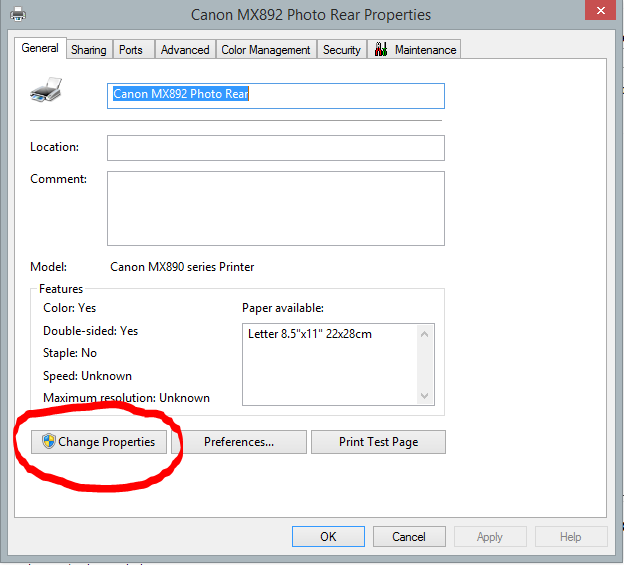
2. When I did that, my option to enable bidirectional support was grayed (ghosted), which left me scratching my head. But then I figured out why the computer was locking me out. By first clicking on the button circled (which grants administrator rights and allows you to change settings), I was able to finally enable bidirectional support.
If you've been frustrated by getting the error message, then seeing the option grayed out, click on Change Properties first!
@MrNeuterwrote:To everyone else who, like me, was unable to enable bidirectional support, two things.
1. Make sure that when you right click, you're then clicking PRINTER properties, not just PROPERTIES. If you click the right one, you WILL see a PORTS tab.
2. When I did that, my option to enable bidirectional support was grayed (ghosted), which left me scratching my head. But then I figured out why the computer was locking me out. By first clicking on the button circled (which grants administrator rights and allows you to change settings), I was able to finally enable bidirectional support.
If you've been frustrated by getting the error message, then seeing the option grayed out, click on Change Properties first!

- « Previous
- Next »
- « Previous
- Next »

Announcements
07/22/2026: New firmware updates are available.
EOS R6 Mark III - Version 1.1.0
05/13/2026: New firmware updates are available.
EOS R5 Mark II - Version 1.3.0
EOS R6 Mark II - Version 1.7.0
04/28/2026: Service Notice: Caution Concerning use of Lithium Batteries
03/17/2026: New firmware updates are available.
SELPHY CP1500 - Version 1.0.7.0
02/23/2026: New firmware update is available for EOS C50- Version 1.0.3.1
01/23/2026: New firmware update is available for RF 24-105mm F4 IS USM- Version 2.0.7
01/20/2026: New firmware updates are available.
10/21/2025: Service Notice: To Users of the Compact Digital Camera PowerShot V1
10/15/2025: New firmware updates are available.
Speedlite EL-5 - Version 1.2.0
Speedlite EL-1 - Version 1.1.0
Speedlite Transmitter ST-E10 - Version 1.2.0
07/28/2025: Notice of Free Repair Service for the Mirrorless Camera EOS R50 (Black)
05/21/2025: New firmware update available for EOS C500 Mark II - Version 1.1.5.1
Related Content
- Cannot reinstall drivers for the MF656Cdw in Office Printers
- MF465dw ll ... Missing 2-Sided Print Restored in Office Printers
- Setting Canon iR-ADV C5840 Color Property to B&W using Powershell in Production Printing
- MAXIFY MB2720 - won't automatically switch trays in Office Printers
- New MAXIFY GX4020 won't print from Dell laptop via Wi-Fi, prints OK from iPhone in Printer Software & Networking

Ⓒ 2026
Canon U.S.A Inc. All Rights Reserved. Reproduction in whole or part without permission is prohibited.
