Turn on suggestions
Auto-suggest helps you quickly narrow down your search results by suggesting possible matches as you type.
- Canon Community
- Discussions & Help
- Printer
- Desktop Inkjet Printers
- Re: IJ scan utility stopped scanning multiple page...
Options
- Subscribe to RSS Feed
- Mark Topic as New
- Mark Topic as Read
- Float this Topic for Current User
- Bookmark
- Subscribe
- Mute
- Printer Friendly Page

Options
- Mark as New
- Bookmark
- Subscribe
- Mute
- Subscribe to RSS Feed
- Permalink
- Report Inappropriate Content
03-07-2022 02:41 PM
My Pixma MG3620 has always worked perfectly with the IJ scan software. After I clicked Document, it scanned one page then gave me an option to scan another page or stop. Now suddenly it only scans one page and the box giving me the choice doesn't appear. This means I can't create multiple page documents and would need to use PDF software to laboriously construct one out of multiple scans.
I tried to download the software again but the download wouldn't start.
I'm using Windows 10 on an HP desktop. This same setup always scanned multiple pages before.
Would appreciate assistance!
Solved! Go to Solution.
1 ACCEPTED SOLUTION
Accepted Solutions


Options
- Mark as New
- Bookmark
- Subscribe
- Mute
- Subscribe to RSS Feed
- Permalink
- Report Inappropriate Content
03-16-2022 01:59 PM
Hi msmaven,
To scan multiple pages and save them on your computer as a single PDF, please make sure that this is enabled. To do this, please follow these steps:
1. Click on the Windows Start button and in the menu that appears, click on the Canon Utilities folder.
2. Click on the IJ Scan Utility to open that application.
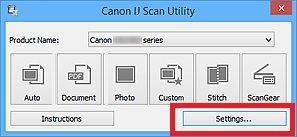
3. Click on the Settings button in the lower right corner of the IJ Scan Utility.
4. Click on Document Scan on the left side.
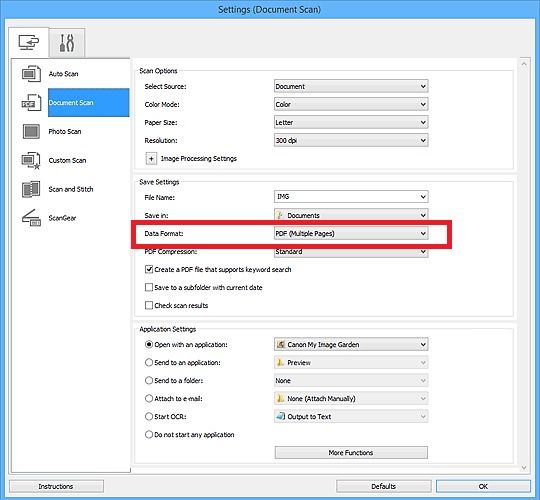
5. On the right side, in the Save Settings section in the middle, select PDF (Multiple Pages) in the Data Format drop down box.
6. Click OK.
7. Click the Document button on the IJ Scan Utility to begin scanning.
More information can be viewed here:
https://ij.manual.canon/ij/webmanual/ScanUtility/W/MG3600%20series/1.1/EN/SU/su-004.html
3 REPLIES 3
Options
- Mark as New
- Bookmark
- Subscribe
- Mute
- Subscribe to RSS Feed
- Permalink
- Report Inappropriate Content
03-16-2022 01:59 PM
Hi msmaven,
To scan multiple pages and save them on your computer as a single PDF, please make sure that this is enabled. To do this, please follow these steps:
1. Click on the Windows Start button and in the menu that appears, click on the Canon Utilities folder.
2. Click on the IJ Scan Utility to open that application.
3. Click on the Settings button in the lower right corner of the IJ Scan Utility.
4. Click on Document Scan on the left side.
5. On the right side, in the Save Settings section in the middle, select PDF (Multiple Pages) in the Data Format drop down box.
6. Click OK.
7. Click the Document button on the IJ Scan Utility to begin scanning.
More information can be viewed here:
https://ij.manual.canon/ij/webmanual/ScanUtility/W/MG3600%20series/1.1/EN/SU/su-004.html
Options
- Mark as New
- Bookmark
- Subscribe
- Mute
- Subscribe to RSS Feed
- Permalink
- Report Inappropriate Content
03-21-2022 12:32 PM
Thanks so much! I must have changed that setting by accident and not realized it. Now it works right!
Options
- Mark as New
- Bookmark
- Subscribe
- Mute
- Subscribe to RSS Feed
- Permalink
- Report Inappropriate Content
01-10-2025 04:44 PM
I have a closely-related problem., I can scan multiple pages from the "Document" button on the IJ Scan utility desktop app, as you describe above. But I cannot assign the output format "PDF/Multiple Pages" to the physical PDF button on my LIDE 300 scanner, even though I am using the source "document" . It used to work on my LIDE 110 before I "upgraded". Is there anyway to fix this? I am wondering if I can just add in an option in the Registry...

Announcements
07/22/2026: New firmware updates are available.
EOS R6 Mark III - Version 1.1.0
05/13/2026: New firmware updates are available.
EOS R5 Mark II - Version 1.3.0
EOS R6 Mark II - Version 1.7.0
04/28/2026: Service Notice: Caution Concerning use of Lithium Batteries
03/17/2026: New firmware updates are available.
SELPHY CP1500 - Version 1.0.7.0
02/23/2026: New firmware update is available for EOS C50- Version 1.0.3.1
01/23/2026: New firmware update is available for RF 24-105mm F4 IS USM- Version 2.0.7
01/20/2026: New firmware updates are available.
10/21/2025: Service Notice: To Users of the Compact Digital Camera PowerShot V1
10/15/2025: New firmware updates are available.
Speedlite EL-5 - Version 1.2.0
Speedlite EL-1 - Version 1.1.0
Speedlite Transmitter ST-E10 - Version 1.2.0
07/28/2025: Notice of Free Repair Service for the Mirrorless Camera EOS R50 (Black)
05/21/2025: New firmware update available for EOS C500 Mark II - Version 1.1.5.1
Related Content
- HELP! My PIXMA G6020 won't scan in Desktop Inkjet Printers
- Month-old PIXMA TR4720 not working in a myriad of baffling and frustrating ways in Desktop Inkjet Printers
- CanoScan LiDE 400 How to scan 300 pages across multiple days in a single PDF in Scanners
- CanoScan LiDE 400 stuck on "Scanning" (VueScan says Transport Lock is on, but it's not) in Scanners
- GX2020 Stopped duplex printing in Office Printers

Ⓒ 2026
Canon U.S.A Inc. All Rights Reserved. Reproduction in whole or part without permission is prohibited.
