Turn on suggestions
Auto-suggest helps you quickly narrow down your search results by suggesting possible matches as you type.
- Canon Community
- Discussions & Help
- Printer
- Professional Photo Printers
- Matching Calibrated Screen to Pro 1100
Options
- Subscribe to RSS Feed
- Mark Topic as New
- Mark Topic as Read
- Float this Topic for Current User
- Bookmark
- Subscribe
- Mute
- Printer Friendly Page


Options
- Mark as New
- Bookmark
- Subscribe
- Mute
- Subscribe to RSS Feed
- Permalink
- Report Inappropriate Content
12-08-2025 10:15 PM
I've read through most of the posts that I can find on this subject, and I THINK I might be right in my understanding but want to double check. I have a print on the Prograph Pro-111. I have a calibrated QOLED screen. The colors match very well. The brightness and contrast do not. I believe that I should tune the brightness and contrast on the screen to match the print and thus will be working will a screen that matches the printer.
You can assume 1) that yes indeed the monitor is color calibrated properly with external HW calibration, that 2) I am adept at changing monitor profiles so that creating a unique profile for the printer is a good thing for me and that I will change the monitor to another profile for other tasks, 3) that I have the cameras, Canon Digital Photo Professional, and Canon Photo Print & Layout and the printer all coordinated with the Adobe RGB color space and for printing have chose perceptual rendering Intent and that I have also chosen the same color scheme, 4) that I used the correct Canon paper matched to the printer profile, and that 5) I have a pure white light source with which to illuminate the print.
Both Contrast and Brightness settings are very low to achieve this goal - in the 20 percentiles. It's a 400 nit 4K QDOLED screen - not sure that matters, though. I think this is the correct method, but nowhere I have I found that the steps are:
1) Color calibrate your screen
2) Make sure your settings align
3) Make a print from a photo taken with the aligned settings, and
4) Viewing the print in the room density white light (technically you could go for actually using the temp and brightness where your photos will hang I suppose, as well) manually adjust screen brightness and contrast of the screen to match.
I'm thinking that a logical action prior step 1 would be to take your printed photo of a color calibrated card, such as the Spyder Checkr. Since I have one of those I am planning to use it for that purpose. My first print - I admit I was anxious to print something before being methodical in my matching process - was beautiful, but darker than what I see on the screen
One suggestion I saw online that made a lot of sense in screen brightness setting is to use the metering in a camera to ensure that the brightness of the screen and print are really and truly matched.
I apologize if these are basic steps and are well-document documented in a million places already and I failed to find that. There is SO much talk of, and emphasis on, calibration that I had thought it possible that the calibration HW and SW would take care of the brightness, but from my first test print that does not appear to be the case. It appears to be strictly color registration, not brightness and contrast.
Thanks to any and all that read through all of that, and especially thanks to anyone who corrects any false assumptions or understanding on my part. I obviously do not do this for a living, just for pleasure.
>> Owns/Owned both Canon EOS mirrorless full-frame and APS-C cameras and associated RF, RF-S and EF adapted lenses - inventory tends to change on short notice. Same for flashes, tripods, bags, straps, etc.
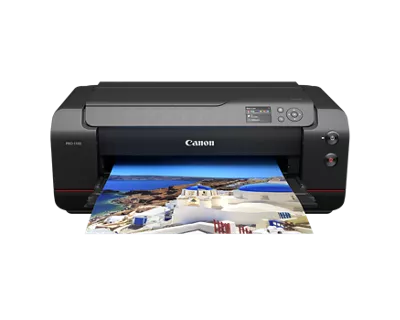
Plus>> Canon imagePROGRAF PRO-1100 Printer. My photos are edited using no Adobe products.
>>The opinions and assistance are my own. Please don't blame Canon for any mistakes on my part.
Solved! Go to Solution.
1 ACCEPTED SOLUTION
Accepted Solutions
Options
- Mark as New
- Bookmark
- Subscribe
- Mute
- Subscribe to RSS Feed
- Permalink
- Report Inappropriate Content
12-15-2025 03:14 PM
I'm closing this out and marking it as a solution. I did exactly what I thought would work and it it. That said, there were a few more notes to add:
1) Shooting the color card wasn't really necessary for screen adjustment - any photo would work. It was VERY enlightening to see how going from camera to software to print aligned to the color card. It was close but not exactly perfect in the reds and blue especially. This is consistent with the color gamut of the screen and the printer, though.
2) I tried the camera metering trick and worked to get the ISOs close, but not exactly. I let the the screen be a little higher as it is direct light rather than reflective.
3) The screen brightness is quite low - around 25%. I crank it back and forth depending upon whether I use it for photo processing or spreadsheets, or even starting the process. It is quite dim for these old eyes, so I need to crank it up a bit to do most of my work.
4) I use AdobeRGB on the camera, DPP and printing, just as a data point. The screen test shows it's in the 90+% range for that color gamut.
This setup and process is working well for me and I'm happily making prints that are totally satisfying from shot to print.
>> Owns/Owned both Canon EOS mirrorless full-frame and APS-C cameras and associated RF, RF-S and EF adapted lenses - inventory tends to change on short notice. Same for flashes, tripods, bags, straps, etc.
Plus>> Canon imagePROGRAF PRO-1100 Printer. My photos are edited using no Adobe products.
>>The opinions and assistance are my own. Please don't blame Canon for any mistakes on my part.
1 REPLY 1
Options
- Mark as New
- Bookmark
- Subscribe
- Mute
- Subscribe to RSS Feed
- Permalink
- Report Inappropriate Content
12-15-2025 03:14 PM
I'm closing this out and marking it as a solution. I did exactly what I thought would work and it it. That said, there were a few more notes to add:
1) Shooting the color card wasn't really necessary for screen adjustment - any photo would work. It was VERY enlightening to see how going from camera to software to print aligned to the color card. It was close but not exactly perfect in the reds and blue especially. This is consistent with the color gamut of the screen and the printer, though.
2) I tried the camera metering trick and worked to get the ISOs close, but not exactly. I let the the screen be a little higher as it is direct light rather than reflective.
3) The screen brightness is quite low - around 25%. I crank it back and forth depending upon whether I use it for photo processing or spreadsheets, or even starting the process. It is quite dim for these old eyes, so I need to crank it up a bit to do most of my work.
4) I use AdobeRGB on the camera, DPP and printing, just as a data point. The screen test shows it's in the 90+% range for that color gamut.
This setup and process is working well for me and I'm happily making prints that are totally satisfying from shot to print.
>> Owns/Owned both Canon EOS mirrorless full-frame and APS-C cameras and associated RF, RF-S and EF adapted lenses - inventory tends to change on short notice. Same for flashes, tripods, bags, straps, etc.
Plus>> Canon imagePROGRAF PRO-1100 Printer. My photos are edited using no Adobe products.
>>The opinions and assistance are my own. Please don't blame Canon for any mistakes on my part.


Announcements
07/22/2026: New firmware updates are available.
EOS R6 Mark III - Version 1.1.0
05/13/2026: New firmware updates are available.
EOS R5 Mark II - Version 1.3.0
EOS R6 Mark II - Version 1.7.0
04/28/2026: Service Notice: Caution Concerning use of Lithium Batteries
03/17/2026: New firmware updates are available.
SELPHY CP1500 - Version 1.0.7.0
02/23/2026: New firmware update is available for EOS C50- Version 1.0.3.1
01/23/2026: New firmware update is available for RF 24-105mm F4 IS USM- Version 2.0.7
01/20/2026: New firmware updates are available.
10/21/2025: Service Notice: To Users of the Compact Digital Camera PowerShot V1
10/15/2025: New firmware updates are available.
Speedlite EL-5 - Version 1.2.0
Speedlite EL-1 - Version 1.1.0
Speedlite Transmitter ST-E10 - Version 1.2.0
07/28/2025: Notice of Free Repair Service for the Mirrorless Camera EOS R50 (Black)
05/21/2025: New firmware update available for EOS C500 Mark II - Version 1.1.5.1
Related Content
- PIXMA PRO-200 prints don't match what's on my monitor in Professional Photo Printers
- imagePROGRAF iPF6100 Printed colors don't match monitor after calibration in Production Printing
- PIXMA G7020 Printed colors don't match computer screen colors in Desktop Inkjet Printers
- PIXMA PRO-100 Reds and oranges are off, prints are a bit muddy in Professional Photo Printers

Ⓒ 2026
Canon U.S.A Inc. All Rights Reserved. Reproduction in whole or part without permission is prohibited.
