Turn on suggestions
Auto-suggest helps you quickly narrow down your search results by suggesting possible matches as you type.
- Canon Community
- Discussions & Help
- Printer
- Printer Software & Networking
- PIXMA TR8520 and wired Mac, printer cannot be foun...
Options
- Subscribe to RSS Feed
- Mark Topic as New
- Mark Topic as Read
- Float this Topic for Current User
- Bookmark
- Subscribe
- Mute
- Printer Friendly Page

Options
- Mark as New
- Bookmark
- Subscribe
- Mute
- Subscribe to RSS Feed
- Permalink
- Report Inappropriate Content
02-22-2024
07:41 PM
- last edited on
02-22-2024
08:45 PM
by
 Tiffany
When I have the ethernet cable plugged int the Mac the printer # TR8520 cannot be found. if I go wireless on the Mac no problem. How can I have the Mac connected on Ethernet and have the printer on wireless and have the printer work
Solved! Go to Solution.
1 ACCEPTED SOLUTION
Accepted Solutions
Options
- Mark as New
- Bookmark
- Subscribe
- Mute
- Subscribe to RSS Feed
- Permalink
- Report Inappropriate Content
02-23-2024 01:35 PM
So I figured out the problem. The Mac was connected directly into the Router while the wireless was running via the mesh network. So I plugged the Mac directly in the the mesh network and it solved the issue. Your generous input put me on the right path so thank you for all of that.
5 REPLIES 5


Options
- Mark as New
- Bookmark
- Subscribe
- Mute
- Subscribe to RSS Feed
- Permalink
- Report Inappropriate Content
02-22-2024 10:08 PM
Greetings,
Please start by telling us the brand and model of your router, or device that provides DHCP on your network.
Next, log into the router and check the list of attached devices. What is the IP of the computer? What is the IP of the printer.
Can you ping the printer's IP from the computer?
~Rick
Bay Area - CA
~R5 C (1.1.3.1), ~RF Trinity, ~RF 100 Macro, ~RF 100~400, ~RF 100~500, ~RF 200-800, ~RF 1.4x TC, BG-R10, 430EX III-RT ~DxO PhotoLab Elite ~DaVinci Resolve Studio ~ImageClass MF644Cdw MF656Cdw ~Pixel 10 ~CarePaks Are Worth It
Options
- Mark as New
- Bookmark
- Subscribe
- Mute
- Subscribe to RSS Feed
- Permalink
- Report Inappropriate Content
02-23-2024 05:46 AM
The IP address when looking at the Ethernet details is 192.168.1.3
The Modem says DOCSIS 3.1 Modem / Voice Equipment
I have to call spectrum as I don't have the login to the router.
Where do I find the IP of the printer?
Not sure how to ping the the printer?
Thanks
Options
- Mark as New
- Bookmark
- Subscribe
- Mute
- Subscribe to RSS Feed
- Permalink
- Report Inappropriate Content
02-23-2024 10:18 AM
Greetings,
There are a few ways to verify things.
Computer has an IP of 192.168.1.3 (noted)
Definitely get your username and password from Spectrum. It helps in these types of situations and gives you control of your network.
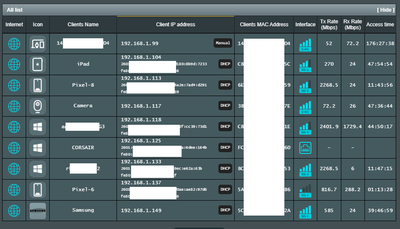
Here is an example list of attached devices. Personal info removed, but you can see how it works. Shows the device, its assigned IP, which broadcast its associated with, etc.
Some ways to get the printer's IP:
View list of attached devices on your router
Use printer's control panel LCD and look for Network, Wireless, IP address, might say IPv4
If its connected, you should see the name of your wireless network / connected, etc.
Canon offers a Wireless Connection Assistant Application for windows or MAC, but checking the router or the printer directly is likely faster.
Canon : Manuals : Checking Printer Connection Status Using Wi-Fi Connection Assistant
You can ping the IP of the printer (once known) from Terminal. This is in the Applications > Utility folder. Check Finder for this.
My printer's IP is 192.168.1.99... it would look similar to this:
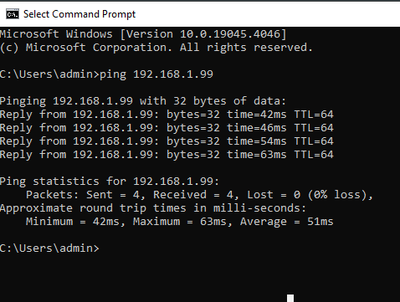
The successful replies indicate the computer can communicate with the printer. A firewall or 3rd party anti-virus might keep a printer from being detected or communicating properly. (Not sure it applies, just mentioning it). We can continue once you have verified connectivity between devices on your network.
~Rick
Bay Area - CA
~R5 C (1.1.3.1), ~RF Trinity, ~RF 100 Macro, ~RF 100~400, ~RF 100~500, ~RF 200-800, ~RF 1.4x TC, BG-R10, 430EX III-RT ~DxO PhotoLab Elite ~DaVinci Resolve Studio ~ImageClass MF644Cdw MF656Cdw ~Pixel 10 ~CarePaks Are Worth It
Options
- Mark as New
- Bookmark
- Subscribe
- Mute
- Subscribe to RSS Feed
- Permalink
- Report Inappropriate Content
02-23-2024 10:49 AM
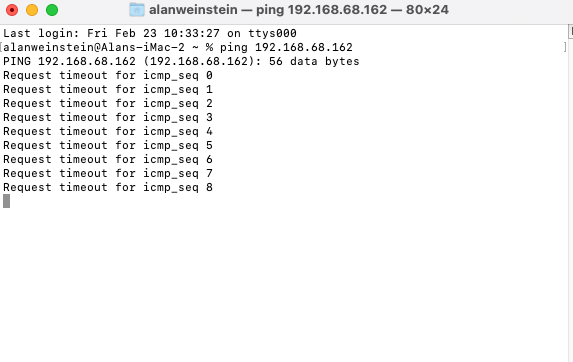
First you are amazing. Realize that the printer is connected to the wireless and if I use wireless on my Mac it works perfectly. The problem is I prefer having the Mac direct connected via ethernet and when I do that the printer shows offline. I went tot he lCD screen and printed out 3 pages on Network configurations and none of the ones I typed in the terminal showed anything. I assume I was supposed to type the word ping first as you did. I'm calling spectrum for the login.
Options
- Mark as New
- Bookmark
- Subscribe
- Mute
- Subscribe to RSS Feed
- Permalink
- Report Inappropriate Content
02-23-2024 01:35 PM
So I figured out the problem. The Mac was connected directly into the Router while the wireless was running via the mesh network. So I plugged the Mac directly in the the mesh network and it solved the issue. Your generous input put me on the right path so thank you for all of that.

Announcements
07/22/2026: New firmware updates are available.
EOS R6 Mark III - Version 1.1.0
05/13/2026: New firmware updates are available.
EOS R5 Mark II - Version 1.3.0
EOS R6 Mark II - Version 1.7.0
04/28/2026: Service Notice: Caution Concerning use of Lithium Batteries
03/17/2026: New firmware updates are available.
SELPHY CP1500 - Version 1.0.7.0
02/23/2026: New firmware update is available for EOS C50- Version 1.0.3.1
01/23/2026: New firmware update is available for RF 24-105mm F4 IS USM- Version 2.0.7
01/20/2026: New firmware updates are available.
10/21/2025: Service Notice: To Users of the Compact Digital Camera PowerShot V1
10/15/2025: New firmware updates are available.
Speedlite EL-5 - Version 1.2.0
Speedlite EL-1 - Version 1.1.0
Speedlite Transmitter ST-E10 - Version 1.2.0
07/28/2025: Notice of Free Repair Service for the Mirrorless Camera EOS R50 (Black)
05/21/2025: New firmware update available for EOS C500 Mark II - Version 1.1.5.1
Related Content
- Pixma TR8620a unable to be found on network in Printer Software & Networking
- PIXMA G3670 Printer pausing and unable to delete queue in Desktop Inkjet Printers
- i-SENSYS MF750 II: unable to register, not intended for use or sale in USA error in Office Printers
- PIXMA G7020 only prints in red from all ink tanks in Desktop Inkjet Printers
- Where is the Serial Number for Canon Color imageCLASS MF663Cdw in Office Printers

Ⓒ 2026
Canon U.S.A Inc. All Rights Reserved. Reproduction in whole or part without permission is prohibited.
