Turn on suggestions
Auto-suggest helps you quickly narrow down your search results by suggesting possible matches as you type.
- Canon Community
- Discussions & Help
- EOS Webcam Utility Pro
- EOS Webcam Utility Pro - Discussions
- Re: Webcam Utility not working anymore
Options
- Subscribe to RSS Feed
- Mark Topic as New
- Mark Topic as Read
- Float this Topic for Current User
- Bookmark
- Subscribe
- Mute
- Printer Friendly Page
Webcam Utility not working anymore

Options
- Mark as New
- Bookmark
- Subscribe
- Mute
- Subscribe to RSS Feed
- Permalink
- Report Inappropriate Content
12-30-2020 05:59 AM
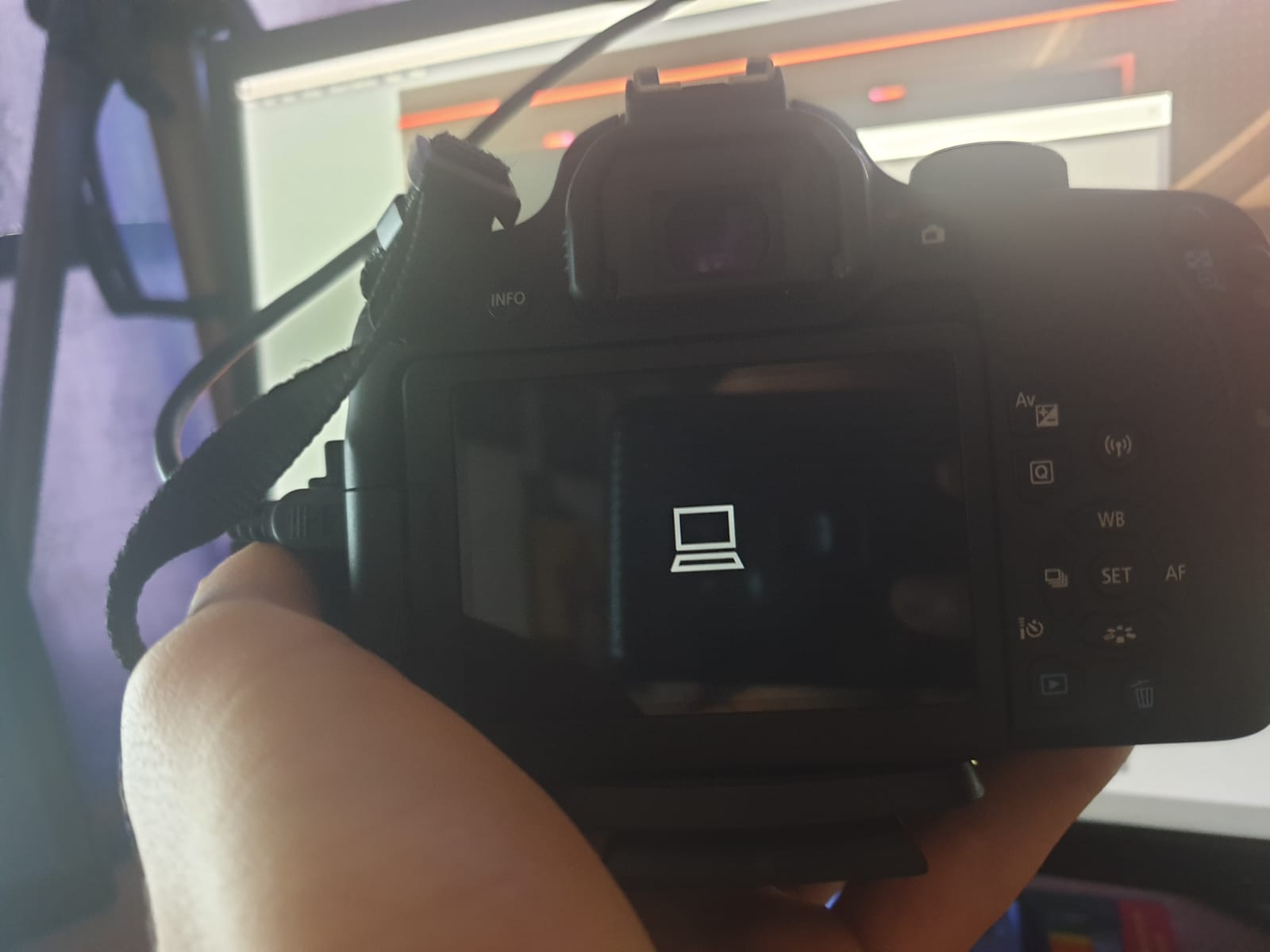
Yesterday it worked just fine, I put my battery to charge and today when I tried it again it simply does not work. I tried reinstalling it rebooting the pc taking the battery out of the camera, changing the modes it simply does not work. It shows me that it is connected but the webcam utility does not work. All the camera shows is a picture of a little PC. I can't even select the software as my webcam it simply does not work. Anyone know what should be done in this situation?

5 REPLIES 5


Options
- Mark as New
- Bookmark
- Subscribe
- Mute
- Subscribe to RSS Feed
- Permalink
- Report Inappropriate Content
12-30-2020 01:13 PM
What type of computer are you running? I assume that you are running Windows 10 because you used "pc".
The computer icon on the camera is what appears when the camera connects with the regular EOS Utlity. Make sure that the regular EOS Utlity Launcher Service is not running.
You have to close the EOS Utility, and disable the EOS Utility Launcher service. The Launcher Service is one of icons in the system try near the system clock on the taskbar.
--------------------------------------------------------
"Enjoying photography since 1972."
"Enjoying photography since 1972."
Options
- Mark as New
- Bookmark
- Subscribe
- Mute
- Subscribe to RSS Feed
- Permalink
- Report Inappropriate Content
12-30-2020 04:14 PM
I am indeed runnin Windows 10 and I closed that because I saw that it was a problem. I even selected "do not open automaticaly when plugging in the camera" and it still doesn't seem to work. Any other tips??
Options
- Mark as New
- Bookmark
- Subscribe
- Mute
- Subscribe to RSS Feed
- Permalink
- Report Inappropriate Content
12-30-2020 05:16 PM - edited 12-30-2020 05:17 PM
@AlexScarlat wrote:I am indeed runnin Windows 10 and I closed that because I saw that it was a problem. I even selected "do not open automaticaly when plugging in the camera" and it still doesn't seem to work. Any other tips??
Before you close the regular EOS Utlity, does it work properly? This is a good test of your setup.
If the regular EOS Utlity works, you need to do more than shut it down. You need to disable the EOS Utility Launcher Service in the system tray of icons near the clock. THIS is the problem.
Right click on the icon, and select "Exit". This must be done BEFORE you connect the camera and turn it on.
--------------------------------------------------------
"Enjoying photography since 1972."
"Enjoying photography since 1972."
Options
- Mark as New
- Bookmark
- Subscribe
- Mute
- Subscribe to RSS Feed
- Permalink
- Report Inappropriate Content
12-30-2020 05:24 PM
Refer to these forum pages for tips and tricks.
https://community.usa.canon.com/t5/Canon-EOS-Webcam-Utility/bg-p/CanonEOSWebcamUtility
--------------------------------------------------------
"Enjoying photography since 1972."
"Enjoying photography since 1972."
Options
- Mark as New
- Bookmark
- Subscribe
- Mute
- Subscribe to RSS Feed
- Permalink
- Report Inappropriate Content
01-01-2021 09:03 AM
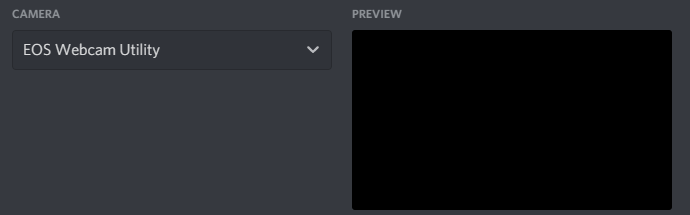
I've officially tried EVERYTHING. I uninstalled the EOS utility I uninstalled the webcam utility I've restarted my pc like a Bilion times and everything I get is a Blackscreen. Not even the USB error or the camera error just a pure black screen. I ran out of options I simply don't know what went wrong. I have another webcam and it works so it's not like I did something to my computer it just stopped working overnight. I went and looked at the tips and tricks but nothing helpful showed. Thank you for your help anyway i will simply give up I am tired of trying.


Announcements
07/22/2026: New firmware updates are available.
EOS R6 Mark III - Version 1.1.0
05/13/2026: New firmware updates are available.
EOS R5 Mark II - Version 1.3.0
EOS R6 Mark II - Version 1.7.0
04/28/2026: Service Notice: Caution Concerning use of Lithium Batteries
03/17/2026: New firmware updates are available.
SELPHY CP1500 - Version 1.0.7.0
02/23/2026: New firmware update is available for EOS C50- Version 1.0.3.1
01/23/2026: New firmware update is available for RF 24-105mm F4 IS USM- Version 2.0.7
01/20/2026: New firmware updates are available.
10/21/2025: Service Notice: To Users of the Compact Digital Camera PowerShot V1
10/15/2025: New firmware updates are available.
Speedlite EL-5 - Version 1.2.0
Speedlite EL-1 - Version 1.1.0
Speedlite Transmitter ST-E10 - Version 1.2.0
07/28/2025: Notice of Free Repair Service for the Mirrorless Camera EOS R50 (Black)
05/21/2025: New firmware update available for EOS C500 Mark II - Version 1.1.5.1
Related Content
- eos webcam utility pro on windows 10 home not working in EOS Webcam Utility Pro - Discussions
- EOS Webcam Utility stopped working after a Windows Update. in EOS Webcam Utility Pro - Discussions
- EOS Webcam utility pro not working with 6D Mark 2 in EOS Webcam Utility Pro - Discussions
- EOS Webcam Utility PRO does not work after upgrade to Windows 11 in EOS Webcam Utility Pro - Discussions
- EOS M50 mark ii Will not connect to EOS Utility Pro in EOS Webcam Utility Pro - Discussions

Ⓒ 2026
Canon U.S.A Inc. All Rights Reserved. Reproduction in whole or part without permission is prohibited.
