Turn on suggestions
Auto-suggest helps you quickly narrow down your search results by suggesting possible matches as you type.
- Canon Community
- Discussions & Help
- Printer
- Desktop Inkjet Printers
- Possibly head clog solution! Syringe with cleaning...
Options
- Subscribe to RSS Feed
- Mark Topic as New
- Mark Topic as Read
- Float this Topic for Current User
- Bookmark
- Subscribe
- Mute
- Printer Friendly Page
yellow will not print

Options
- Mark as New
- Bookmark
- Subscribe
- Mute
- Subscribe to RSS Feed
- Permalink
- Report Inappropriate Content
04-07-2014 02:56 PM
I have an ip4920 printer. The color yellow will not print. The cartridge has ink in it and the breathing hole is clear. I have taken the print head out and cleaned it. I can force ink through the yellow to the printhead. I have cleaned it and done 2 deep cleanings (colors) - all to no avail.
thoughts?
22 REPLIES 22
Options
- Mark as New
- Bookmark
- Subscribe
- Mute
- Subscribe to RSS Feed
- Permalink
- Report Inappropriate Content
07-05-2018 11:57 AM
Hello quiettao!
The Forums aren't meant for immediate assistance but are designed to allow the community to help each other with issues encountered or tips they'd like to share along the way.
If this is a time-sensitive matter, our US-based technical support team is a much more efficient way to get help! They're ready to help 24/7 via Email at http://bit.ly/CanonEmail or by phone at 1-800-OK-CANON (1-800-652-2666) weekdays between 10 AM and 10 PM ET (7 AM to 7 PM PT).
Options
- Mark as New
- Bookmark
- Subscribe
- Mute
- Subscribe to RSS Feed
- Permalink
- Report Inappropriate Content
07-05-2018 04:13 PM - last edited on 07-05-2018 04:15 PM by John_B
Hi John, Seeing as you are here and you have moderator and Canon to your name (wish I had as I would get to the bottom of this) I assume you must have an idea about Canon printers. The original post was in 2014 so if you do have any tips or (as you seem to be part of this community) you are able to help in any way I am sure we and the 11,702 people who have viewed the first post would be grateful of any answers and wouldn't accuse you of giving immediate assistance. I realise I sound sarcastic, but you probably use a printer and you are part of this world of throw away electronics at inflated prices so would benefit from any truthfull answers as much as any of us. Sorry if you are as clueless and the next person and I appreciate you are just doing your job. My intention is not to make you feel uncomfortable, but you must agree it would be great if things improved and lasted longer.

Options
- Mark as New
- Bookmark
- Subscribe
- Mute
- Subscribe to RSS Feed
- Permalink
- Report Inappropriate Content
07-06-2018 04:22 PM
Hi quiettao,
Let's start by performing a nozzle check.
You need to prepare: a sheet of A4 or Letter-sized plain paper
1. Make sure that the power is turned on.
2. Make sure that one or more sheets of A4 or Letter-sized plain paper are loaded in the cassette.
Note: The the nozzle check pattern can only be printed from the cassette.
3. Open the paper output tray gently, and extend the output tray extension to open.
important:
If the inner cover is open, close it.
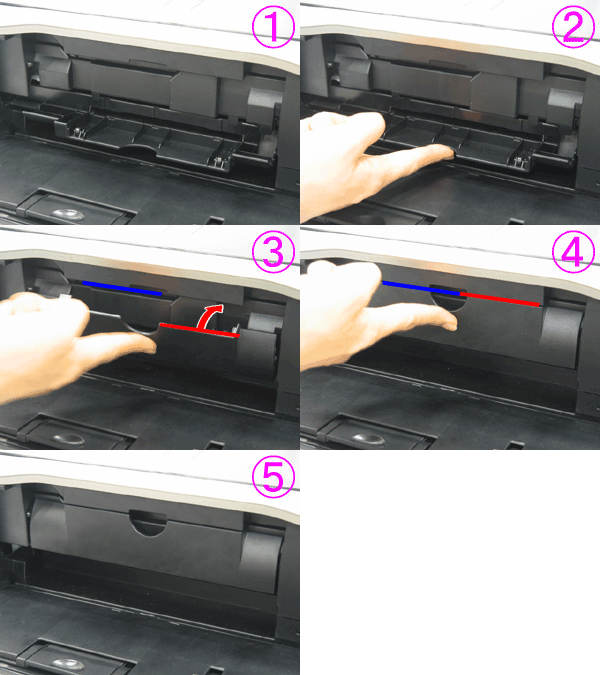
4. Hold down the RESUME/CANCEL button until the POWER lamp flashes green twice, then release it immediately.
The nozzle check pattern will be printed.
Do not perform any other operations until the printer completes the printing of the nozzle check pattern.
5. Examine the nozzle check pattern.
If the black grid pattern or any of the color bars is streaked or missing, additional cleaning may be required.
This didn't answer your question or issue? Please call or email us at one of the methods on the Contact Us page for further assistance.
Did this answer your question? Please click the Accept as Solution button so that others may find the answer as well.
Options
- Mark as New
- Bookmark
- Subscribe
- Mute
- Subscribe to RSS Feed
- Permalink
- Report Inappropriate Content
07-06-2018 04:41 PM
Hi currie,
Canon ink cartridges are not designed to be refilled or "blown out" as described earlier. Blowing out can damage the cartridge, and third-party inks are not subject to Canon quality controls and may not work properly. In this case, I will recommend replacing the ink cartridge with a genuine Canon product, as the existing cartridge may now be damaged.
This didn't answer your question or issue? Please call or email us at one of the methods on the Contact Us page for further assistance.
Did this answer your question? Please click the Accept as Solution button so that others may find the answer as well.
Options
- Mark as New
- Bookmark
- Subscribe
- Mute
- Subscribe to RSS Feed
- Permalink
- Report Inappropriate Content
10-12-2018 06:03 PM
...and black and cyan!
Came across this thread while on my 4th day of searching for a solution. Pixma TS8050, working fine for 18 months until last weekend when I changed black and cyan cartridges.
Cartridge LEDs stopped flashing and tank status went to 100% for both.
But instantly zero printing from just those colours. And I mean zero - nozzle check pattern completely blank for cyan and black when it had been perfect 30 minutes before, using the old cartridges. Tried all the things in the manual: clean, deep clean, turn off and on then deep clean again. Even replacing the old cartridges. Nothing works although, strangely, ink levels reported for the new cartridges have now started to go down (?).
Removed print head. Looks OK (no obvious clogging) although haven't yet tried cleaning.
Contacted Canon UK Tech Support and after a couple of emails they said 'you've tried everything we can suggest. You need to take it to your local repair centre'. Now doing my sums to see if cost of postage, estimates and repairs will be more than buying a brand new (non-Canon) printer.
- Peter
Options
- Mark as New
- Bookmark
- Subscribe
- Mute
- Subscribe to RSS Feed
- Permalink
- Report Inappropriate Content
10-12-2018 06:51 PM - edited 10-12-2018 06:57 PM
Hi Bill S - Sorry for the delayed reply, Summer distractions and just busy.
First, sorry if this comes off flippant, but I'm an adult that grew up with computers and their peripherals and we live in 2018. Of course I already did anything you'd suggest that involves "user manual trouble shooting." Second, I'd bet that every user that has commented here has tried every fix as per the user manual. Third, it being 2018 and being somewhat tech saavvy is a requirement to function in the Western world, we all probably looked up DIY fix-it videos etc.. So, please offer solutions not more of the same...
Especially when this thread makes it obvious this is a printer issue that goes beyond OEM or non-OEM cartridge use and more than likely has nothing to do with a ink route being clogged. As far as I can tell you and Canon have not addressed this and due to the way the broken world now works, most of us will trash our printer and buy a new one because it'll be cheaper than any repair route. Lame and forsakes our environement and future generations.
Make me realize I'm wrong or give me a better answer please.
Options
- Mark as New
- Bookmark
- Subscribe
- Mute
- Subscribe to RSS Feed
- Permalink
- Report Inappropriate Content
10-30-2018 06:51 AM
Ok, just so everyone knows.
Water + Yellow ink will clog the print head. So cleaing your pritner head with water might last a few prints until you get the same issue.
I don't recommend you doing head cleans to de clog you can go through tons of ink and if you use genuine cartridges it's going to cost you a fortune! What you need to do is the following:
Open the latch to see your cartridges. Remove all cartridges and keep them safe this will take a while. Push the holder slightly to the right and pull the bar outwards this allows you to remove the printer head. remember how you removed it so it's easier to put back in.
Now you want to clean up the head at first you can use water windex etc. Just make sure its not pushing ink out anymore. You can use shringes to blow water through to test this from the top pads. I have done this multiple times but would only recommend this if you have tried everything else.
Once you have done this you will need an alchohol solution to flush any stuck bits cartridge refil kits come with a cleaning solution that i use. Leave it to soak on paper towel for 20 minutes or so. Then flush again with alcohol solution this is because you don't want water in the system because as mention yellow does not like it. One more step is to add pressure to the pads at the top with a paper towel this got some of the stuck colourant out for me but it might have just been luck. Too much pressure would most likely brake it or warp it but what you got to lose if your spending $30+ on ink... Once everything is dry put it all back together again and test.
It should now work if there is no yellow all after all that your print head is dead electric contacts perhaps. Oh and always Replace the printer not the head unless of course the head is a fraction of the price. The head is normally the price of the printer like the case is for the ip7250.
I print a shed load of cards and such and yellow is always the one that goes funny... alot of time wasted with that one.
Good luck.
Options
- Mark as New
- Bookmark
- Subscribe
- Mute
- Subscribe to RSS Feed
- Permalink
- Report Inappropriate Content
11-01-2018 11:24 AM
Follow-up to previous post. I'd been balancing new print head vs new printer tradeoff. But decided first to make an assumption that it was an ink clogging problem and do all I could with the existing print head.
Tried declogging it with IPA but this made things worse - now no printing on cyan or black either. Then, after that particular horse had bolted, found a web post 'did alcohol damage my printhead?' which had a reply saying 'not recommended'. The reply continued with the poster's own print head cleaning recipe. I thought I'd give it one last go and followed the instructions as closely as I could. And this worked. I've been printing for 2 weeks now with the cleaned-up head and all good so far.
No promises it'll work for anyone else - they're complicated things and probably have numerous failure modes. Good luck.
- Peter
Options
- Mark as New
- Bookmark
- Subscribe
- Mute
- Subscribe to RSS Feed
- Permalink
- Report Inappropriate Content
11-01-2018 11:28 AM
PS in my web trawling there had been unanimous agreement that you should not run your ink tanks dry. I had done just that and it was probably the cause of my original problem.
Options
- Mark as New
- Bookmark
- Subscribe
- Mute
- Subscribe to RSS Feed
- Permalink
- Report Inappropriate Content
09-07-2019 06:26 PM - edited 09-07-2019 06:37 PM
Perhaps my suggestion will help someone coming across this thread. I only have Canon 4920 printers, not some of the other models mentioned here, but I suspect we all have similar issues possibly with similar solutions.
My yellow was not printing correctly. Head cleaning would sometimes clear it for a short while, then it clogged again. This showed up as a “smear” of white (non-printing area) in the yellow bar of a test print. My last 4920 printer did this as well late in its life and I finally threw it out, purchasing another one on an auction site since Canon no longer sells this excellent, inexpensive, compact, 2-tray printer (envelopes or labels in top tray, paper in the bottom tray, YAHOO! There’s nothing like it now except the bulky awkward unreliable MB2320.)
This time I was more determined to fix it especially since I’ve only been using this printer a few months (but no warranty on it). Repeated cleanings and “deep cleanings” were not working. I finally learned from YouTube how to remove the print head. This is simple, anyone can do it. Just pretend you’re adding ink (which moves the cartridge holder into position) unplug the printer for safety (and to possibly avoid shorting the printer head), lift the bar in front, and reach in to remove the head.
I tried soaking the bottom of the head in a shallow tray of Windex. I tried using some “ink dissolving” fluids from my Epson printer setup. I put the head back in but no luck, yellow still clogged. Other heads also clogged during the Windex process, but they cleared up again with normal cleanings.
I had another “new” 4920 on the shelf as a backup for this one (did I say how much I like this little printer?) so finally, to determine if I really had a head problem or not, I took out the head from the new printer and put it in the old printer. It worked fine right off the bat, perfect test print. So I figured I’d buy a new head from an auction site. Canon heads are about $95. there right now, with Chinese knockoffs running much less, I no idea if they work though. I figured I’d put the replacement head in the new printer, ready for use when the old printer finally dies.
With nothing to lose now on the old printer head, I got more aggressive. There are videos of people running warm water over the print head, using a garden hose, etc. to clean it. But on my Epson printer (another story) I’d learned you could use a syringe to force cleaning solution (or Windex) through the head and this seemed like something to try on the Canon. I located some tubing which just fit over the connector which the cartridge seats upon. In one video I saw that a guy used a forceps to remove a small rubber seal around this connector (in the print head, this is, just below where the cartridge lets out ink. One rubber seal for each ink color but you only need to pull the one you’re trying to clear). I pulled out the rubber seal, it comes out easy but try not to damage it with a sharp tool. (AND NOTE how it came out so you can put it back in correctly). I stuck the rubber tubing over the connector, with the other tubing end already connected to a syringe. Filled the syringe with Windex and pressed down. It’ll escape around the connector as you press, but you should also see ink and fluid coming out the bottom of the print head (hold it over some paper towels to monitor progress). I tried to hold the print head in such a way that no fluid got on the electric contacts on the back of the print head. I repeated this process maybe 5 times, until no ink color (yellow) came out of the print head onto the paper towel beneath, only Windex. It’s a mess, wear rubber gloves.
Dry the print head with paper towels. If you got it soaking wet, let it sit a while under a warm lamp or the like. I am not sure what happens if the electrical contacts have fluids on them when you reinsert the head into the printer.
So now I removed the “new” print head I’d been using since stealing it from the new printer, and put the old print head back in the old machine. First test print: not good. Ran a cleaning cycle: next test print: perfect! I’ve made a few prints since this event earlier today and much to my surprise believe I’ve cleared the problem. If It re-occurs, I’ll put in the “new” print head again and buy another print head on the auction site as a backup and to use in the new printer when/if needed.
Sorry I don’t have photos to offer, (I'll try to a photo of the syringe...use 2 hands and wear gloves!)
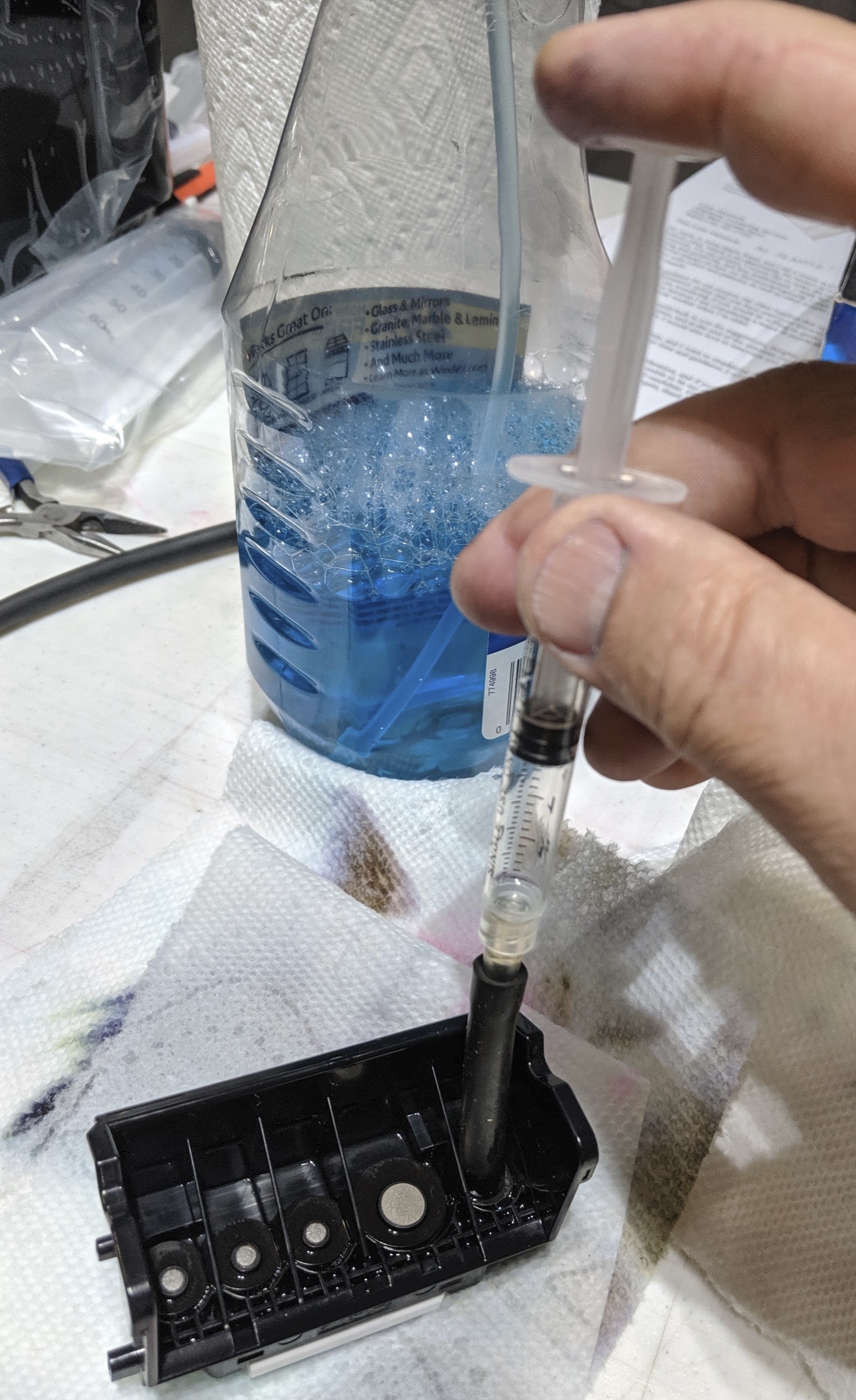
Again, just find a small syringe, some rubber tubing (hardware store) that will stretch or fit over the print head ink inlet, and press down firmly on the tubing as you push down on the syringe, trying to force most of the Windex down into the print head. Do it slowly and gradually. Slowly and gradually. It may take some practice to get it through there. The tubing I used is black rubber, 1/4 inch outside diameter, and 3/16 inside diameter. Again it was not a perfect fit but I could get sort of a seal and force the Windex through the print head. Best of luck.

Announcements
07/22/2026: New firmware updates are available.
EOS R6 Mark III - Version 1.1.0
05/13/2026: New firmware updates are available.
EOS R5 Mark II - Version 1.3.0
EOS R6 Mark II - Version 1.7.0
04/28/2026: Service Notice: Caution Concerning use of Lithium Batteries
03/17/2026: New firmware updates are available.
SELPHY CP1500 - Version 1.0.7.0
02/23/2026: New firmware update is available for EOS C50- Version 1.0.3.1
01/23/2026: New firmware update is available for RF 24-105mm F4 IS USM- Version 2.0.7
01/20/2026: New firmware updates are available.
10/21/2025: Service Notice: To Users of the Compact Digital Camera PowerShot V1
10/15/2025: New firmware updates are available.
Speedlite EL-5 - Version 1.2.0
Speedlite EL-1 - Version 1.1.0
Speedlite Transmitter ST-E10 - Version 1.2.0
07/28/2025: Notice of Free Repair Service for the Mirrorless Camera EOS R50 (Black)
05/21/2025: New firmware update available for EOS C500 Mark II - Version 1.1.5.1
Related Content
- Cyan offset on PIXMA iP8720 in Desktop Inkjet Printers
- imageCLASS MF654Cdw Faded Printing in Office Printers
- PIXMA G3060 no longer printing vibrant glossy photos in Desktop Inkjet Printers
- Getting the dreaded Code 2, 156, 33 on new Canon Lide 400 in Scanners
- PIXMA TS9521c Printer Won't Print Color in Desktop Inkjet Printers

Ⓒ 2026
Canon U.S.A Inc. All Rights Reserved. Reproduction in whole or part without permission is prohibited.
