cancel
Showing results for 
Show  only  | Search instead for 
Did you mean: 

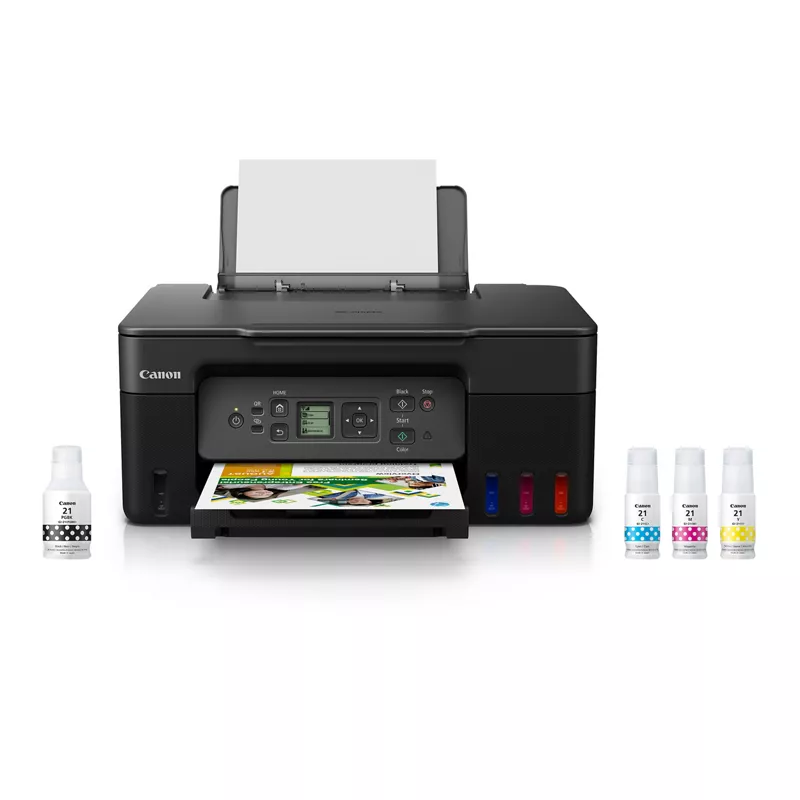
PIXMA G3272 Not Connecting to Macbook

jspies1024
Apprentice

I have successfully setup and connected my printer to my phone, but have spent about two hours trying to connect this same printer to my Macbook Air only to repeatedly run into the same issue. Whilst running through Master Setup on my Macbook, the printer is detected, and Easy Wireless Connect is successful (as displayed on the printer's screen), but then my Macbook always fails to successfully complete this process (despite the printer itself saying it was completed) and therefore is unable to proceed with adding the printer. Additionally, when I try to add the printer via System Settings, I cannot detect the printer via WiFi or IP... despite the printer itself being on the exact same WiFi as my Macbook and successfully being accessible via my phone.

1 REPLY 1

DerrickL
Rising Star
Rising Star

Many users have reported difficulties connecting the Canon PIXMA G3272 printer to their MacBooks, especially after recent macOS updates. Issues often arise due to driver compatibility or network settings.

Troubleshooting Steps

  1. Check Driver Compatibility
    Ensure you have the latest drivers for the PIXMA G3272. Visit the Canon website to download the appropriate drivers for your macOS version.

  2. Adjust Security Settings
    If you encounter installation issues, you may need to adjust your Mac's security settings:

    • Go to System Settings  Privacy & Security.
    • Look for any blocked driver installation messages and select Open Anyway.
  3. Network Connection
    Confirm that both your MacBook and the printer are connected to the same Wi-Fi network. If the printer is not detected, try restarting both devices.

  4. Reset Printing System
    If problems persist, consider resetting the printing system:

    • Open System Preferences  Printers & Scanners.
    • Right-click (or Control-click) in the printer list and select Reset printing system.

Additional Considerations

  • AirPrint Support
    The PIXMA G3272 supports AirPrint, which allows for wireless printing without needing additional drivers. Ensure AirPrint is enabled on your printer.

  • Firmware Updates
    Check if there are any firmware updates available for your printer that might resolve connectivity issues.

Following these steps should help you establish a connection between your PIXMA G3272 and MacBook. If problems continue, consider reaching out to Canon support for further assistance.

Announcements
