Turn on suggestions
Auto-suggest helps you quickly narrow down your search results by suggesting possible matches as you type.
- Canon Community
- Discussions & Help
- Printer
- Desktop Inkjet Printers
- How to Get Canon Printer Online on MAC?
Options
- Subscribe to RSS Feed
- Mark Topic as New
- Mark Topic as Read
- Float this Topic for Current User
- Bookmark
- Subscribe
- Mute
- Printer Friendly Page
How to Get Canon Printer Online on MAC?

Options
- Mark as New
- Bookmark
- Subscribe
- Mute
- Subscribe to RSS Feed
- Permalink
- Report Inappropriate Content
02-19-2019
12:42 AM
- last edited on
02-20-2019
09:50 AM
by
 Danny
Danny
How to Get Canon Printer Online on MAC?
My Canon Pixma MX330 printer is not linking to Mac. Whenever I try to print it tells me that the printer is offline, although it really isn't. I've removed and inserted that the printer twice, but no avail. I was able to print into the wireless printer however, perhaps not today. Additionally, restart printer and Mac, but my strategy is not choosing the printer. What am I overlooking here tell me in order my Canon printer gets online and also help me to resume printing?
Check Physical Connection -
To begin with, you must look at all cable connections between your Canon printer and Mac. Although it is dependent upon the method through which you have to join your printer into Mac. Also, confirm none of the wires is loose otherwise your machine will not recognize your printer and hence not able to print such a thing.
Reset Printing System -
1. In order to reset your printing system, then you have to tap the Apple menu and then choose"System Preferences".

Then go to the Hardware section and click on"Scan & Printing".
2. In the next step, you've got to press a click on Printer list together side get a handle on. Currently, a menu will pop up where you have to tap on"Reset Printing System".
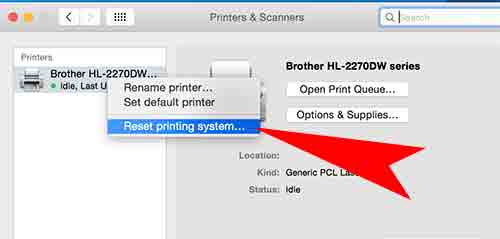
3. Confirm that your Canon printer has been secured attached with a Mac either wirelessly or through the ethernet connection.

How to buy Canon printer online on Mac
4. Next, tap Apple menu> System Preferences> Scan & Print.

The way to get Canon printer online on Mac
Note: Follow Printer Support forum for Canon Printer related Issues.
1. My laptop will not recognize my wireless printer?
2. How to change printer from offline to online Canon?
3. How can I install Canon printer Pixma mp250 without the CD?
Perform these basic troubleshooting sequences when your Canon printer receives off Line on Mac -
- To start with, you must look at all cable links between your Canon printer and the computer which mainly be based on the method that you just used for linking to this printer. Concur that none of the wires is loose and also your Canon printer is powered.
- Also, check your printer's tray to your paper jam. Confirm that your printer has enough paper and most of the papers are aligned appropriately. If"low ink" material is showing on the printer then instantly replace the prior ink cartridges with the newest ones.
- In the next step, tap the Apple menu and then choose"Software Update" option to install all available updates.
- After that, again tap the Apple menu and choose"Restart" option from the drop-down menu.
- Next, tap on System Preferences which is present in Dock and choose"Print & Scan" option. Now, press double clicks your printer from the printer list. Using this method, a yellow light will appear near your own printer's name. Then tap the Resume button.
- More Info: [link removed per forum guidelines]
- & Contact us: [phone number removed per forum guidelines]
[links throughout post removed to comply with forum guidelines]
1 REPLY 1

Options
- Mark as New
- Bookmark
- Subscribe
- Mute
- Subscribe to RSS Feed
- Permalink
- Report Inappropriate Content
02-22-2019 01:47 PM
Hi NinaLee,
So we can best assist you, please let us know what version of Mac you are using.
We look forward to your reply.

Announcements
12/22/2025: New firmware update is available for EOS R6 Mark III- Version 1.0.2
12/15/2025: New firmware update available for EOS C50 - Version 1.0.1.1
10/21/2025: Service Notice: To Users of the Compact Digital Camera PowerShot V1
07/28/2025: Notice of Free Repair Service for the Mirrorless Camera EOS R50 (Black)
05/21/2025: New firmware update available for EOS C500 Mark II - Version 1.1.5.1
12/18/2025: New firmware updates are available.
12/15/2025: New firmware update available for EOS C50 - Version 1.0.1.1
11/20/2025: New firmware updates are available.
EOS R5 Mark II - Version 1.2.0
PowerShot G7 X Mark III - Version 1.4.0
PowerShot SX740 HS - Version 1.0.2
10/21/2025: Service Notice: To Users of the Compact Digital Camera PowerShot V1
10/15/2025: New firmware updates are available.
Speedlite EL-5 - Version 1.2.0
Speedlite EL-1 - Version 1.1.0
Speedlite Transmitter ST-E10 - Version 1.2.0
07/28/2025: Notice of Free Repair Service for the Mirrorless Camera EOS R50 (Black)
7/17/2025: New firmware updates are available.
05/21/2025: New firmware update available for EOS C500 Mark II - Version 1.1.5.1
02/20/2025: New firmware updates are available.
RF70-200mm F2.8 L IS USM Z - Version 1.0.6
RF24-105mm F2.8 L IS USM Z - Version 1.0.9
RF100-300mm F2.8 L IS USM - Version 1.0.8
Related Content
- Password for the Canon TS6300 printer (Remote User Interface) in Desktop Inkjet Printers
- Scale document size print app in Office Printers
- Issue scanning to MAC OS 15 TR8620a in Desktop Inkjet Printers
- PIXMA TS9521C, cannot print 3.5 X 5 photos in Desktop Inkjet Printers
- PROGRAF PRO 2600 in Professional Photo Printers

Ⓒ 2026
Canon U.S.A Inc. All Rights Reserved. Reproduction in whole or part without permission is prohibited.
