Turn on suggestions
Auto-suggest helps you quickly narrow down your search results by suggesting possible matches as you type.
- Canon Community
- Discussions & Help
- Printer
- Desktop Inkjet Printers
- Canon MX860 printer problems
Options
- Subscribe to RSS Feed
- Mark Topic as New
- Mark Topic as Read
- Float this Topic for Current User
- Bookmark
- Subscribe
- Mute
- Printer Friendly Page
Canon MX860 printer problems

Options
- Mark as New
- Bookmark
- Subscribe
- Mute
- Subscribe to RSS Feed
- Permalink
- Report Inappropriate Content
12-30-2013 11:51 AM
Printer is suddenly printing all photos in orange hues. We have cleaned the cartridges, put in new ones and it continues to happen. Any suggestions other than buying a new printer.
3 REPLIES 3
Options
- Mark as New
- Bookmark
- Subscribe
- Mute
- Subscribe to RSS Feed
- Permalink
- Report Inappropriate Content
12-31-2013 10:22 AM
Printer has been printing photos in orange hues after working fine since we got it. Mac 10.8.5. We have cleaned ink jets and put in new ink and it still occurs. Is it time for a new printer or is there another way to fix it? Please HELP.
Options
- Mark as New
- Bookmark
- Subscribe
- Mute
- Subscribe to RSS Feed
- Permalink
- Report Inappropriate Content
11-14-2018 08:46 PM
My printer is printing with orange hues and I have tried everything as well, please help


Options
- Mark as New
- Bookmark
- Subscribe
- Mute
- Subscribe to RSS Feed
- Permalink
- Report Inappropriate Content
11-15-2018 08:49 AM
Hi Marcikaplan,
First, please make sure that the installed ink tanks are correct and full of ink. The correct order is:
CLI-221BK
CLI-221M
CLI-221Y
PGI-220BK
CLI-221C
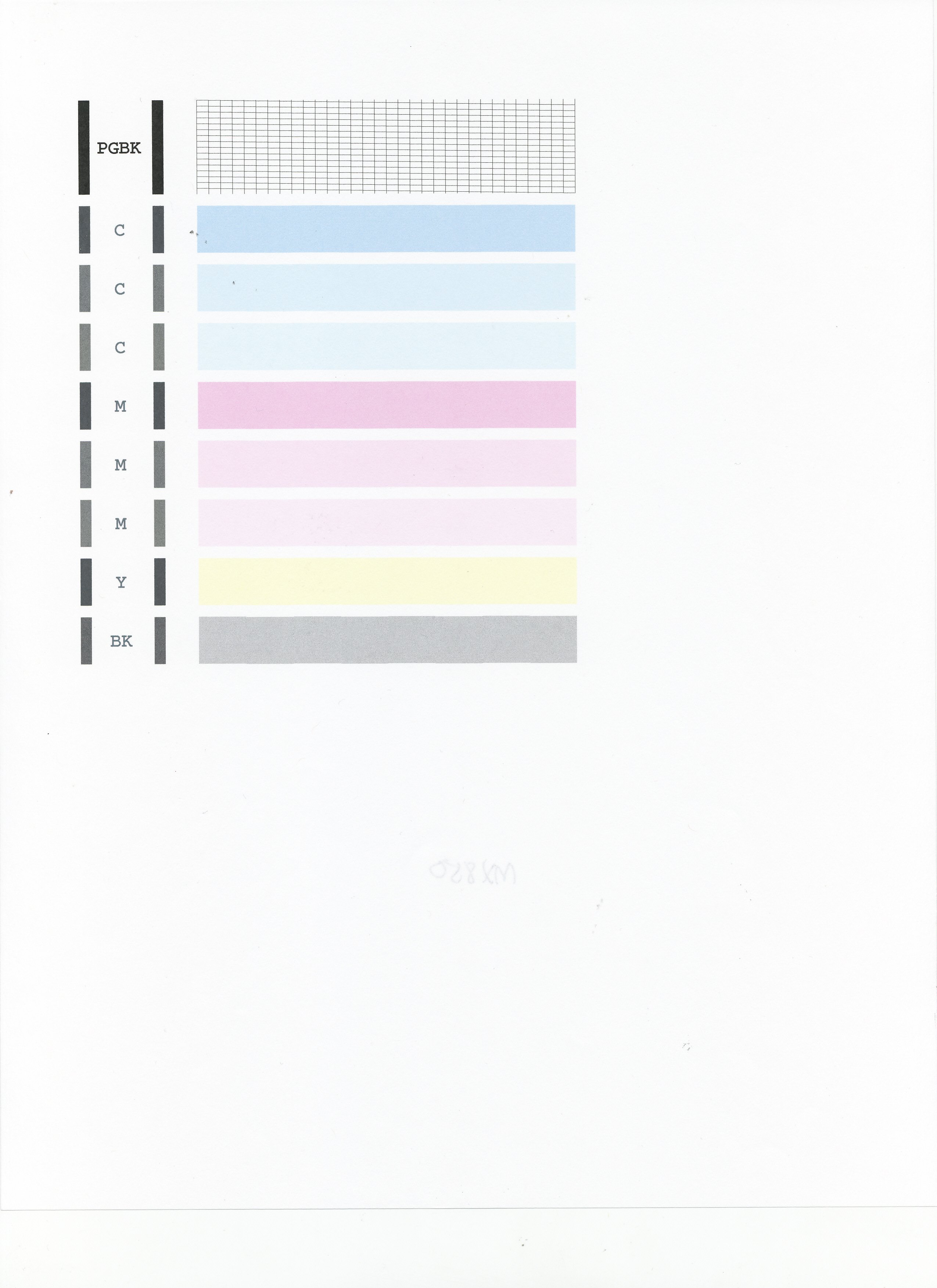
Next, please print the nozzle check pattern to determine whether the ink is ejecting properly from the print head. To do this, please follow these steps:
1. Make sure that the machine is turned on, then load a sheet of A4 or Letter-sized plain paper in the Auto Sheet Feeder or the Cassette.
2. Open the Paper Output Tray and then open the Output Tray Extension.
3. Press the Paper Feed Switch to select the paper source where you have loaded paper.
4. To print the nozzle check pattern:
4-1. Press the Menu button on your PIXMA MX860.
4-2. Select Maintenance, then press the OK button. The Maintenance screen is displayed.
4-3. Select Nozzle check pattern and then press the OK button. The pattern print confirmation screen is displayed.
4-4. Select Yes and then press the OK button.
The nozzle check pattern is printed and the pattern confirmation screens are displayed alternately.
Examine the nozzle check pattern, and perform cleaning if necessary.
Please perform the following steps to perform a Deep Cleaning:
1. Press the MENU button on your PIXMA MX860.
2. Select Maintenance then press the OK button.
3. Press <OK> to select Maintenance.
4. Select Deep Cleaning and press OK.
5. Press OK to select Yes.
The Deep cleaning will be performed. After 2 or 3 cleanings, print another test page.
Does the test page print correctly?

Announcements
07/22/2026: New firmware updates are available.
EOS R6 Mark III - Version 1.1.0
05/13/2026: New firmware updates are available.
EOS R5 Mark II - Version 1.3.0
EOS R6 Mark II - Version 1.7.0
04/28/2026: Service Notice: Caution Concerning use of Lithium Batteries
03/17/2026: New firmware updates are available.
SELPHY CP1500 - Version 1.0.7.0
02/23/2026: New firmware update is available for EOS C50- Version 1.0.3.1
01/23/2026: New firmware update is available for RF 24-105mm F4 IS USM- Version 2.0.7
01/20/2026: New firmware updates are available.
10/21/2025: Service Notice: To Users of the Compact Digital Camera PowerShot V1
10/15/2025: New firmware updates are available.
Speedlite EL-5 - Version 1.2.0
Speedlite EL-1 - Version 1.1.0
Speedlite Transmitter ST-E10 - Version 1.2.0
07/28/2025: Notice of Free Repair Service for the Mirrorless Camera EOS R50 (Black)
05/21/2025: New firmware update available for EOS C500 Mark II - Version 1.1.5.1
Related Content
- imageCLASS MF644Cdw has trouble staying connected to network and computer in Printer Software & Networking
- Brand new Ivy not working, app says photo queue is empty in Mobile & Compact Printers
- Canon Easy-PhotoPrint Editor says "no printers available" in Printer Software & Networking
- PIXMA TR7020 works best with error triangle light on, printer will not stay online in Desktop Inkjet Printers
- GP-4000 loose belt in Production Printing

Ⓒ 2026
Canon U.S.A Inc. All Rights Reserved. Reproduction in whole or part without permission is prohibited.
