cancel
Showing results for 
Show  only  | Search instead for 
Did you mean: 

MX340: I get the print preview screen - but it's always blank

OldGrantonian
Contributor

I have Canon MX340, printing from Windows 10.


I never use colorr. For years my printer worked fine with an empty colorr cartridge and a usable black cartridge..


Recently, after changing the black ink, I got message saying "Color ink running low"


I tried the various suggestions in the manual, such as pressing the red inverted triangle button for 10 seconds.


Eventually, I bought a new color cartridge - which I don't intend to use  🙂


Now there are no error messages, but I don't get a preview. The normal green preview screen appears - but it's blank.

If I now print, I get a blank page.


Any advice?


Thanks.

1 REPLY 1

Patrick
Product Expert
Product Expert

Hi OldGrantonian,

First, let's perform a test of your printer.  Please follow these steps:

1. Press the OPEN button to open the Output Tray.

2. Load letter-sized, plain paper in the Auto Sheet Feeder or the Cassette Tray.

3. Press the COPY button.

4. Press the MENU button repeatedly until MAINTENANCE is displayed in the LCD.

5. Press the LEFT or RIGHT ARROW buttons until NOZZLE CHECK is displayed in the LCD, and then press OK. The nozzle check pattern is printed. Please compare your printout to the example that has been attached to the bottom of this post.

If the page prints blank, printhead cleanings should be performed. Please follow the instructions below to clean the printhead:

1. Press the MENU button repeatedly until MAINTENANCE is displayed in the LCD.

2. Press the LEFT or RIGHT ARROW buttons until HEAD REFRESHING is displayed in the LCD below MAINTENANCE, and then press OK.

After 3 or 4 cleanings, print another test page. Does the test page print correctly?
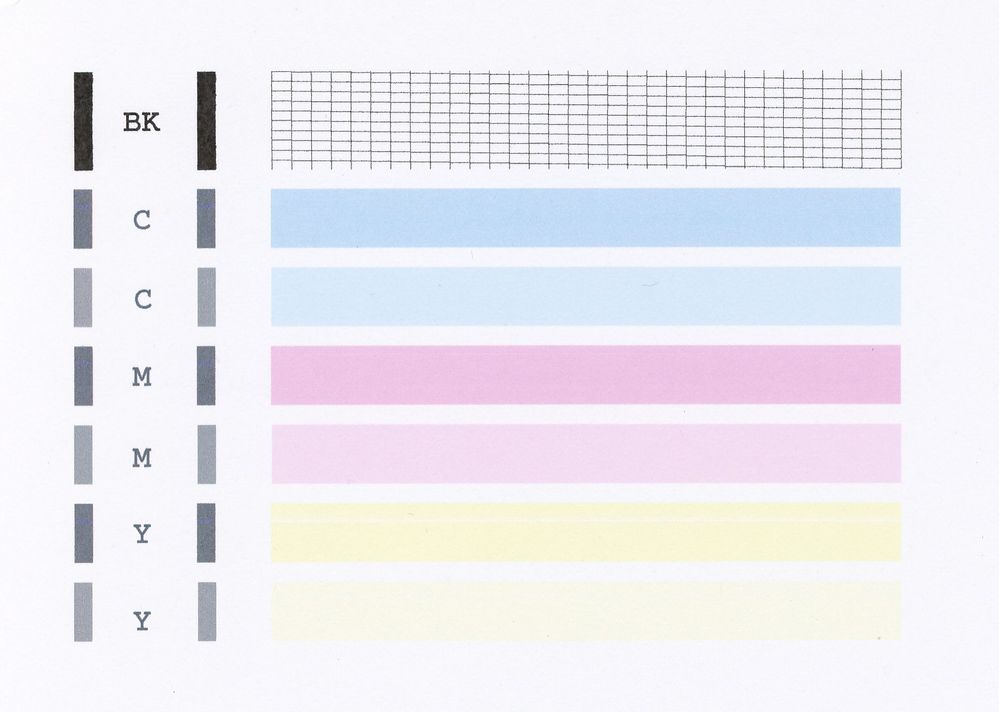
 

MX340 Nozzle Test.jpg

Holiday
Announcements

12/18/2025: New firmware updates are available.

EOS C400 - Version 1.0.4.1

EOS C80 - Version 1.0.4.1

XF605 - Version 1.0.7.1


12/15/2025: New firmware update available for EOS C50 - Version 1.0.1.1

11/20/2025: New firmware updates are available.

EOS R6 Mark III - Version 1.0.1

EOS R3 - Version 2.0.0

EOS R1 - Version 1.2.0

EOS R5 Mark II - Version 1.2.0

EOS R5 - Version 2.2.1

PowerShot G7 X Mark III - Version 1.4.0

PowerShot SX740 HS - Version 1.0.2


10/21/2025: Service Notice: To Users of the Compact Digital Camera PowerShot V1

10/15/2025: New firmware updates are available.

Speedlite EL-5 - Version 1.2.0

Speedlite EL-1 - Version 1.1.0

Speedlite Transmitter ST-E10 - Version 1.2.0


07/28/2025: Notice of Free Repair Service for the Mirrorless Camera EOS R50 (Black)

7/17/2025: New firmware updates are available.

EOS R7 - Version 1.7.1

EOS R10 - Version 1.7.0

EOS R8 - Version 1.5.0

EOS R50 - Version 1.4.0

Powershot V10 - Version 1.4.0

Powershot V1 - Version 1.1.0

EOS R50V - Version 1.1.1


05/21/2025: New firmware update available for EOS C500 Mark II - Version 1.1.5.1

02/20/2025: New firmware updates are available.

RF70-200mm F2.8 L IS USM Z - Version 1.0.6

RF24-105mm F2.8 L IS USM Z - Version 1.0.9

RF100-300mm F2.8 L IS USM - Version 1.0.8

RF50mm F1.4 L VCM - Version 1.0.2

RF24mm F1.4 L VCM - Version 1.0.3


01/22/2024: Canon Supports Disaster Relief Efforts in California
01/14/2025: Steps to resolve still image problem when using certain SanDisk SD cards with the Canon EOS R5 Mark II


