Turn on suggestions
Auto-suggest helps you quickly narrow down your search results by suggesting possible matches as you type.
- Canon Community
- Discussions & Help
- Printer
- Desktop Inkjet Printers
- Image Garden not recognizing PIXMA MX922 driver
Options
- Subscribe to RSS Feed
- Mark Topic as New
- Mark Topic as Read
- Float this Topic for Current User
- Bookmark
- Subscribe
- Mute
- Printer Friendly Page
Image Garden not recognizing PIXMA MX922 driver

Options
- Mark as New
- Bookmark
- Subscribe
- Mute
- Subscribe to RSS Feed
- Permalink
- Report Inappropriate Content
01-17-2016 10:32 PM - edited 01-17-2016 10:33 PM
Hello,
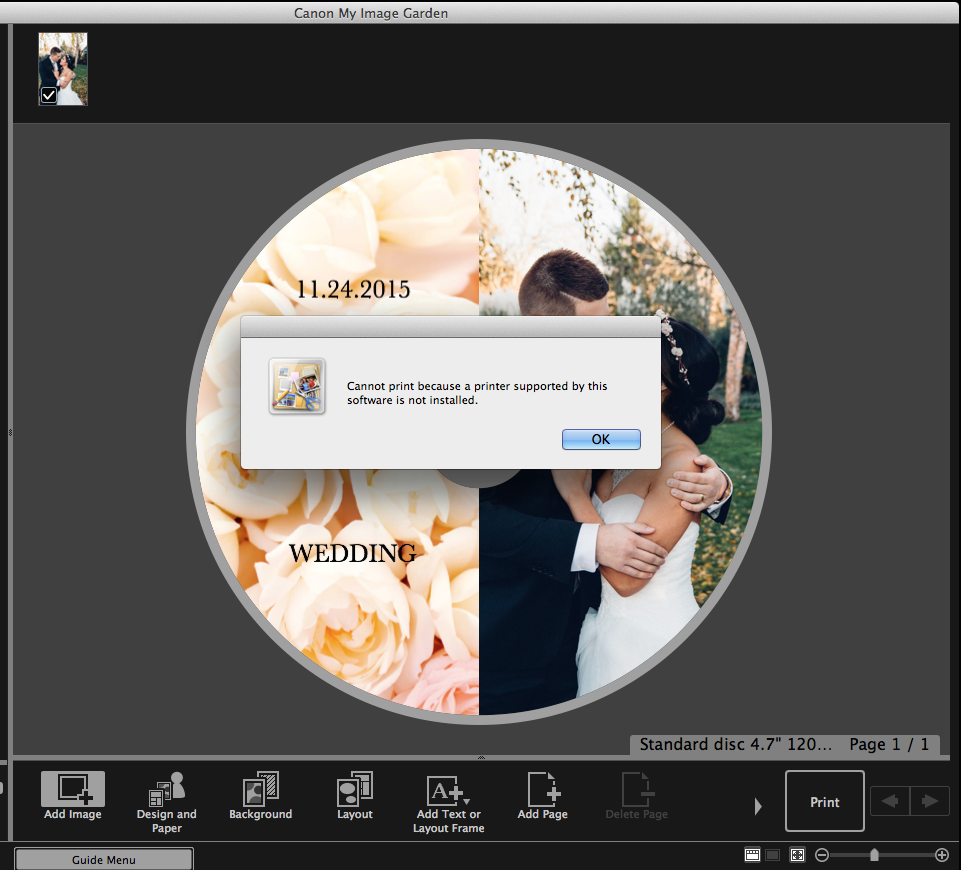
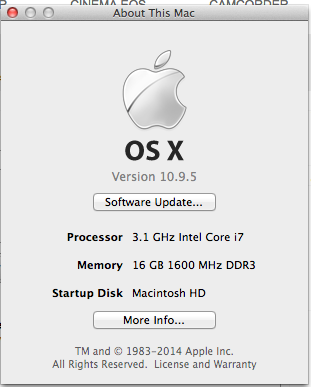
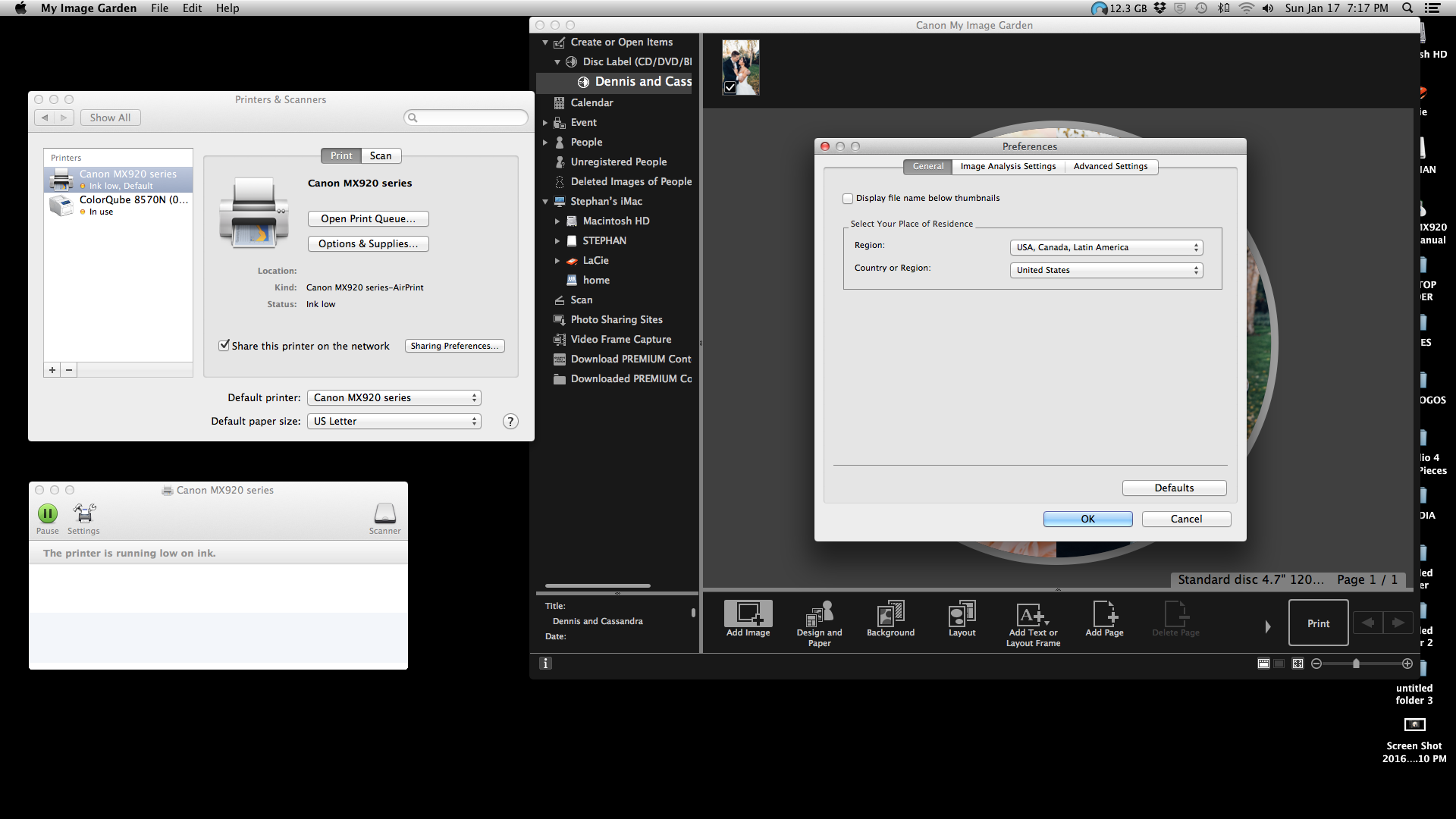
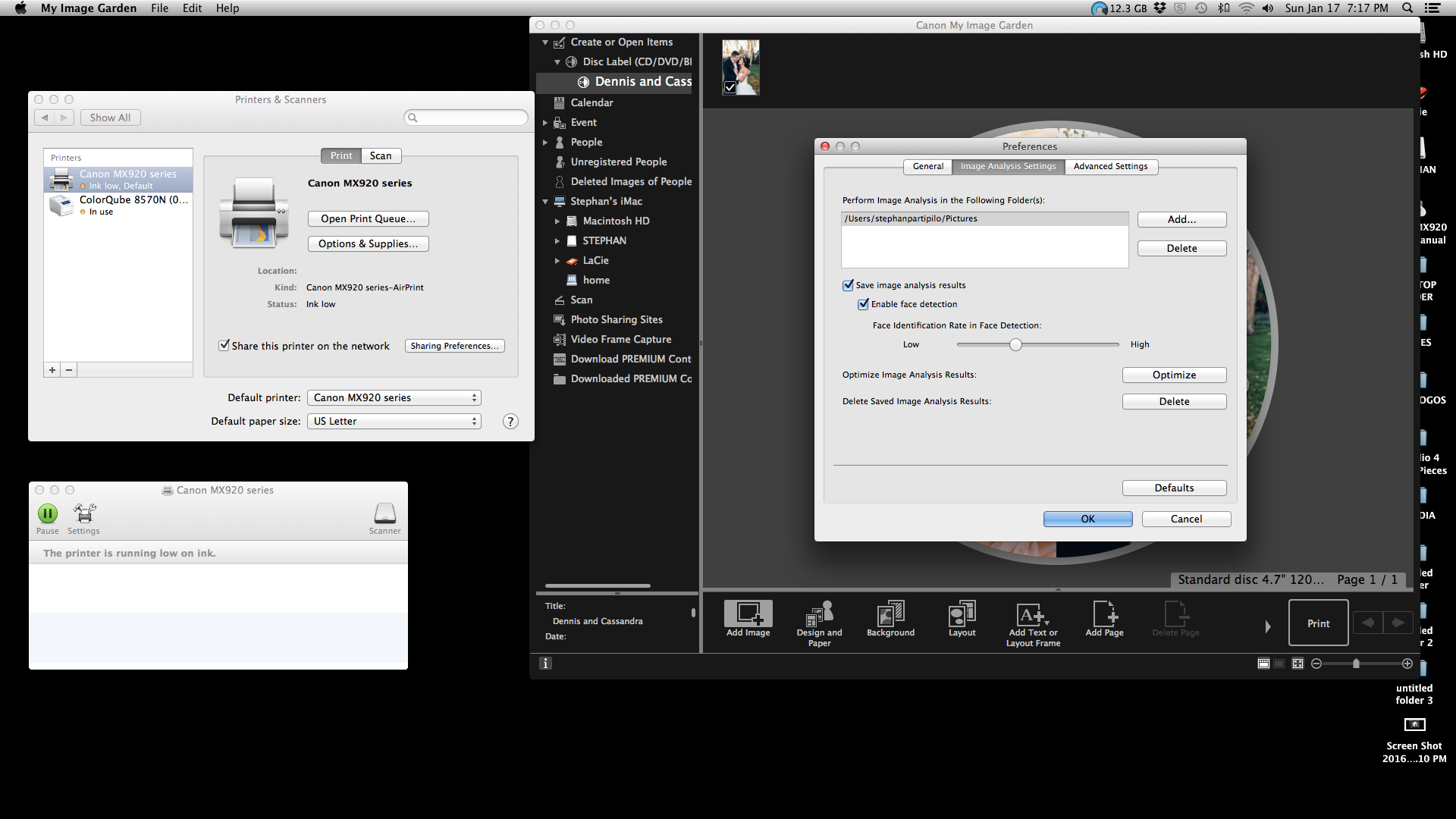
I recently tried to print CD cover using Canon PIXMA MX922 printer but the software, My Image Garden, keeps giving me an error message saying it doesnt support the driver for the printer. I don't know what to do. I am using a Mac. See screenshots. Any assistance would be much appreciated.
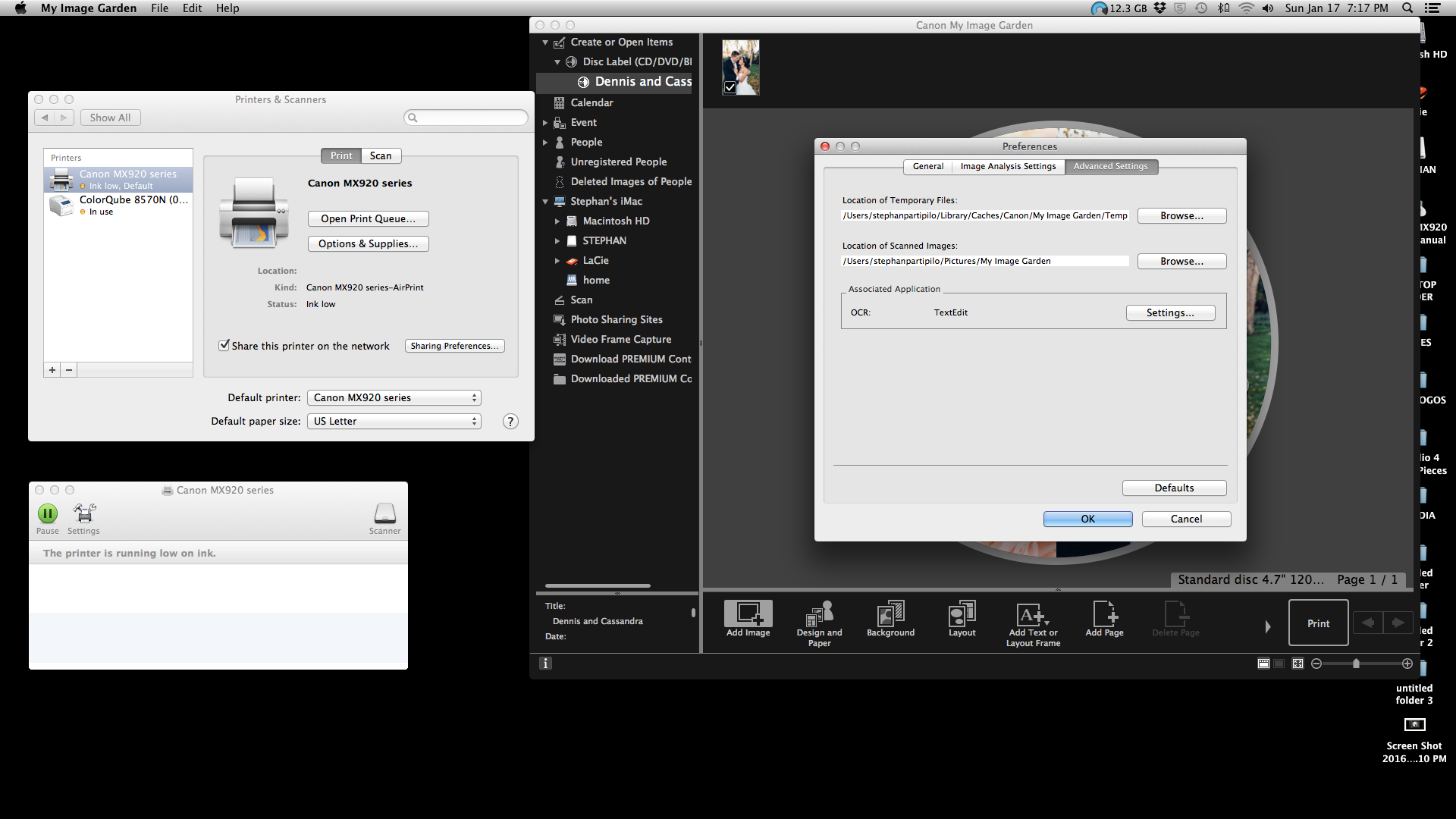
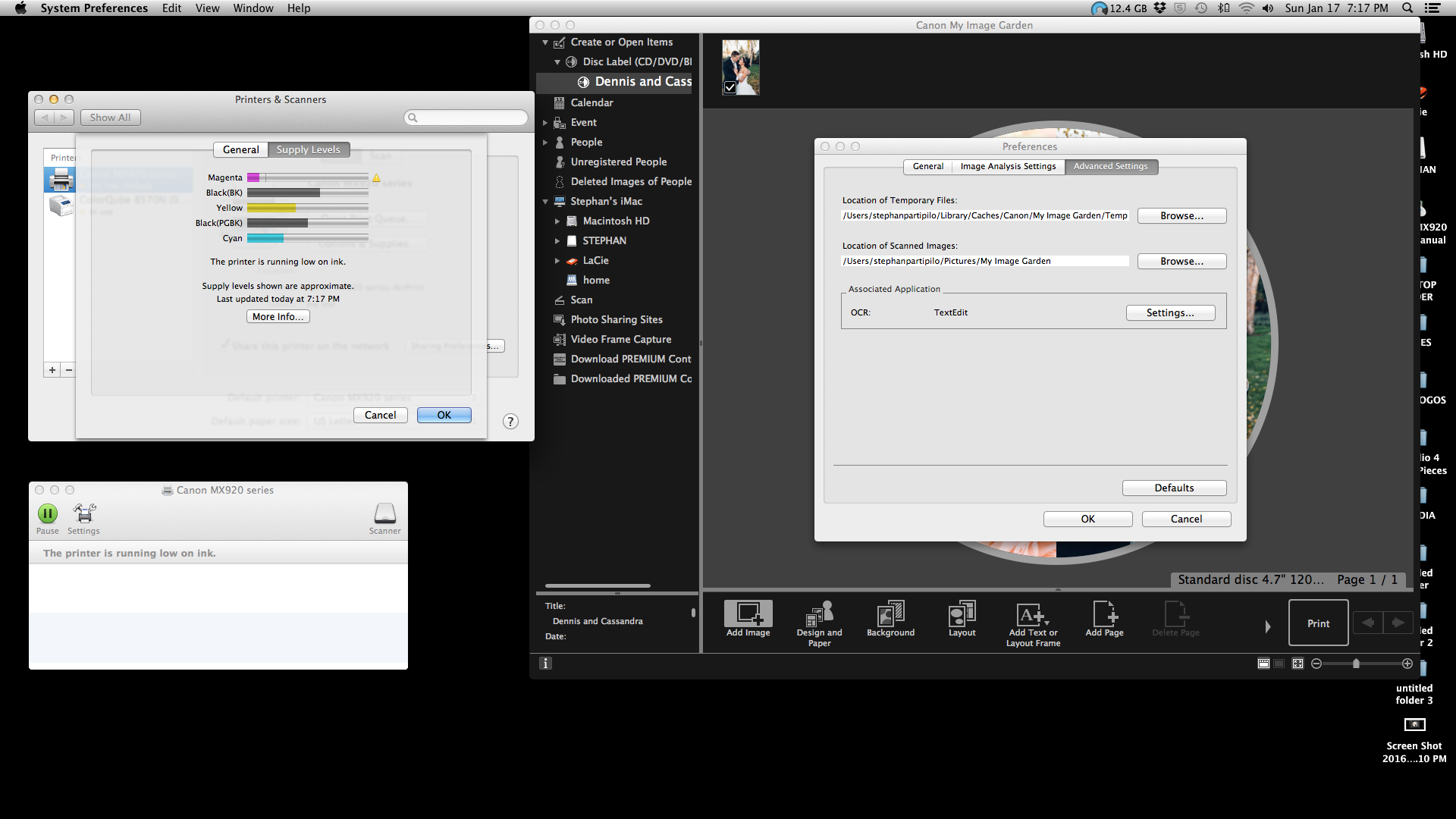
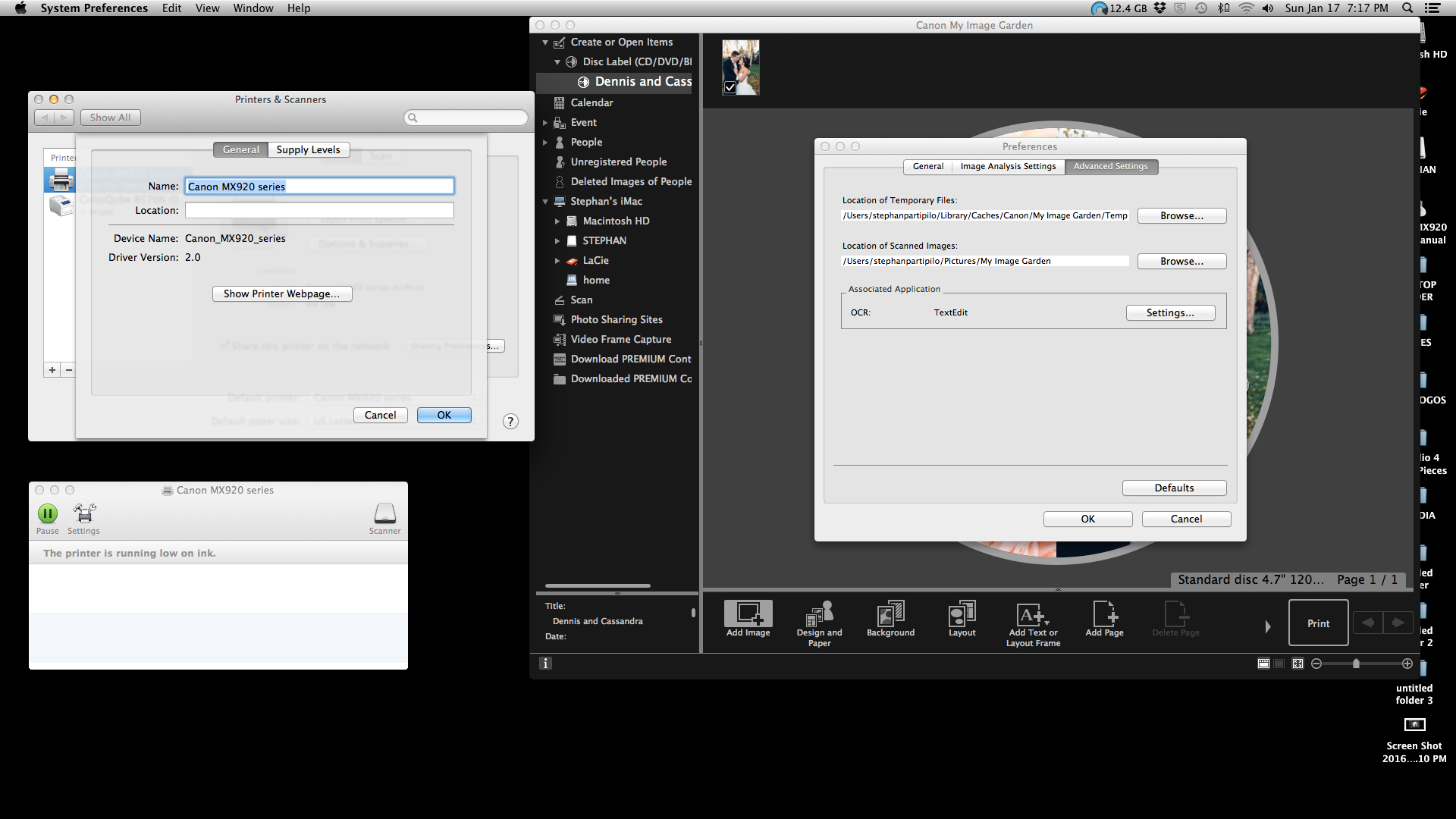
1 REPLY 1
Options
- Mark as New
- Bookmark
- Subscribe
- Mute
- Subscribe to RSS Feed
- Permalink
- Report Inappropriate Content
01-21-2016 05:51 AM
Hi TransonicGenie6,
We can reset the printer system on your Mac, then reinstall the printer drivers and My Image Garden software to see if this will resolve the issue. To reset the printer system, please follow these steps:
1. Go to your Apple menu, then select System Preferences, then Printers & Scanners.
2. Hold down the Control key as you click in the list at the left, then choose “Reset printing system” from the menu that appears.
3. If your printer is still listed on the left, select your printer and then click the minus (-) button to delete it.
4. Restart your Mac.
Next, we will want to download the latest drivers from the Canon USA website. Please click here to go to the Drivers and Downloads page for the PIXMA MX922. Once on the page, please do the following:
1. Verify that the operating system detected in the "OPERATING SYSTEM" field is correct, and if it is not, please click the drop-down menu to select your operating system. Please note that you may need to scroll up or down in the list to select your operating system.
2. Next, below the red box labeled "RECOMMENDED DOWNLOADS", locate the CUPS file, then click the SELECT button to the right of the filename. When you do, a dark gray DOWNLOAD button will appear; below that, a checkbox will be shown asking you to agree to the terms of the disclaimer to continue with the download. Please click in that checkbox to agree to the terms. When you do, the dark gray DOWNLOAD button will turn red. Please click on the now red DOWNLOAD button; the file will start downloading. The time for the download process may vary depending on the speed of your Internet connection and the size of the file being downloaded.
Once you have downloaded and installed the CUPS driver file from the website, please also download all other items from the RECOMMENDED DOWNLOADS and DRIVERS section. You will also want to download the MY IMAGE GARDEN software from the SOFTWARE section of the webpage. If you have the printer connected wirelessly, you will need to download the Canon IJ Network Tool from the SOFTWARE section.
Once all items have been downloaded, please double-click on each of the items on your Mac to install them, starting with the CUPS drivers file. Please ensure that the Canon IJ Network Tool is the very last item installed if using the printer wirelessly.
Once all items have been installed, please restart your Mac and attempt to print from My Image Garden again. If you still run into difficulty, please call 1-866-261-9362, Monday - Friday 10:00 a.m. - 10:00 p.m. ET (excluding holidays) and a Canon technical support representative will be happy to help. There is no charge for this call.
Did this answer your question? Please click the Accept as Solution button so that others may find the answer as well.

Announcements
07/22/2026: New firmware updates are available.
EOS R6 Mark III - Version 1.1.0
05/13/2026: New firmware updates are available.
EOS R5 Mark II - Version 1.3.0
EOS R6 Mark II - Version 1.7.0
04/28/2026: Service Notice: Caution Concerning use of Lithium Batteries
03/17/2026: New firmware updates are available.
SELPHY CP1500 - Version 1.0.7.0
02/23/2026: New firmware update is available for EOS C50- Version 1.0.3.1
01/23/2026: New firmware update is available for RF 24-105mm F4 IS USM- Version 2.0.7
01/20/2026: New firmware updates are available.
10/21/2025: Service Notice: To Users of the Compact Digital Camera PowerShot V1
10/15/2025: New firmware updates are available.
Speedlite EL-5 - Version 1.2.0
Speedlite EL-1 - Version 1.1.0
Speedlite Transmitter ST-E10 - Version 1.2.0
07/28/2025: Notice of Free Repair Service for the Mirrorless Camera EOS R50 (Black)
05/21/2025: New firmware update available for EOS C500 Mark II - Version 1.1.5.1
Related Content
- Canon i-SENSYS MF643Cdw not recognize drivers and scan in Printer Software & Networking
- Windows computer not recognizing PIXMA TR4700 Series drivers in Printer Software & Networking
- PIXMA IP8720 Driver and apps won't recognize L tray in Printer Software & Networking
- imageCLASS MF212w - Driver doesn't work, scanner not recognized in Office Printers
- My Image Garden shows "IJ network scanner selector EX2 cannot be found" in Printer Software & Networking

Ⓒ 2026
Canon U.S.A Inc. All Rights Reserved. Reproduction in whole or part without permission is prohibited.
