Turn on suggestions
Auto-suggest helps you quickly narrow down your search results by suggesting possible matches as you type.
- Canon Community
- Discussions & Help
- Camera
- Camera Software
- Re: EOS Utility 3.7.0 / WFT FirewallSetting Crashe...
Options
- Subscribe to RSS Feed
- Mark Topic as New
- Mark Topic as Read
- Float this Topic for Current User
- Bookmark
- Subscribe
- Mute
- Printer Friendly Page
EOS Utility 3.7.0 / WFT FirewallSetting Crashed

Options
- Mark as New
- Bookmark
- Subscribe
- Mute
- Subscribe to RSS Feed
- Permalink
- Report Inappropriate Content
09-08-2017 01:05 AM - edited 09-08-2017 01:08 AM
Hello,
I use a Canon 5D Mark IV and recently I download EOS Utility 3.7.0 from Canon and install sucessfully. My window operating system is Win10 64Bit
But I have a problem of "WFT Firewall Setting"
After I run EOS Utility, it alerts for changing WFT Firewall setting and of course I click yes for proceed.
Then it jumps out something like a Command Prompt box and then it pops out "WFT FirewallSettings has stopped Working".
I have tried on a different computer and the result is the same. I have tried to disable my firewall before running the WFT Firewall Settings but still crashed in the end. That doesn't help.
Anyone has any clue for this ??
Thanks a lot
Best regards
Vincent
PS: These are the information I collected from event log
Fault bucket 129523458530, type 5
Event Name: CLR20r3
Response: Not available
Cab Id: 0
Problem signature:
P1: wft firewallsettings.exe
P2: 1.0.1.0
P3: 50986680
P4: mscorlib
P5: 2.0.0.0
P6: 594980a6
P7: e5b
P8: 15a
P9: PSZQOADHX1U5ZAHBHOHGHLDGIY4QIXHX
P10:
Attached files:
\\?\C:\ProgramData\Microsoft\Windows\WER\Temp\WER8A57.tmp.mdmp
\\?\C:\ProgramData\Microsoft\Windows\WER\Temp\WER8AE5.tmp.WERInternalMetadata.xml
\\?\C:\ProgramData\Microsoft\Windows\WER\Temp\WER8AF5.tmp.csv
\\?\C:\ProgramData\Microsoft\Windows\WER\Temp\WER8B06.tmp.txt
These files may be available here:
C:\ProgramData\Microsoft\Windows\WER\ReportArchive\AppCrash_wft firewallsett_735c696fed78275a2ded3a6119ba9d07824b7e5_00000000_183bace3
Analysis symbol:
Rechecking for solution: 0
Report Id: 9e8cf6bf-c7db-4e3a-8fac-935a98228b01
Report Status: 268435456
Hashed bucket: aaab27a9fa3bcc2b62769a801dc5ba72
<Provider Name="Windows Error Reporting" />
<EventID Qualifiers="0">1001</EventID>
<Level>4</Level>
<Task>0</Task>
<Keywords>0x80000000000000</Keywords>
<TimeCreated SystemTime="2017-09-08T04:32:24.639423100Z" />
<EventRecordID>3222</EventRecordID>
<Channel>Application</Channel>
<Computer>Vincent-Asus</Computer>
<Security />
</System>
<Data>129523458530</Data>
<Data>5</Data>
<Data>CLR20r3</Data>
<Data>Not available</Data>
<Data>0</Data>
<Data>wft firewallsettings.exe</Data>
<Data>1.0.1.0</Data>
<Data>50986680</Data>
<Data>mscorlib</Data>
<Data>2.0.0.0</Data>
<Data>594980a6</Data>
<Data>e5b</Data>
<Data>15a</Data>
<Data>PSZQOADHX1U5ZAHBHOHGHLDGIY4QIXHX</Data>
<Data />
<Data>\\?\C:\ProgramData\Microsoft\Windows\WER\Temp\WER8A57.tmp.mdmp \\?\C:\ProgramData\Microsoft\Windows\WER\Temp\WER8AE5.tmp.WERInternalMetadata.xml \\?\C:\ProgramData\Microsoft\Windows\WER\Temp\WER8AF5.tmp.csv \\?\C:\ProgramData\Microsoft\Windows\WER\Temp\WER8B06.tmp.txt</Data>
<Data>C:\ProgramData\Microsoft\Windows\WER\ReportArchive\AppCrash_wft firewallsett_735c696fed78275a2ded3a6119ba9d07824b7e5_00000000_183bace3</Data>
<Data />
<Data>0</Data>
<Data>9e8cf6bf-c7db-4e3a-8fac-935a98228b01</Data>
<Data>268435456</Data>
<Data>aaab27a9fa3bcc2b62769a801dc5ba72</Data>
</EventData>
</Event>
4 REPLIES 4


Options
- Mark as New
- Bookmark
- Subscribe
- Mute
- Subscribe to RSS Feed
- Permalink
- Report Inappropriate Content
09-10-2017 02:23 PM
I just tried it and I get to a window like this. W10 (x64).

Do you crash before this appears?
John Hoffman
Conway, NH
R6 Mark III, M200 (converted to infrared), RF lenses, Pixma PRO-100, Pixma TR8620a, Lr Classic
Conway, NH
R6 Mark III, M200 (converted to infrared), RF lenses, Pixma PRO-100, Pixma TR8620a, Lr Classic
Options
- Mark as New
- Bookmark
- Subscribe
- Mute
- Subscribe to RSS Feed
- Permalink
- Report Inappropriate Content
09-10-2017 03:22 PM
Crashed before this "EOS Pairing Software" window appears =*(
I wish I saw that window !!
My status is,
1) EOS Utility Launcher is up
2) Press "Pairing over WiFi/LAN"
3) Auto alert for WFT Firewall Setting Changes need to be done
4) Clicked Yes for accepting changes
5) Command Prompt Window pops up.
6) WFT FirewallSetting Crashed Alert Window pops out.
Thx a lot and best regards
Vincent
Options
- Mark as New
- Bookmark
- Subscribe
- Mute
- Subscribe to RSS Feed
- Permalink
- Report Inappropriate Content
09-10-2017 03:36 PM
Give Canon a call at 1-800-OK-CANON.
John Hoffman
Conway, NH
R6 Mark III, M200 (converted to infrared), RF lenses, Pixma PRO-100, Pixma TR8620a, Lr Classic
Conway, NH
R6 Mark III, M200 (converted to infrared), RF lenses, Pixma PRO-100, Pixma TR8620a, Lr Classic
Options
- Mark as New
- Bookmark
- Subscribe
- Mute
- Subscribe to RSS Feed
- Permalink
- Report Inappropriate Content
04-28-2018 04:01 AM - edited 04-28-2018 04:05 AM
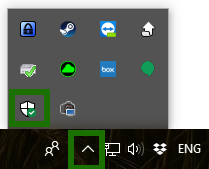
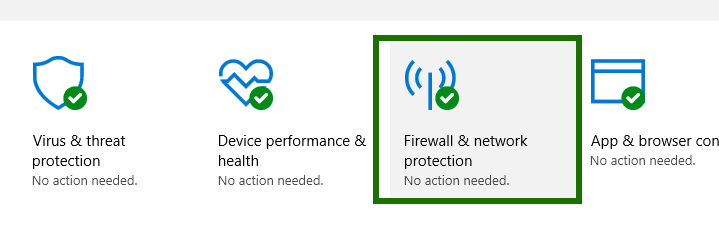
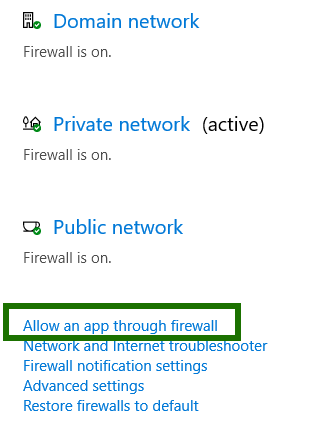
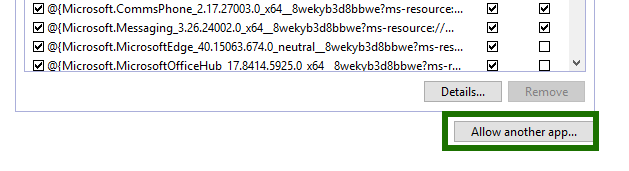
I have the same issue - solved with manually allowing UOS utility through firewall.
go to firewall settings and add
Step number 1
Step number 2
Step number 3
Step number 4

Step number 5
Step number 6
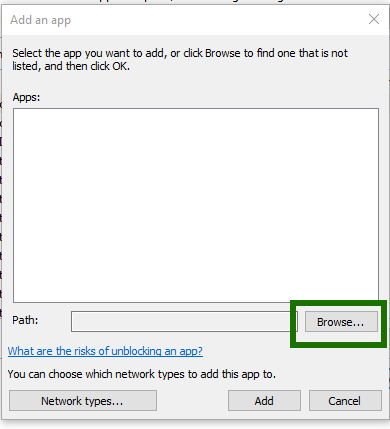
Step number 7
By default should be here - C:\Program Files (x86)\Canon\EOS Utility
I added all the .exe files in cannon EOS utility folder maybe one file is enough I do not know - all of them works fine for me

Step number 8
then add chosen sotware to firewall exception
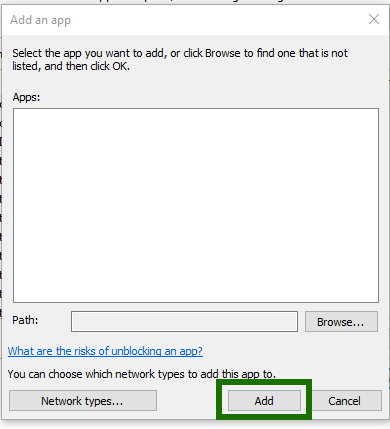
Confirm with firewall then restrat the EOS Utility app - app will not ask you to change firewall settings as this done manually
and you can connect the camera wireless now

Announcements
07/22/2026: New firmware updates are available.
EOS R6 Mark III - Version 1.1.0
05/13/2026: New firmware updates are available.
EOS R5 Mark II - Version 1.3.0
EOS R6 Mark II - Version 1.7.0
04/28/2026: Service Notice: Caution Concerning use of Lithium Batteries
03/17/2026: New firmware updates are available.
SELPHY CP1500 - Version 1.0.7.0
02/23/2026: New firmware update is available for EOS C50- Version 1.0.3.1
01/23/2026: New firmware update is available for RF 24-105mm F4 IS USM- Version 2.0.7
01/20/2026: New firmware updates are available.
10/21/2025: Service Notice: To Users of the Compact Digital Camera PowerShot V1
10/15/2025: New firmware updates are available.
Speedlite EL-5 - Version 1.2.0
Speedlite EL-1 - Version 1.1.0
Speedlite Transmitter ST-E10 - Version 1.2.0
07/28/2025: Notice of Free Repair Service for the Mirrorless Camera EOS R50 (Black)
05/21/2025: New firmware update available for EOS C500 Mark II - Version 1.1.5.1
Related Content
- EOS Utility 2 crashes on Windows 10 and not working with T3i in Camera Software
- Eos Utility 3 App won't open or Immediately Crashes on Mac Mini 2 in Camera Software
- EOS Utility 3 Crashes with Sequoia macOS15 and unable to download longer slow motion videos in Camera Software
- Windows crashed during an EOS transfer, now EOS Utility won't run in Camera Software
- EOS R8 won't connect to PC via Wi-Fi, EOS Utility crashes in Camera Software

Ⓒ 2026
Canon U.S.A Inc. All Rights Reserved. Reproduction in whole or part without permission is prohibited.
