Turn on suggestions
Auto-suggest helps you quickly narrow down your search results by suggesting possible matches as you type.
- Canon Community
- Discussions & Help
- Camera
- Camera Software
- DPP selecting right folder but no pictures!
Options
- Subscribe to RSS Feed
- Mark Topic as New
- Mark Topic as Read
- Float this Topic for Current User
- Bookmark
- Subscribe
- Mute
- Printer Friendly Page
DPP selecting right folder but no pictures!

Options
- Mark as New
- Bookmark
- Subscribe
- Mute
- Subscribe to RSS Feed
- Permalink
- Report Inappropriate Content
10-15-2021 09:07 AM
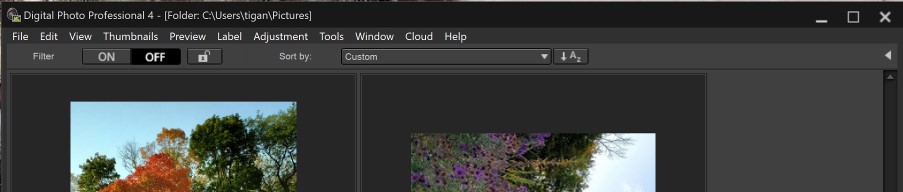
When I open DPP, at the very top, after the software name, it lists the correct computer path to where I store all my pictures (all in jpeg format). However, the display only shows two pictures and I cannot find any way to select other files or pictures. I've read the manual and everything I can find. I'm completely stumped and suspect it's something so basic I've completely overlooked it. But it's infuriating to see only two pictures and not have any way to access my photos. Thanks in advance!
16 REPLIES 16
Options
- Mark as New
- Bookmark
- Subscribe
- Mute
- Subscribe to RSS Feed
- Permalink
- Report Inappropriate Content
10-15-2021 09:16 AM
Here is a screen shot of what I see. (I have no idea why it has selected these two pictures to display).

Options
- Mark as New
- Bookmark
- Subscribe
- Mute
- Subscribe to RSS Feed
- Permalink
- Report Inappropriate Content
10-15-2021 09:33 AM - edited 10-15-2021 09:35 AM
I see that you have Custom showing in the Sort dropdown. Try selecting File Name.
John Hoffman
Conway, NH
R6 Mark III, M200 (converted to infrared), RF lenses, Pixma PRO-100, Pixma TR8620a, Lr Classic
Conway, NH
R6 Mark III, M200 (converted to infrared), RF lenses, Pixma PRO-100, Pixma TR8620a, Lr Classic
Options
- Mark as New
- Bookmark
- Subscribe
- Mute
- Subscribe to RSS Feed
- Permalink
- Report Inappropriate Content
10-15-2021 09:38 AM
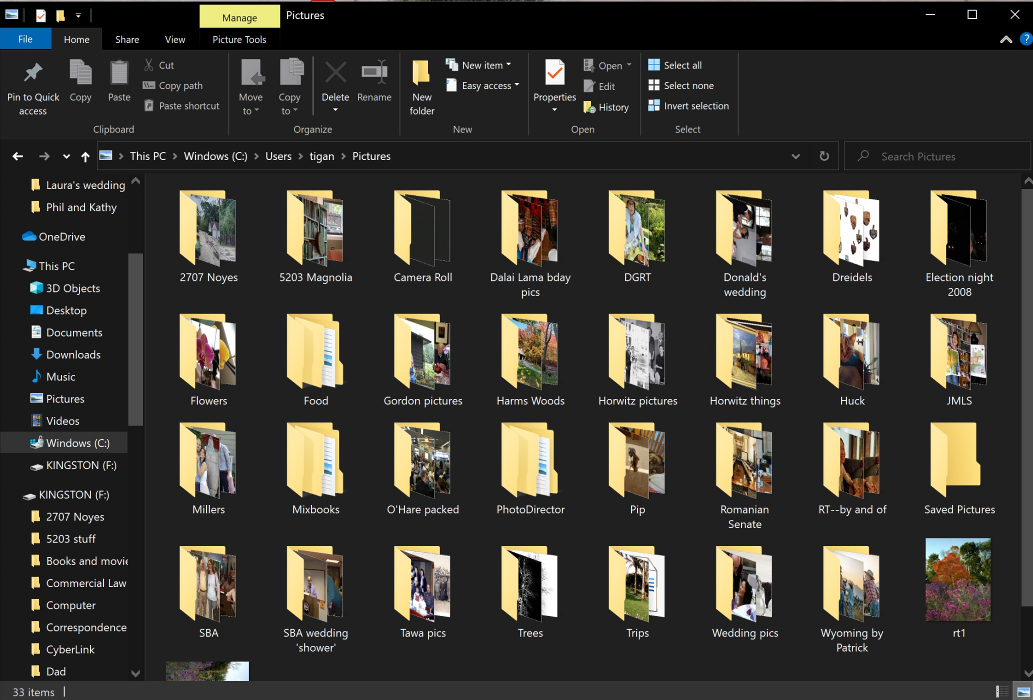
Thanks. Here it is (it does make one thing clear--DPP is showing the pics that it is because they are not inside a folder.)
Options
- Mark as New
- Bookmark
- Subscribe
- Mute
- Subscribe to RSS Feed
- Permalink
- Report Inappropriate Content
10-15-2021 09:39 AM
I tried selecting File Name, as you suggested. No help. I suspect it is because all of the pictures are in folders, not "loose."

Options
- Mark as New
- Bookmark
- Subscribe
- Mute
- Subscribe to RSS Feed
- Permalink
- Report Inappropriate Content
10-15-2021 09:43 AM
That is exactly it. You need to select the specific folder containing your images.
John Hoffman
Conway, NH
R6 Mark III, M200 (converted to infrared), RF lenses, Pixma PRO-100, Pixma TR8620a, Lr Classic
Conway, NH
R6 Mark III, M200 (converted to infrared), RF lenses, Pixma PRO-100, Pixma TR8620a, Lr Classic
Options
- Mark as New
- Bookmark
- Subscribe
- Mute
- Subscribe to RSS Feed
- Permalink
- Report Inappropriate Content
10-15-2021 09:49 AM - edited 10-15-2021 10:00 AM
Agreed. But I cannot figure out how to select a different folder within the same directory. Very basic, I know, but I am completely stumped. 
Options
- Mark as New
- Bookmark
- Subscribe
- Mute
- Subscribe to RSS Feed
- Permalink
- Report Inappropriate Content
10-15-2021 11:28 AM
Check that you have selected the folder view by selecting the little arrow.

John Hoffman
Conway, NH
R6 Mark III, M200 (converted to infrared), RF lenses, Pixma PRO-100, Pixma TR8620a, Lr Classic
Conway, NH
R6 Mark III, M200 (converted to infrared), RF lenses, Pixma PRO-100, Pixma TR8620a, Lr Classic
Options
- Mark as New
- Bookmark
- Subscribe
- Mute
- Subscribe to RSS Feed
- Permalink
- Report Inappropriate Content
10-15-2021 11:50 AM - edited 10-15-2021 12:02 PM
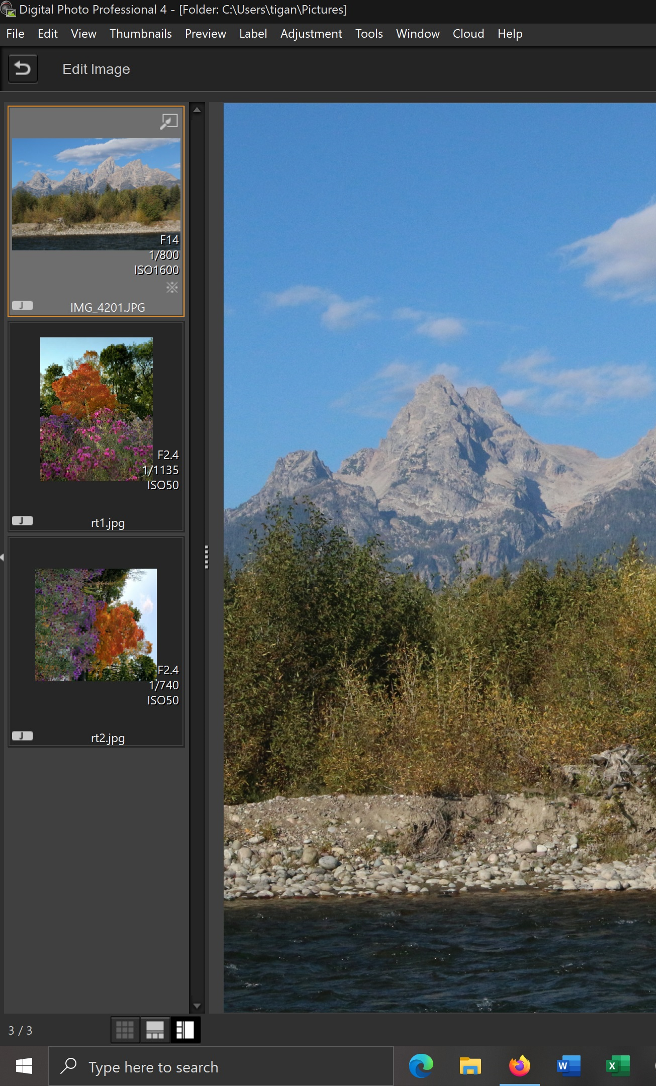
Yes. In fact, I read that very advice in something I discovered when I was researching this ony my own. The problem, I should have written at the beginning, I guess, is that that arrow doesn't work. (The only thing that clicking on the arrow does is eliminate the three-slide selection on that pane and fill the screen with the selected image.)
Here is another screen shot. Clicking on that arrow does nothing for me. I know I should have that tab along the left side but I can't get it. I assume I am somehow on the wrong "screen" or "view" but I don't know what I should be correcting, if that makes any sense.
Options
- Mark as New
- Bookmark
- Subscribe
- Mute
- Subscribe to RSS Feed
- Permalink
- Report Inappropriate Content
10-15-2021 01:31 PM
You need to select the "U-Turn" button to exit the Edit Image window.
John Hoffman
Conway, NH
R6 Mark III, M200 (converted to infrared), RF lenses, Pixma PRO-100, Pixma TR8620a, Lr Classic
Conway, NH
R6 Mark III, M200 (converted to infrared), RF lenses, Pixma PRO-100, Pixma TR8620a, Lr Classic

Announcements
07/22/2026: New firmware updates are available.
EOS R6 Mark III - Version 1.1.0
05/13/2026: New firmware updates are available.
EOS R5 Mark II - Version 1.3.0
EOS R6 Mark II - Version 1.7.0
04/28/2026: Service Notice: Caution Concerning use of Lithium Batteries
03/17/2026: New firmware updates are available.
SELPHY CP1500 - Version 1.0.7.0
02/23/2026: New firmware update is available for EOS C50- Version 1.0.3.1
01/23/2026: New firmware update is available for RF 24-105mm F4 IS USM- Version 2.0.7
01/20/2026: New firmware updates are available.
10/21/2025: Service Notice: To Users of the Compact Digital Camera PowerShot V1
10/15/2025: New firmware updates are available.
Speedlite EL-5 - Version 1.2.0
Speedlite EL-1 - Version 1.1.0
Speedlite Transmitter ST-E10 - Version 1.2.0
07/28/2025: Notice of Free Repair Service for the Mirrorless Camera EOS R50 (Black)
05/21/2025: New firmware update available for EOS C500 Mark II - Version 1.1.5.1
Related Content
- Cannot batch-select / select all photos by date in Camera Connect App (IXUS 255 HS & iPhone 12) in Camera Software
- Tinkering with aperture priority and Auto ISO in EOS DSLR & Mirrorless Cameras
- EOS R6 II won't capture photos in Lightroom Classic's tether capture or EOS utilites in Camera Software
- DPP4 crashes when loading newer images with seemingly no differences in Camera Software
- Digital Photo Pro - How to Select Folder in Camera Software

Ⓒ 2026
Canon U.S.A Inc. All Rights Reserved. Reproduction in whole or part without permission is prohibited.
