Turn on suggestions
Auto-suggest helps you quickly narrow down your search results by suggesting possible matches as you type.
- Canon Community
- Discussions & Help
- Printer
- Professional Photo Printers
- Re: ImagePROGRAF PRO-300 / Error Code 1300 Won't G...
Options
- Subscribe to RSS Feed
- Mark Topic as New
- Mark Topic as Read
- Float this Topic for Current User
- Bookmark
- Subscribe
- Mute
- Printer Friendly Page
ImagePROGRAF PRO-300 / Error Code 1300 Won't Go Away

Options
- Mark as New
- Bookmark
- Subscribe
- Mute
- Subscribe to RSS Feed
- Permalink
- Report Inappropriate Content
01-07-2025 03:20 AM
Just received my PRO-300 printer. Was going through the Set-up process and when I got to the test paper alignment/or ink cartridge (the step after installing all cartridges) it wanted me to put an A4 piece of paper in to print. All I had at the time (I know, dumb.) was a college ruled piece of paper. The paper ran through, folded a bit and initiated the 1300 paper jammed code. There wasn't any paper missing from the sheet of paper that ran through. I couldn't find any pieces of paper throughout the whole printer. The paper jammed error code will not go away and therefore I cannot complete the set-up process.
I have tried restarting the printer. When I do this the printer goes to language selection, then straight to the 1300 error code.
Does anyone have any advice on fixing the issue?
Does anyone know how to do a hard-factory reset (cannot find in manual)?
#PRO-300
imagePROGRAF PRO-1100
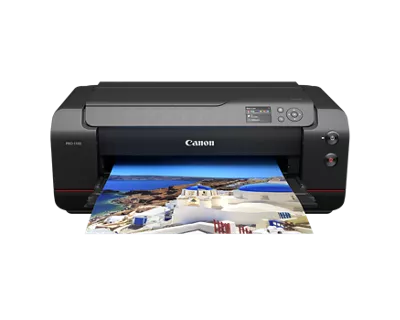
imagePROGRAF PRO-1100
9 REPLIES 9
Options
- Mark as New
- Bookmark
- Subscribe
- Mute
- Subscribe to RSS Feed
- Permalink
- Report Inappropriate Content
01-07-2025 04:38 AM - edited 01-07-2025 11:53 PM
Hello,
It sounds like your PRO-300 printer is stuck in a paper jam error due to an unconventional sheet of paper being used in the setup process. While it's good that you've checked for visible pieces of paper, sometimes the sensor might detect a slight obstruction or misalignment that can cause persistent error codes. Here's a detailed approach to try and resolve it:
Turn Off the Printer: Switch the printer off completely.
Inspect the Paper Path Again:
Use a flashlight to inspect the entire paper path carefully (front, back, and inside the tray areas). Even a tiny shred of paper can trigger the error.
Gently pull out any paper if you spot anything.
Check the Feed Rollers:
If you see that the rollers are dirty, clean them gently with a soft cloth slightly dampened with water (or isopropyl alcohol if necessary). Dirty rollers can also contribute to paper jams.
Clear the Error via Printer Control Panel:
Turn the printer back on and navigate to the "Setup" or "Maintenance" section in the menu, where you might find an option to clear error codes.
If you’re still stuck at the 1300 error, you might want to reset the printer’s settings.
Try a Standard A4 Paper: As a reminder, using college-ruled paper may have caused the paper to fold due to its smaller size and the printer's sensor not detecting it as a typical sheet of paper. Always use standard-sized A4 paper for printer setup to avoid similar issues in the future.
Check for Firmware Updates: Sometimes, a firmware update can resolve glitchy behavior like this. Check the Canon website to see if there are any updates available for your printer model. HMFusaFinance com
Options
- Mark as New
- Bookmark
- Subscribe
- Mute
- Subscribe to RSS Feed
- Permalink
- Report Inappropriate Content
01-07-2025 06:29 AM - edited 01-08-2025 12:10 AM
Hello,
Check for Hidden Paper
Even though you mentioned you couldn't find any paper inside, it's worth double-checking:
Open all compartments (front, back, and sides) to ensure there are no small pieces of paper or debris stuck in the rollers or in any hard-to-reach areas.
Gently move the rollers by hand to see if you can spot any remnants of paper.
2. Reset the Printer
Turn the printer off.
Unplug the printer from the wall and disconnect any cables.
Leave it unplugged for at least 10 minutes to allow the printer to reset itself.
Plug the printer back in and turn it on.
3. Clear Error Through the Printer's Settings
Some printers allow you to reset the error code via the control panel:
Check the printer's menu for any "clear error" or "reset" options.
If there's a "reset all settings" or similar option, try that to clear the jam error.
4. Hard Reset or Factory Reset
Although you mentioned you couldn't find a hard reset in the manual, you could try the following method to restore factory settings: Maryland Health Connection
Turn off the printer.
Hold down the power button and then turn the printer on.
Keep holding the power button for about 5-10 seconds until you hear a beep or the printer shows a reset message.
This could reset the settings to their defaults and clear any error codes.
5. Check Paper Size
If the paper you used was the wrong size, the printer may not be detecting the correct paper type, leading to an error:
Use the correct A4 paper (not college ruled or any other size) as per the printer's instructions.
Double-check the paper tray settings to ensure the correct paper size is selected.


Options
- Mark as New
- Bookmark
- Subscribe
- Mute
- Subscribe to RSS Feed
- Permalink
- Report Inappropriate Content
01-07-2025 09:09 AM
@D26 wrote:
Just received my PRO-300 printer. Was going through the Set-up process and when I got to the test paper alignment/or ink cartridge (the step after installing all cartridges) it wanted me to put an A4 piece of paper in to print. All I had at the time (I know, dumb.) was a college ruled piece of paper. The paper ran through, folded a bit and initiated the 1300 paper jammed code. There wasn't any paper missing from the sheet of paper that ran through. I couldn't find any pieces of paper throughout the whole printer. The paper jammed error code will not go away and therefore I cannot complete the set-up process.
I have tried restarting the printer. When I do this the printer goes to language selection, then straight to the 1300 error code.
Does anyone have any advice on fixing the issue?
Does anyone know how to do a hard-factory reset (cannot find in manual)?
#PRO-300
Try removing the power cord from the wall outlet and then cycle the Power On button a few times. Sometimes this will drain a retained charge and clear an error.
John Hoffman
Conway, NH
R6 Mark III, M200 (converted to infrared), RF lenses, Pixma PRO-100, Pixma TR8620a, Lr Classic
Conway, NH
R6 Mark III, M200 (converted to infrared), RF lenses, Pixma PRO-100, Pixma TR8620a, Lr Classic
Options
- Mark as New
- Bookmark
- Subscribe
- Mute
- Subscribe to RSS Feed
- Permalink
- Report Inappropriate Content
01-08-2025 06:32 PM
Good evening, I have tried looking for any paper that may be stuck, and haven’t found any. I have cleaned everything as well. Took out the cartridges and cartridges holder cleaned those as well. I am still getting the error code. I then turn the printer off and unplug for over 30min come back to it, turn it on I am prompted with an initial message to select my language, once I select English it goes straight to the error code. I cannot go to the menu or settings to check the firmware. Thanks for your help! I am stationed overseas and Amazon doesn’t have any in stock to replace and canon cannot ship overseas so I am doing my best to fix the issue myself
Options
- Mark as New
- Bookmark
- Subscribe
- Mute
- Subscribe to RSS Feed
- Permalink
- Report Inappropriate Content
01-08-2025 06:38 PM
No luck on the reset instructions, no beep. Just turns off like normal when I wait 10-15sec with no beep. Thanks for your help!
Options
- Mark as New
- Bookmark
- Subscribe
- Mute
- Subscribe to RSS Feed
- Permalink
- Report Inappropriate Content
01-08-2025 06:38 PM
Tried with no luck, thanks!!
Options
- Mark as New
- Bookmark
- Subscribe
- Mute
- Subscribe to RSS Feed
- Permalink
- Report Inappropriate Content
01-08-2025 06:41 PM - edited 01-08-2025 06:48 PM
Give Canon support a call at 1-800-OK -CANON.
Just saw that you were overseas. Is there a local Canon office?
John Hoffman
Conway, NH
R6 Mark III, M200 (converted to infrared), RF lenses, Pixma PRO-100, Pixma TR8620a, Lr Classic
Conway, NH
R6 Mark III, M200 (converted to infrared), RF lenses, Pixma PRO-100, Pixma TR8620a, Lr Classic

Options
- Mark as New
- Bookmark
- Subscribe
- Mute
- Subscribe to RSS Feed
- Permalink
- Report Inappropriate Content
05-20-2025 01:22 PM
I have put postcards ( 4 x 6") through the printer before and now one is jammed in there where I can't see it or gain access to it... What do I do?


Options
- Mark as New
- Bookmark
- Subscribe
- Mute
- Subscribe to RSS Feed
- Permalink
- Report Inappropriate Content
05-23-2025 04:44 PM
Hi anntracy,
Please follow the steps provided in the manual to clear the paper jam you are experiencing with your PRO-300:
PRO-300 series > List of Support Code for Error > List of Support Code for Error (Paper Jams)
If you continue to have difficulties, please contact one of Canon's Technical Support Representatives. To contact a Technical Support Representative, please use the link below to log into your My Canon account:
https://mycanon.usa.canon.com
Once logged in, click on your product and then click on the Product Support button. When that page loads, click on either the Phone Support button or the Chat Support button to access support.
Did this answer your question? If so, please click the Accept as Solution button below so that others may find the answer as well.

Announcements
07/22/2026: New firmware updates are available.
EOS R6 Mark III - Version 1.1.0
05/13/2026: New firmware updates are available.
EOS R5 Mark II - Version 1.3.0
EOS R6 Mark II - Version 1.7.0
04/28/2026: Service Notice: Caution Concerning use of Lithium Batteries
03/17/2026: New firmware updates are available.
SELPHY CP1500 - Version 1.0.7.0
02/23/2026: New firmware update is available for EOS C50- Version 1.0.3.1
01/23/2026: New firmware update is available for RF 24-105mm F4 IS USM- Version 2.0.7
01/20/2026: New firmware updates are available.
10/21/2025: Service Notice: To Users of the Compact Digital Camera PowerShot V1
10/15/2025: New firmware updates are available.
Speedlite EL-5 - Version 1.2.0
Speedlite EL-1 - Version 1.1.0
Speedlite Transmitter ST-E10 - Version 1.2.0
07/28/2025: Notice of Free Repair Service for the Mirrorless Camera EOS R50 (Black)
05/21/2025: New firmware update available for EOS C500 Mark II - Version 1.1.5.1
Related Content
- imagePROGRAF iPF8400 won't load, error code E141-4046 in Production Printing
- imagePROGRAF PRO-1100 error 1772, stating incorrect maintenance cartridge in Professional Photo Printers
- imagePROGRAF TX-3100 Driver not installing Windows 11 Dell Laptop in Printer Software & Networking
- imagePROGRAF PRO-1100 Paper width mismatch error 1062 in Professional Photo Printers
- imagePROGRAF PRO-1100 error 140E in Professional Photo Printers

Ⓒ 2026
Canon U.S.A Inc. All Rights Reserved. Reproduction in whole or part without permission is prohibited.
