Turn on suggestions
Auto-suggest helps you quickly narrow down your search results by suggesting possible matches as you type.
- Canon Community
- Discussions & Help
- Printer
- Professional Photo Printers
- Re: Canon Pro-300 Loose Parts in Printer
Options
- Subscribe to RSS Feed
- Mark Topic as New
- Mark Topic as Read
- Float this Topic for Current User
- Bookmark
- Subscribe
- Mute
- Printer Friendly Page
Canon Pro-300 Loose Parts in Printer

Options
- Mark as New
- Bookmark
- Subscribe
- Mute
- Subscribe to RSS Feed
- Permalink
- Report Inappropriate Content
07-27-2023 11:01 PM
Hello,
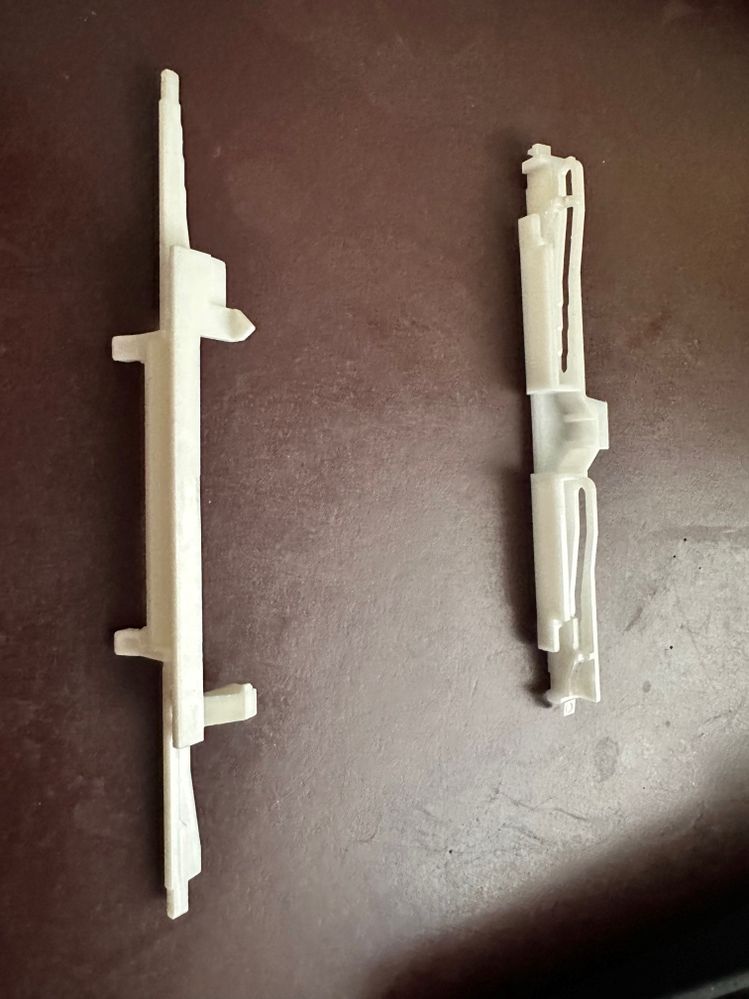
Hoping I can get some help on this. I recently bought a used Canon Pro-300 printer. When I went to set it up, these two parts were laying on the bottom of the printer floor. Needless to say, I received a error message upon setup. The parts don't look broken. Looks like something that came loose during transit. Would anyone know where they belong and how I might be able to put them back in place?
Thanks in advance
-Manny
12 REPLIES 12

Options
- Mark as New
- Bookmark
- Subscribe
- Mute
- Subscribe to RSS Feed
- Permalink
- Report Inappropriate Content
11-15-2024 03:00 PM
I I have a near problem wih my new PRO-300.
A part is broken on it without a transport problem.
It doesn't work at all.
Options
- Mark as New
- Bookmark
- Subscribe
- Mute
- Subscribe to RSS Feed
- Permalink
- Report Inappropriate Content
06-29-2026 12:06 PM - edited 06-29-2026 12:35 PM
Hi, I have the exact same issue with my Pro 300. The parts were loose on the 'back shelf' top left corner when looking at the printer innards from the front. The parts work together somehow. I got error C000 initially, then error 5100. I did not even notice these parts for a few hours troubleshooting. I carefully removed the two parts with a tweezer afterwards. They look like some kind of carriage control / offset markers possibly. This will be a mystery to the previous owner too I imagine. It WAS working for them.
After removing the pieces I got error C600.
Canon UK say that the printer needs repairing.
Maybe so, but why are these parts loose? Where do they fit, if anywhere?
What are they for?
Could Canon tell us what is happening in this case?
UPDATE:
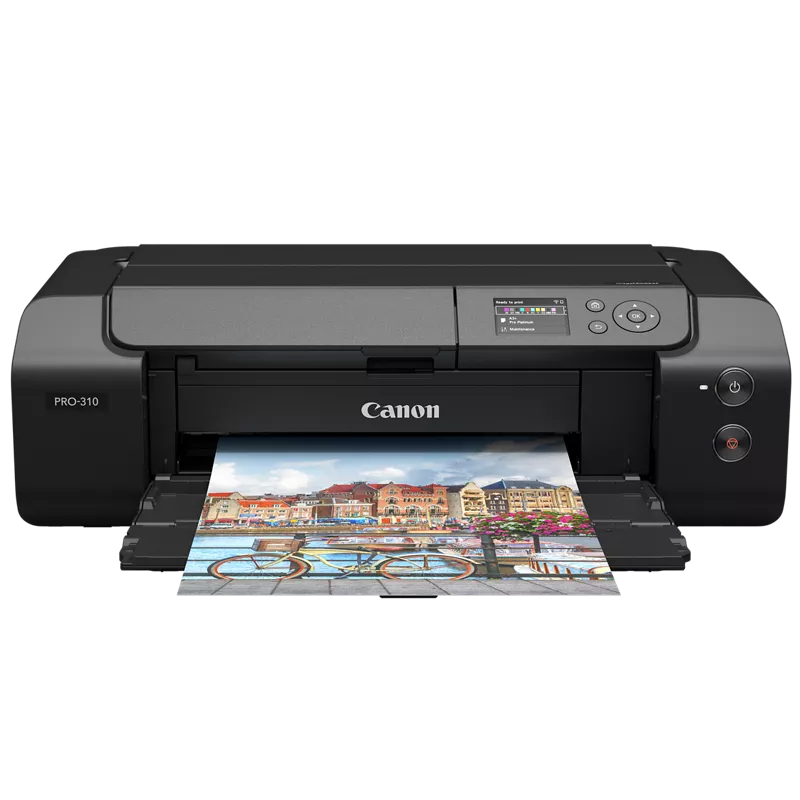
These white plastic pieces are the printhead carriage guide sliders (or part of the internal printhead timing/roller carriage assembly).
This is a well-documented hardware failure among Canon imagePROGRAF PRO-300 and PRO-200 owners.
Why the Parts Have Fallen Out
- Transit/Jolting: These clips are snap-fitted onto the internal metal rail structure of the carriage tracking system. If the printer is tilted heavily, dropped, or violently jolted during shipping or moving, the heavy printhead carriage slams to the side, forcefully dislodging these track guides.
- Error C000 / 5100 Connection: Error 5100 explicitly signals a carriage line error (the printhead is physically blocked or can't slide properly). Error C000 indicates a generic hardware purge/feed cycle fault. Without these sliders in place, the carriage clunks around, tilts on its track, triggers the sensor fault, and locks up the printer.Can You Reattach Them?Unfortunately, no—this is not a user-serviceable repair.
While the parts themselves rarely look cracked or broken, they must clip behind the main carriage track deep inside the printer assembly. Reinstalling them requires a complete teardown of the internal metal chassis, which is incredibly difficult to re-align properly without proprietary factory jigs.Recommended Next Steps- Warranty Replacement: If your printer is still within its warranty window, contact Canon Support immediately. Because this issue is a known structural response to transit shocks, Canon typically swaps the machine out for a replacement unit without hassle.
- Transit Claims: If this occurred right after buying it from a retailer or an online seller (like eBay or Facebook Marketplace), file a claim for shipping damage immediately to secure a refund.


Options
- Mark as New
- Bookmark
- Subscribe
- Mute
- Subscribe to RSS Feed
- Permalink
- Report Inappropriate Content
06-29-2026 12:23 PM
Those two white plastic pieces are components that sit directly underneath the printhead carriage assembly or are part of the internal roller/paper-feed mechanism.
When these printers are shipped or relocated without their original factory transit locks or heavy-duty tape, severe vibrations cause these specific tracking/alignment parts to shake loose and drop onto the back shelf or the bottom floor of the printer. Once they dislodge, the printer will throw Error 5100 (carriage blocked) or Error C000 (internal mechanism error) because the mechanical timing is completely thrown off.
Is there a fix?
Unfortunately, it is almost impossible to snap them back in yourself. There is no official DIY repair guide for this because these pieces sit deep within the chassis under the carriage rail. When this happens under warranty, Canon Customer Support typically treats it as catastrophic transit damage and replaces the entire printer rather than repairing it at the component level. If you just bought this unit used and it arrived this way, your best bet is to contact the seller or look into purchase protection options for transit damage.
How to prevent this in the future
For anyone moving a PRO-300, you have to strictly follow Canon's guidelines to prevent this:
-
Use Transport Mode: Never just unplug the printer. Use the printer's menu to initiate its official "Transport Mode" (which caps the printhead and locks internal gears). Wait for the power light to go completely dark before pulling the plug.
-
Immobilize the Carriage: Manually slide the carriage to its home position and secure it tightly with residue-free tape (like painter's tape) so it cannot slide during transit.
-
Keep it Perfectly Flat: According to the official Canon imagePROGRAF PRO-300 Manual, you must never tilt the box, turn it on its side, or flip it upside down. Standard shipping couriers (UPS/FedEx) rough-handle boxes, which is why this failure is so common on secondary market sales. It should ideally be transported flat in a personal vehicle.
Stephen_0-1782750191159.png
Hope this helps clear up the mystery, even if it isn't the best news!

- « Previous
-
- 1
- 2
- Next »
- « Previous
-
- 1
- 2
- Next »
Announcements
07/22/2026: New firmware updates are available.
EOS R6 Mark III - Version 1.1.0
05/13/2026: New firmware updates are available.
EOS R5 Mark II - Version 1.3.0
EOS R6 Mark II - Version 1.7.0
04/28/2026: Service Notice: Caution Concerning use of Lithium Batteries
03/17/2026: New firmware updates are available.
SELPHY CP1500 - Version 1.0.7.0
02/23/2026: New firmware update is available for EOS C50- Version 1.0.3.1
01/23/2026: New firmware update is available for RF 24-105mm F4 IS USM- Version 2.0.7
01/20/2026: New firmware updates are available.
10/21/2025: Service Notice: To Users of the Compact Digital Camera PowerShot V1
10/15/2025: New firmware updates are available.
Speedlite EL-5 - Version 1.2.0
Speedlite EL-1 - Version 1.1.0
Speedlite Transmitter ST-E10 - Version 1.2.0
07/28/2025: Notice of Free Repair Service for the Mirrorless Camera EOS R50 (Black)
05/21/2025: New firmware update available for EOS C500 Mark II - Version 1.1.5.1
Related Content
- PIXMA TS3722 - Won't connect to Wifi or print from Chrome also paperjams in Printer Software & Networking
- Cyan offset on PIXMA iP8720 in Desktop Inkjet Printers
- PIXMA MG3620 will not print color in Desktop Inkjet Printers
- PIXMA G7020 will not take paper in the rear tray. - Urgent! in Desktop Inkjet Printers
- Canon Pixma Pro-200S — 5100 Error, Purge Cap Assembly Not Moving in Professional Photo Printers

Ⓒ 2026
Canon U.S.A Inc. All Rights Reserved. Reproduction in whole or part without permission is prohibited.
