09-07-2014 01:49 PM
my MAC does not show the "draft" print option for the mg3520. How do I enable that option?
09-24-2014 02:24 PM
Hi SAMMG3520,
To print draft, please follow these steps:
Check that the machine is turned on
Load paper on the machine
Select the printer
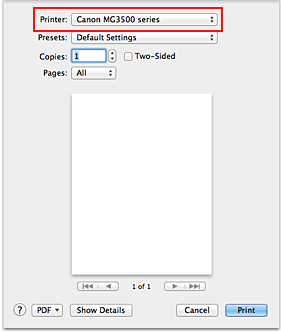
Select your model from the Printer list in the Print Dialog.
Click Show Details ( (the disclosure triangle)) to switch the Setup window to the detailed display.
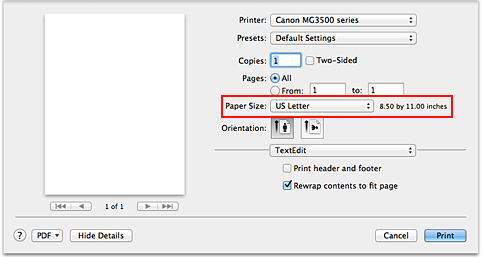
Select the paper size
For Paper Size, select the paper size to be used.If necessary, set the number of copies, the pages to be printed, and the orientation.
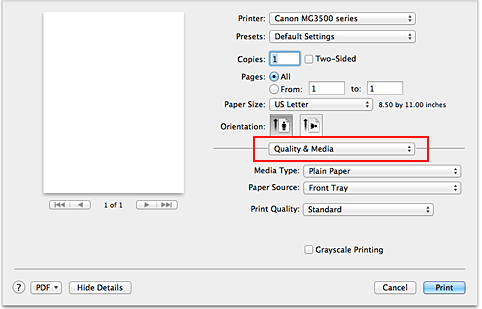
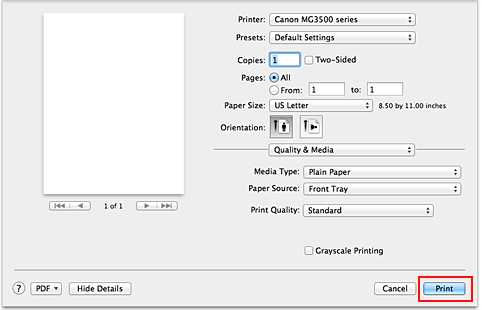
Select Quality & Media from the pop-up menu
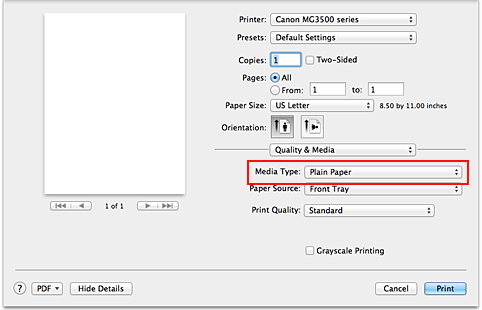
Select the media type
For Media Type, select the same paper type loaded in the machine.
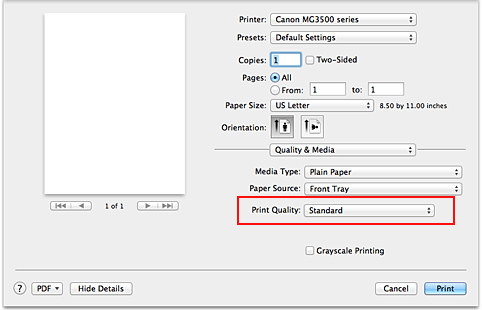
Select the print quality
For Print Quality, select High, Standard, or Draft according to your purpose.
The print quality settings that can be selected may differ depending on a printing profile.
Complete the setup
Click Print.When you execute print, the document will be printed in accordance with the type and size of the media.
05/13/2026: New firmware updates are available.
EOS R3 - Version 2.1.0
EOS R1 - Version 1.3.0
EOS R5 Mark II - Version 1.3.0
EOS R6 Mark II - Version 1.7.0
EOS R8 - Version 1.6.0
EOS R10 - Version 1.8.0
EOS R100 - Version 1.3.0
EOS R50V - Version 1.2.0
PowerShot V1 - Version 1.2.0
03/17/2026: New firmware updates are available.
EOS R7 - Version 1.8.0
EOS R50 - Version 1.5.0
SELPHY CP1500 - Version 1.0.7.0
PowerShot V10 - Version 1.5.0
01/20/2026: New firmware updates are available.
EOS C70 - Version 1.1.3.1
EOS C80 - Version 1.0.5.1
EOS C400 - Version 1.0.8.1
XF605 - Version 1.0.8.1
10/15/2025: New firmware updates are available.
Speedlite EL-5 - Version 1.2.0
Speedlite EL-1 - Version 1.1.0
Speedlite Transmitter ST-E10 - Version 1.2.0




 (the disclosure triangle)) to switch the Setup window to the detailed display.