Turn on suggestions
Auto-suggest helps you quickly narrow down your search results by suggesting possible matches as you type.
- Canon Community
- Discussions & Help
- Printer
- Desktop Inkjet Printers
- MG8200 cannot scan from top of printer
Options
- Subscribe to RSS Feed
- Mark Topic as New
- Mark Topic as Read
- Float this Topic for Current User
- Bookmark
- Subscribe
- Mute
- Printer Friendly Page
MG8200 cannot scan from top of printer

Options
- Mark as New
- Bookmark
- Subscribe
- Mute
- Subscribe to RSS Feed
- Permalink
- Report Inappropriate Content
04-29-2016 05:16 PM
Hi,
Since I set up my printer to work with win10 I can no longer use the controls at the top of the printer to scan in a document. I'm sure it's just a setting somewhere but I can't find it. Also, on the MP navigator preferences there are 2 listings the first says MG8200 series and the second says MG8200 series Network. Please tell me which I should choose.
Thanks in advance for your help,
Jane
3 REPLIES 3


Options
- Mark as New
- Bookmark
- Subscribe
- Mute
- Subscribe to RSS Feed
- Permalink
- Report Inappropriate Content
05-01-2016 12:19 PM
Hi Smiseel,
Please make sure that the unit is selected correctly in MP Navigator. Please open MP Navigator and click on the Preferences button. The PIXMA MG8220 that should be selected is the network attached, not the USB attached. The network PIXMA MG8220 will be named PIXMA MG8200 (xxx) with the mac address of the unit in parenthesis.
Also, please make sure that the scanner is selected in the Canon IJ Scan Utility. To do this, please follow these steps:
1. Click on the Windows Start button and then All Apps.
2. Click on Canon IJ Network Utility.
3. Click on Canon IJ Scan Utility.
4. Make sure there is a checkmark next to the PIXMA MG8220.
Once both have been completed, attempt to scan.
Options
- Mark as New
- Bookmark
- Subscribe
- Mute
- Subscribe to RSS Feed
- Permalink
- Report Inappropriate Content
05-04-2016 09:18 AM
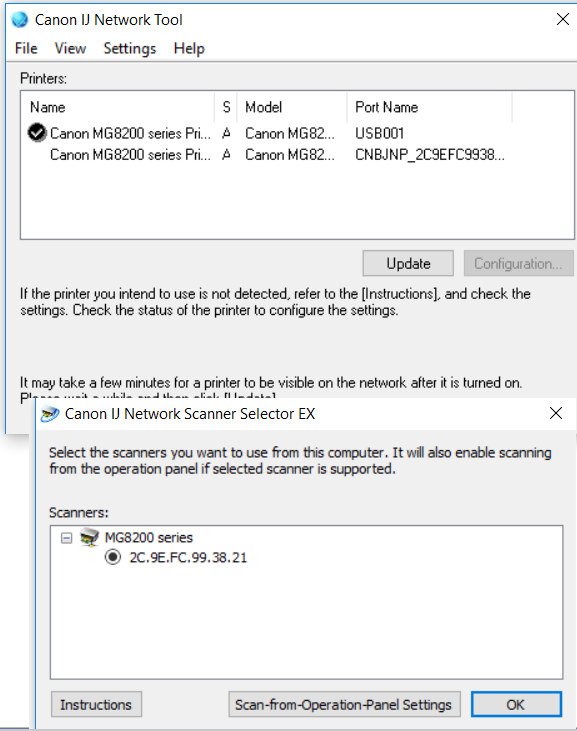
Hi and thanks for the answer. Everything is as checked. But I noticed that there are 2 printers on the network tool. The second printer listed says "copy1). I tried to set the second as my printer but cannot. The reason I tried to set it is because on the SCANNER selector tool the port name is the same as the printer. Take a look please.
So leaving everything as it is currently, now when I try to scan from the MG8220 the panel reads set the pc to start scanning. I click on scan from operations panel, but nothing scans.
Thanks in advance for the help.
Options
- Mark as New
- Bookmark
- Subscribe
- Mute
- Subscribe to RSS Feed
- Permalink
- Report Inappropriate Content
05-04-2016 10:04 AM
Hi Smiseel,
In the Canon IJ Network Tool, currently the USB connection is selected. Please select the second one down, the entry that lists CNBJNP_2C9EFC9938... as its port. Once selected, you should then be able to scan.
Please note, Canon's Forum is not intended for immediate help, but a place to allow for the Community to give you assistance and feedback. If this is an urgent support need, please use the link below to reach our friendly Technical Support Team:
http://www.usa.canon.com/cusa/consumer/standard_display/contact_us_consumer

Announcements
07/22/2026: New firmware updates are available.
EOS R6 Mark III - Version 1.1.0
05/13/2026: New firmware updates are available.
EOS R5 Mark II - Version 1.3.0
EOS R6 Mark II - Version 1.7.0
04/28/2026: Service Notice: Caution Concerning use of Lithium Batteries
03/17/2026: New firmware updates are available.
SELPHY CP1500 - Version 1.0.7.0
02/23/2026: New firmware update is available for EOS C50- Version 1.0.3.1
01/23/2026: New firmware update is available for RF 24-105mm F4 IS USM- Version 2.0.7
01/20/2026: New firmware updates are available.
10/21/2025: Service Notice: To Users of the Compact Digital Camera PowerShot V1
10/15/2025: New firmware updates are available.
Speedlite EL-5 - Version 1.2.0
Speedlite EL-1 - Version 1.1.0
Speedlite Transmitter ST-E10 - Version 1.2.0
07/28/2025: Notice of Free Repair Service for the Mirrorless Camera EOS R50 (Black)
05/21/2025: New firmware update available for EOS C500 Mark II - Version 1.1.5.1
Related Content
- PIXMA TR4700 subscription ink not reading in Mobile & Compact Printers
- MG6820 in Desktop Inkjet Printers
- ts6520 printer ink, why is this ink fading i had an older canon printer and that ink never faded in Desktop Inkjet Printers
- PIXMA TS6520 only shows black screen in Desktop Inkjet Printers
- PIXMA TR8622a connected to new modem and router but shows as offline in Printer Software & Networking

Ⓒ 2026
Canon U.S.A Inc. All Rights Reserved. Reproduction in whole or part without permission is prohibited.
