Turn on suggestions
Auto-suggest helps you quickly narrow down your search results by suggesting possible matches as you type.
- Canon Community
- Discussions & Help
- Printer
- Desktop Inkjet Printers
- PIXMA G3270 All prints blank after replacing black...
Options
- Subscribe to RSS Feed
- Mark Topic as New
- Mark Topic as Read
- Float this Topic for Current User
- Bookmark
- Subscribe
- Mute
- Printer Friendly Page

Options
- Mark as New
- Bookmark
- Subscribe
- Mute
- Subscribe to RSS Feed
- Permalink
- Report Inappropriate Content
09-23-2026
07:16 PM
- last edited on
09-24-2026
09:28 AM
by
 Danny
Danny
just over 1 yr old, replaced the maintenance cartridge last week, all prints look great. This morning most of printed text was streaky, most of paper was white, with white/blank lines through the type. Ah, out of black ink. Just filled up with 21 PGBK black ink.
NOW... all prints are completely blank! cleaned head, nozzle etc. Tried a text page on the glass and was blank, tried printing in color, all text appeared in light gray (from color tanks?)
Help
Solved! Go to Solution.
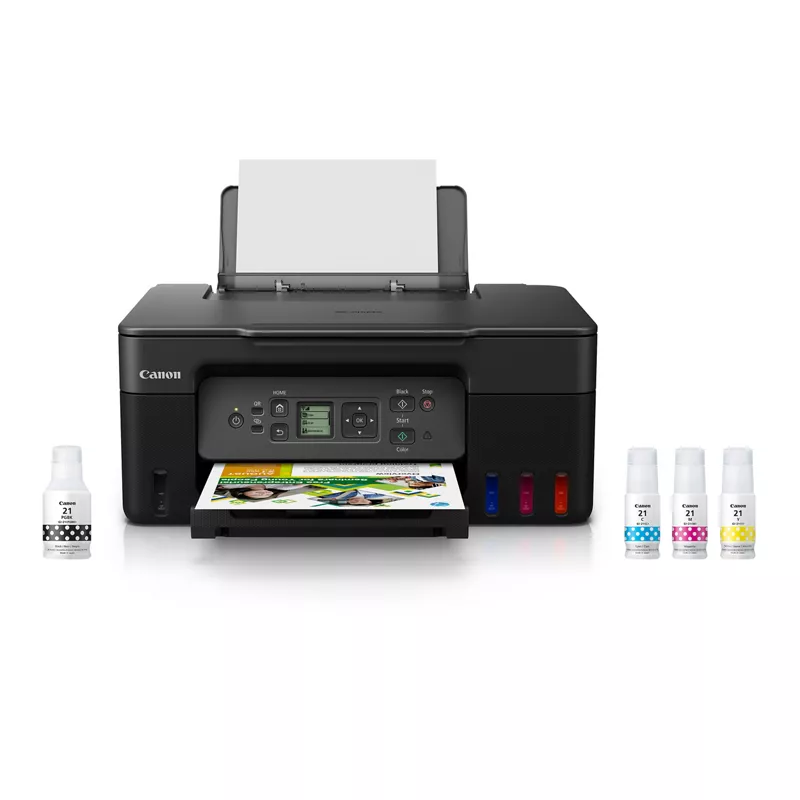
1 ACCEPTED SOLUTION
Accepted Solutions

Options
- Mark as New
- Bookmark
- Subscribe
- Mute
- Subscribe to RSS Feed
- Permalink
- Report Inappropriate Content
09-25-2026 01:27 PM - edited 09-25-2026 01:29 PM
Hi bldr,
First, please load plain paper into your PIXMA G3270 and print a nozzle check following these steps:
1. Please turn your G3270 on.
2. Once on, please press the HOME button one time.
3. Use the down arrow to select Maintenance and press OK.
4. Select Nozzle Check and press OK.
5. Yes is selected, press OK.
6. Press OK again, as you already have paper loaded.
The test page will print. Please compare your printout with the example attached at the bottom of this post.
If they differ, the next step would be to perform printhead cleanings.
Because you have already performed printhead cleanings, the next step would be to perform the "Replace Ink in Print Head" maintenance function. To do this, please make sure the inks are about half full and then follow these steps:
1. Please press the HOME button one time.
2. Use the down arrow to select Maintenance and press OK.
3. Use the down arrow to select Replace Ink in Print Head and press OK.
4. All colors will appear. Press OK.
5. A message will appear. Press OK again.
6. Press OK to the next message.
7. Yes is selected. Press OK.
8. Yes is selected again. Press OK.
This process will take a few minutes to complete.
Once done, please print another test page:
1. Use the up arrow to select Nozzle Check and press OK.
2. Yes is selected, press OK.
3. Press OK again, as you already have paper loaded.
The test page will print again.
If the new test page prints correctly, please attempt to print from your computer.
If the test page does not print correctly, the prinheads of your PIXMA G3270 may need to be replaced.
Printheads for your PIXMA G3270 can be purchased online:
usa.canon.com - Black Print Head (BH-20)
usa.canon.com - Color Print Head (CH-20)
The procedure to replace the print heads can be viewed here:
Replace the Print Head - PIXMA G3270 / PIXMA G3272

Did this answer your question? If so, please click the Accept as Solution button below so that others may find the answer as well.
1 REPLY 1
Options
- Mark as New
- Bookmark
- Subscribe
- Mute
- Subscribe to RSS Feed
- Permalink
- Report Inappropriate Content
09-25-2026 01:27 PM - edited 09-25-2026 01:29 PM
Hi bldr,
First, please load plain paper into your PIXMA G3270 and print a nozzle check following these steps:
1. Please turn your G3270 on.
2. Once on, please press the HOME button one time.
3. Use the down arrow to select Maintenance and press OK.
4. Select Nozzle Check and press OK.
5. Yes is selected, press OK.
6. Press OK again, as you already have paper loaded.
The test page will print. Please compare your printout with the example attached at the bottom of this post.
If they differ, the next step would be to perform printhead cleanings.
Because you have already performed printhead cleanings, the next step would be to perform the "Replace Ink in Print Head" maintenance function. To do this, please make sure the inks are about half full and then follow these steps:
1. Please press the HOME button one time.
2. Use the down arrow to select Maintenance and press OK.
3. Use the down arrow to select Replace Ink in Print Head and press OK.
4. All colors will appear. Press OK.
5. A message will appear. Press OK again.
6. Press OK to the next message.
7. Yes is selected. Press OK.
8. Yes is selected again. Press OK.
This process will take a few minutes to complete.
Once done, please print another test page:
1. Use the up arrow to select Nozzle Check and press OK.
2. Yes is selected, press OK.
3. Press OK again, as you already have paper loaded.
The test page will print again.
If the new test page prints correctly, please attempt to print from your computer.
If the test page does not print correctly, the prinheads of your PIXMA G3270 may need to be replaced.
Printheads for your PIXMA G3270 can be purchased online:
usa.canon.com - Black Print Head (BH-20)
usa.canon.com - Color Print Head (CH-20)
The procedure to replace the print heads can be viewed here:
Replace the Print Head - PIXMA G3270 / PIXMA G3272
Did this answer your question? If so, please click the Accept as Solution button below so that others may find the answer as well.


Announcements
07/22/2026: New firmware updates are available.
EOS R6 Mark III - Version 1.1.0
05/13/2026: New firmware updates are available.
EOS R5 Mark II - Version 1.3.0
EOS R6 Mark II - Version 1.7.0
04/28/2026: Service Notice: Caution Concerning use of Lithium Batteries
03/17/2026: New firmware updates are available.
SELPHY CP1500 - Version 1.0.7.0
02/23/2026: New firmware update is available for EOS C50- Version 1.0.3.1
01/23/2026: New firmware update is available for RF 24-105mm F4 IS USM- Version 2.0.7
01/20/2026: New firmware updates are available.
10/21/2025: Service Notice: To Users of the Compact Digital Camera PowerShot V1
10/15/2025: New firmware updates are available.
Speedlite EL-5 - Version 1.2.0
Speedlite EL-1 - Version 1.1.0
Speedlite Transmitter ST-E10 - Version 1.2.0
07/28/2025: Notice of Free Repair Service for the Mirrorless Camera EOS R50 (Black)
05/21/2025: New firmware update available for EOS C500 Mark II - Version 1.1.5.1
Related Content
- PIXMA G7020 5200 errror in Desktop Inkjet Printers
- imagePROGRAF PRO-300 Blue printing instead of black in Professional Photo Printers
- Canon imageCLASS MF645cx – Unable to Perform Color Correction / All Colors Misaligned in Office Printers
- PIXMA MX922 How important is the gray ink tank? in Desktop Inkjet Printers

Ⓒ 2026
Canon U.S.A Inc. All Rights Reserved. Reproduction in whole or part without permission is prohibited.
