Turn on suggestions
Auto-suggest helps you quickly narrow down your search results by suggesting possible matches as you type.
- Canon Community
- Discussions & Help
- Printer
- Professional Photo Printers
- PIXMA PRO-200S - Images darker than on screen
Options
- Subscribe to RSS Feed
- Mark Topic as New
- Mark Topic as Read
- Float this Topic for Current User
- Bookmark
- Subscribe
- Mute
- Printer Friendly Page
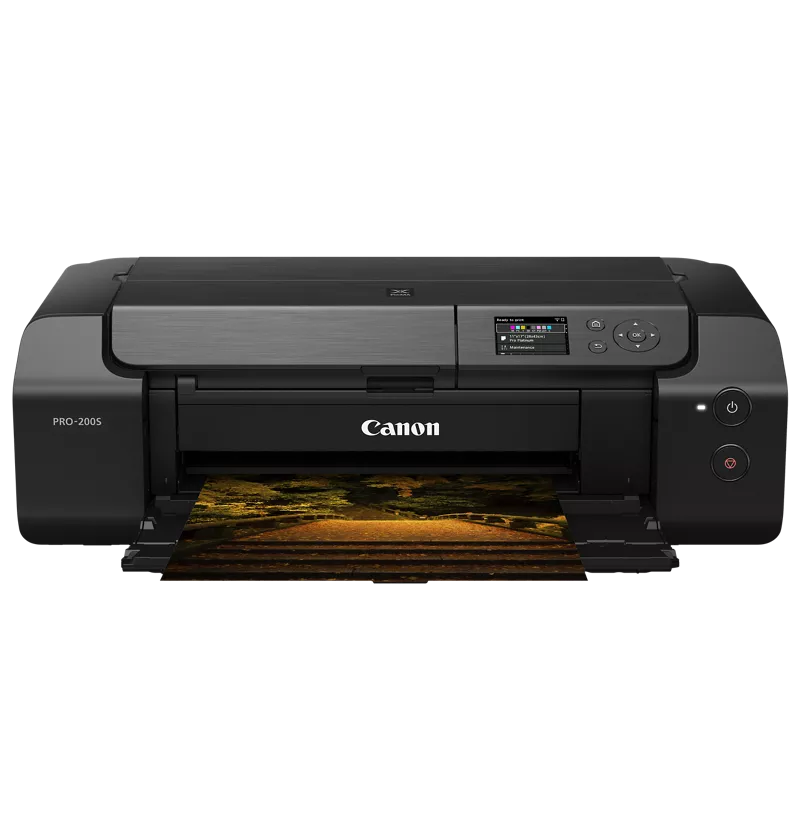
PIXMA PRO-200S - Images darker than on screen

Options
- Mark as New
- Bookmark
- Subscribe
- Mute
- Subscribe to RSS Feed
- Permalink
- Report Inappropriate Content
10-30-2025
06:34 AM
- last edited on
10-30-2025
08:51 AM
by
 Danny
Danny
Hello all,
I am a hobby photographer (for couple of years now) who is mainly taking pictures of family trips, family celebrations, overall family (sometimes of course not only family) moments that deserves to be remembered. I am fairly new to lets say semi-professional photography printing. To this day I was using budget printers so the printed photo quality was not that high but I decided to buy my own quality printer. So the photo albums has a professional feel and look. That's it for short intro. 🙂
My workflow:
I am using darktable to edit and export my photos to tiff format.
color depth: 16 bit
color scheme: adobe RGB
Then I am using Professional Print and Layout Software from Canon to print photos.
I am using original canon toner cartridges and canon photo paper.
My ICC profile is correctly set for current canon photopaper.
My monitor is calibrated (that was the first thing I did).
I spent fair amount of time to do some research about monitor calibration, color schemes, ICC profiles etc. (There is always much more to learn but for my purposes I would say I spent decent amount of time) I followed all the recommended steps but I am confused by the result of it. My printed photos are marginally darker then on the monitor. I tried also proofing but the photo looked even brighter with proofing on. I would say colors match the reality but the brightness is way off. I need to boost EV in darktable and also brightness in canon printing software so the photo looks okay in reality. With this setting the photo on the monitor looks really overexposed. Is there anything I forgot about and can lead to this result? Any important setting or parameter that I might have overlooked?
Thank you all in advance for your valuable advice
3 REPLIES 3
Options
- Mark as New
- Bookmark
- Subscribe
- Mute
- Subscribe to RSS Feed
- Permalink
- Report Inappropriate Content
11-03-2025 02:38 PM
Welcome to the joys of printing photos! This is an inexact science. I once bought a Spyder synchronization tool for adjusting my monitor brightness and color. I was never satisfied with the results and never updated it. I've also taken classes on this subject and haven't gotten much help. Here are a few tips that I do. 1) Make sure you have the most current printer driver. 2) If printing from Photoshop, make sure Photoshop manages colors. 3) Under Printer profile, make sure you select your printer and paper. 4) Use Relative Colormetric and I usually use Black point compensation and Match print colors. 5) After all this, I'm either adjusting the brightness of my photo using a Scientific Wild Ass Guess (SWAG) from previous experience or adjusting the brightness of the printer monitor. I have had good luck getting print results that look like my monitor using Canon's Professional Print & Layout Manager (if you can get it to work). I'm interested if anyone has better advice for you.


Options
- Mark as New
- Bookmark
- Subscribe
- Mute
- Subscribe to RSS Feed
- Permalink
- Report Inappropriate Content
11-04-2025 08:25 AM
@Jacobe wrote:
Hello all,
I am a hobby photographer (for couple of years now) who is mainly taking pictures of family trips, family celebrations, overall family (sometimes of course not only family) moments that deserves to be remembered. I am fairly new to lets say semi-professional photography printing. To this day I was using budget printers so the printed photo quality was not that high but I decided to buy my own quality printer. So the photo albums has a professional feel and look. That's it for short intro. 🙂
My workflow:
I am using darktable to edit and export my photos to tiff format.
color depth: 16 bit
color scheme: adobe RGB
Then I am using Professional Print and Layout Software from Canon to print photos.
I am using original canon toner cartridges and canon photo paper.
My ICC profile is correctly set for current canon photopaper.
My monitor is calibrated (that was the first thing I did).
I spent fair amount of time to do some research about monitor calibration, color schemes, ICC profiles etc. (There is always much more to learn but for my purposes I would say I spent decent amount of time) I followed all the recommended steps but I am confused by the result of it. My printed photos are marginally darker then on the monitor. I tried also proofing but the photo looked even brighter with proofing on. I would say colors match the reality but the brightness is way off. I need to boost EV in darktable and also brightness in canon printing software so the photo looks okay in reality. With this setting the photo on the monitor looks really overexposed. Is there anything I forgot about and can lead to this result? Any important setting or parameter that I might have overlooked?
Thank you all in advance for your valuable advice
What is your display luminance set at?
https://www.outbackphoto.com/printinginsights/pi049/essay.html
John Hoffman
Conway, NH
R6 Mark III, M200 (converted to infrared), RF lenses, Pixma PRO-100, Pixma TR8620a, Lr Classic
Conway, NH
R6 Mark III, M200 (converted to infrared), RF lenses, Pixma PRO-100, Pixma TR8620a, Lr Classic
Options
- Mark as New
- Bookmark
- Subscribe
- Mute
- Subscribe to RSS Feed
- Permalink
- Report Inappropriate Content
11-04-2025 06:17 PM
I had the same issue and what fixed it for me to near perfection prints....
shocker here
change all system color profiling defaults to AppleRGB.
Everything. Monitor / Printing / Photoshop - set to AppleRGB.
Yes AppleRGB on Windows 11.
The only additional tweak was to set the brightness in the Canon Printing options up to 20% (second tab)
I nearly fell off my chair when the first color test print came out.
Maybe these settings could work for you. Hope it helps.

Announcements
07/22/2026: New firmware updates are available.
EOS R6 Mark III - Version 1.1.0
05/13/2026: New firmware updates are available.
EOS R5 Mark II - Version 1.3.0
EOS R6 Mark II - Version 1.7.0
04/28/2026: Service Notice: Caution Concerning use of Lithium Batteries
03/17/2026: New firmware updates are available.
SELPHY CP1500 - Version 1.0.7.0
02/23/2026: New firmware update is available for EOS C50- Version 1.0.3.1
01/23/2026: New firmware update is available for RF 24-105mm F4 IS USM- Version 2.0.7
01/20/2026: New firmware updates are available.
10/21/2025: Service Notice: To Users of the Compact Digital Camera PowerShot V1
10/15/2025: New firmware updates are available.
Speedlite EL-5 - Version 1.2.0
Speedlite EL-1 - Version 1.1.0
Speedlite Transmitter ST-E10 - Version 1.2.0
07/28/2025: Notice of Free Repair Service for the Mirrorless Camera EOS R50 (Black)
05/21/2025: New firmware update available for EOS C500 Mark II - Version 1.1.5.1

Ⓒ 2026
Canon U.S.A Inc. All Rights Reserved. Reproduction in whole or part without permission is prohibited.
