Turn on suggestions
Auto-suggest helps you quickly narrow down your search results by suggesting possible matches as you type.
- Canon Community
- Discussions & Help
- Printer
- Professional Photo Printers
- New Pro-1100 user: Setting paper type
Options
- Subscribe to RSS Feed
- Mark Topic as New
- Mark Topic as Read
- Float this Topic for Current User
- Bookmark
- Subscribe
- Mute
- Printer Friendly Page

Options
- Mark as New
- Bookmark
- Subscribe
- Mute
- Subscribe to RSS Feed
- Permalink
- Report Inappropriate Content
01-19-2026 07:50 PM
Newbie here, coming from 20+ years printing on an Epson using PS. It's a bit of a steep learning curve changing to Canon. I'd appreciate some help...thanks in advance.
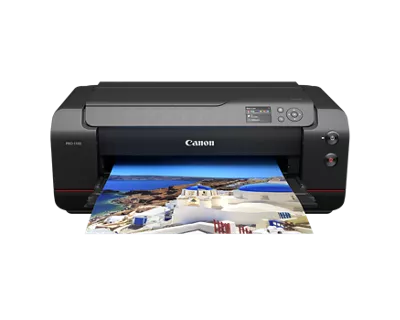
I don't understand why you set the media type in PP&L (general settings/print settings/media type) and also in the printer. If I don't make them matech, PP&L tells me that the media in the printer is incorrect. It seems like the media entered in the printer wants to override the PP&L entry; if I click on Get Information, my media type switches to the one entered in the printer. I don't see the logic. Is one location preferable or do you need to set in both to avoid error messages about mismatches?
The icon for portrait is confusing to me (the A is sideways which makes it look like a landscape print with the paper entered in a portrait orientation. Am I just overthinking this? When you print landscape, do you put the paper in in a landscape orientation?
I'm looking for a video explaining in depth workflow from a print-ready (already edited) image in LRC to printing via PP&L (which I understand is better than printing directly from LRC--please correct me if my my impression is wrong). For instance, from LRC or PS, I always saved my images to be printed as PSDs, whereas it looks like you can't drag PSDs into the PP&L app. I've found a few videos, but am looking for more practical information.
Solved! Go to Solution.
1 ACCEPTED SOLUTION
Accepted Solutions


Options
- Mark as New
- Bookmark
- Subscribe
- Mute
- Subscribe to RSS Feed
- Permalink
- Report Inappropriate Content
01-20-2026 09:52 AM
https://www.youtube.com/watch?v=UPSDlox3sMg
John Hoffman
Conway, NH
R6 Mark III, M200 (converted to infrared), RF lenses, Pixma PRO-100, Pixma TR8620a, Lr Classic
Conway, NH
R6 Mark III, M200 (converted to infrared), RF lenses, Pixma PRO-100, Pixma TR8620a, Lr Classic

This class will cover the basic operation of Canon imagePROGRAF PRO and newer model Pixma Pro series of printers. Both have a powerful and FREE program available called Professional Print Layout designed to make your printing experience more streamlined and simple. PPL is available to use as a ...
4 REPLIES 4

Options
- Mark as New
- Bookmark
- Subscribe
- Mute
- Subscribe to RSS Feed
- Permalink
- Report Inappropriate Content
01-19-2026 09:56 PM - edited 01-19-2026 09:57 PM
It sounds like you have a lot more printing experience than I do in general. I don't have Adobe experience with the Pro-1100, only Canon Professional Print and Layout. I will leave it to others to comment about LightRoom and PhotoShop.
PP&L and the printer do want to match. You want them to also as you want the processing that PP&L does ensures any color tuning a matching that you have done gets onto the paper when printing. You can tell the printer, one you've sent it the print file, to accept the PP&L settings and override the printer settings if you wish. I once had the size correct, but forgot to switch the paper type and since my printer is downstairs and I'm lazy when got there I figured I'd just accept the risk of difference between printing on luster and glossy paper on a 4x6 test print. I would not do that on a large print, of course.
I definitely see what you're talking about with paper orientation and the A. You are not expecting the A to rotate 90 degrees even though the paper does. I'm not as observant as you are, so I hadn't noticed that. I would suggest trying a few test prints on 4x6. That stuff is SO inexpensive - I buy it by the box of 200 and use it almost like contact sheets. They use more ink than contact sheets, of course, and its just looking at one print versus the contact sheet, but I'm doing low-volume personal use and like getting the bigger print size to review prior to printing something large like a 13x19 or 17x22.
I hope that you enjoy your printer. I feel it makes beautiful prints and am very happy with mine.
>> Owns/Owned both Canon EOS mirrorless full-frame and APS-C cameras and associated RF, RF-S and EF adapted lenses - inventory tends to change on short notice. Same for flashes, tripods, bags, straps, etc.
Plus>> Canon imagePROGRAF PRO-1100 Printer. My photos are edited using no Adobe products.
>>The opinions and assistance are my own. Please don't blame Canon for any mistakes on my part.
Options
- Mark as New
- Bookmark
- Subscribe
- Mute
- Subscribe to RSS Feed
- Permalink
- Report Inappropriate Content
01-20-2026 09:52 AM
https://www.youtube.com/watch?v=UPSDlox3sMg
John Hoffman
Conway, NH
R6 Mark III, M200 (converted to infrared), RF lenses, Pixma PRO-100, Pixma TR8620a, Lr Classic
Conway, NH
R6 Mark III, M200 (converted to infrared), RF lenses, Pixma PRO-100, Pixma TR8620a, Lr Classic
This class will cover the basic operation of Canon imagePROGRAF PRO and newer model Pixma Pro series of printers. Both have a powerful and FREE program available called Professional Print Layout designed to make your printing experience more streamlined and simple. PPL is available to use as a ...
Options
- Mark as New
- Bookmark
- Subscribe
- Mute
- Subscribe to RSS Feed
- Permalink
- Report Inappropriate Content
01-20-2026 05:26 PM
Thanks John. Nice video. To the OP the specific answer to the orientation question is right at 30.5 minutes into the video. The rotating "A" does make sense as the print layout does "stick" and rotate with the change in orientation.
>> Owns/Owned both Canon EOS mirrorless full-frame and APS-C cameras and associated RF, RF-S and EF adapted lenses - inventory tends to change on short notice. Same for flashes, tripods, bags, straps, etc.
Plus>> Canon imagePROGRAF PRO-1100 Printer. My photos are edited using no Adobe products.
>>The opinions and assistance are my own. Please don't blame Canon for any mistakes on my part.
Options
- Mark as New
- Bookmark
- Subscribe
- Mute
- Subscribe to RSS Feed
- Permalink
- Report Inappropriate Content
01-24-2026 11:05 AM
Thanks, very helpful!

Announcements
07/22/2026: New firmware updates are available.
EOS R6 Mark III - Version 1.1.0
05/13/2026: New firmware updates are available.
EOS R5 Mark II - Version 1.3.0
EOS R6 Mark II - Version 1.7.0
04/28/2026: Service Notice: Caution Concerning use of Lithium Batteries
03/17/2026: New firmware updates are available.
SELPHY CP1500 - Version 1.0.7.0
02/23/2026: New firmware update is available for EOS C50- Version 1.0.3.1
01/23/2026: New firmware update is available for RF 24-105mm F4 IS USM- Version 2.0.7
01/20/2026: New firmware updates are available.
10/21/2025: Service Notice: To Users of the Compact Digital Camera PowerShot V1
10/15/2025: New firmware updates are available.
Speedlite EL-5 - Version 1.2.0
Speedlite EL-1 - Version 1.1.0
Speedlite Transmitter ST-E10 - Version 1.2.0
07/28/2025: Notice of Free Repair Service for the Mirrorless Camera EOS R50 (Black)
05/21/2025: New firmware update available for EOS C500 Mark II - Version 1.1.5.1
Related Content
- Canon PIXMA PRO-200S unable to bypass error code 1062 in Professional Photo Printers
- Is the ink/paper set vegan? (for Selphy CP Compact Photo Printer CP1000, CP910, CP820 in Mobile & Compact Printers
- PIXMA TS3400 Can’t print on photo paper in Desktop Inkjet Printers
- PIXMA PRO-200 11" x 14" photos always come out as 8" x 10" in Professional Photo Printers
- imagePROGRAF PRO-1100 Total Failure: Smeared print, part came loose in Professional Photo Printers

Ⓒ 2026
Canon U.S.A Inc. All Rights Reserved. Reproduction in whole or part without permission is prohibited.
